
Help Center
 ›
Work your pipeline

Work your pipeline

Move opportunities through statuses that match how you actually sell
Work your pipeline

Your pipeline is every open opportunity, arranged by how far along it is. You can work it as a board you drag cards across, or as a list you sort and filter.

How it works

Select Opportunities in the left-hand menu. Each one sits in one status, with an owner and a value.

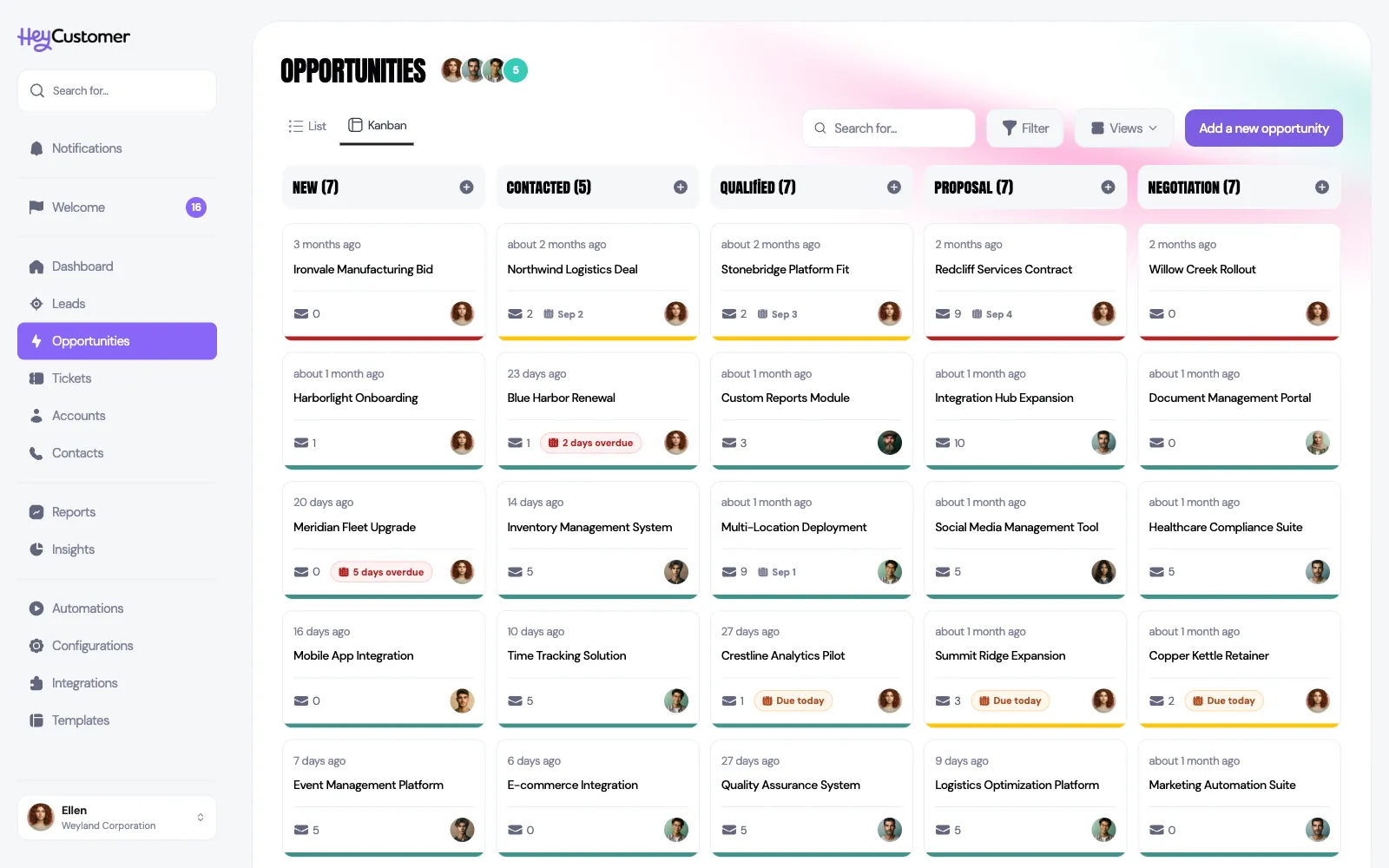
The Opportunities board with five columns headed New, Contacted, Qualified, Proposal and Negotiation, each showing a count. Cards carry the opportunity name, how long ago it was updated, an email count and the owner's avatar. List and Kanban tabs sit top left, with search, Filter, Views and Add a new opportunity above the board.

Switch between Kanban and List at the top left. Hey Customer remembers which you used and opens there next time.

Both views open on your work in progress. In the list, a row of tabs across the top counts your opportunities by status — All open first, then one per status, with Won and Lost at the end so closed opportunities are always one select away.

Set up your statuses

Statuses are yours to define, and they're worth getting right before your team starts working the board.
  1. Select Configurations, then Opportunities.
  2. Select Add a new status and name it the way your team talks — Qualified, Site Visit, Proposal.
  3. Give it a probability — the rough chance an opportunity in this status closes. Statuses you add are open pipeline statuses; the built-in Won and Lost are what tell Hey Customer an opportunity is closed, and they drive every won-rate and pipeline number you'll see in reports and insights.
  4. Drag the statuses into the order opportunities move through them. That order is the order of your columns.
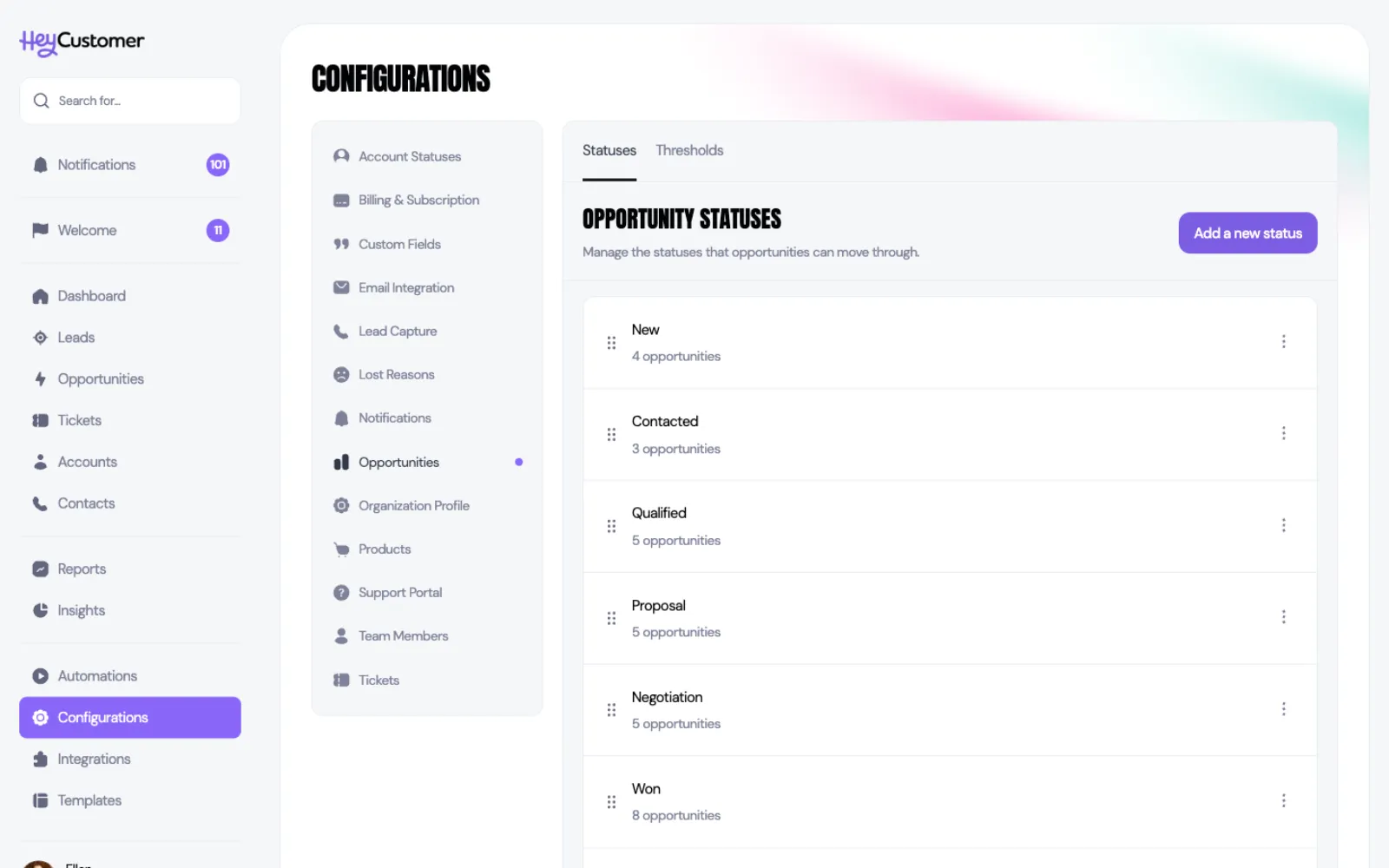
The Opportunity statuses screen under Configurations, listing New, Contacted, Qualified, Proposal, Negotiation and Won in order, each with a drag handle, a count of opportunities in that status and a three-dot menu. An Add a new status button sits top right.

Each status shows how many opportunities are sitting in it, so it's easy to spot a status nobody uses or one everything piles up in.

Move an opportunity forward

On the board, drag a card into the next column. The opportunity moves straight away and everyone else sees it there.

You can also open the opportunity and change Status on the record, which is the easier route when you're already looking at the detail. On a phone or tablet, tap the status button on the card and pick from the list instead of dragging.
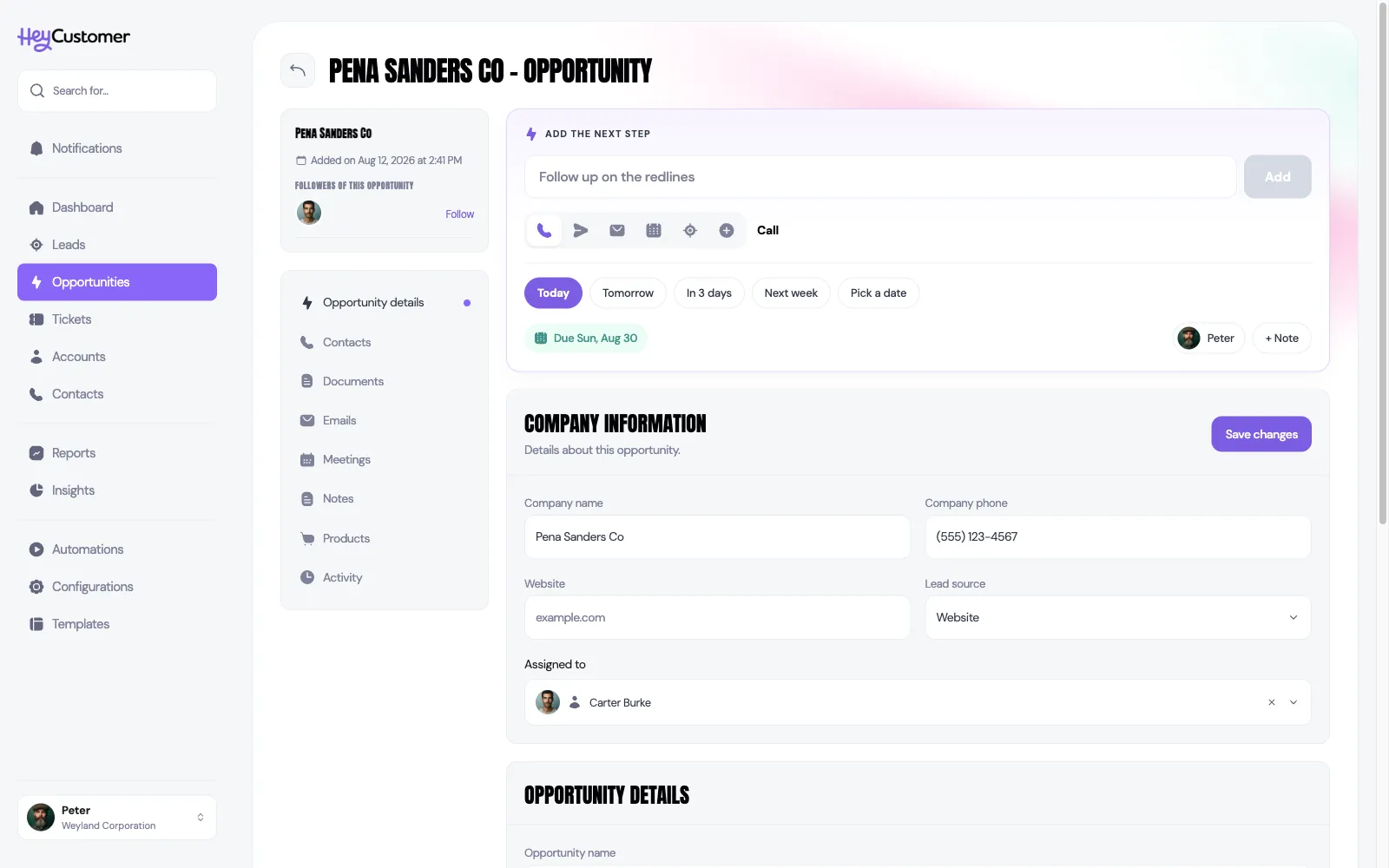
An opportunity record for Pena Sanders Co. An Add the next step card sits above the panels with a title box, activity-type icons, due-date chips and a Due date read-out for quickly adding a to-do. Below, a Company Information panel holds company name, phone, website, lead source and the assigned owner, above Opportunity Details. A side menu lists Opportunity details, Contacts, Documents, Emails, Meetings, Notes, Products and Activity.

The board shows your open statuses only, so it stays a picture of live work. Winning or losing an opportunity happens on the record or from the list.

Put a value on it

An opportunity carries two numbers: a one-time value for what the customer pays up front, and a recurring value for what they pay every period. Keeping them apart is what lets you see new revenue and ongoing revenue separately instead of one blurred total.

You type both in on the opportunity. Adding items from your catalog in the opportunity's Products section records what's being sold, but it doesn't work out these two numbers for you — set them yourself, and update them when the quote changes.

Close it out

Open the opportunity and set Status to one of your won or lost statuses. Hey Customer records when it closed. Won opportunities feed your revenue numbers; lost ones drop out of the open pipeline but stay on the record and in your reporting.

Choose a lost status and a Lost reason appears next to it. Pick the one that fits and save. It's worth doing every time — a quarter of lost opportunities all pointing at the same reason is the most useful thing your pipeline can tell you.
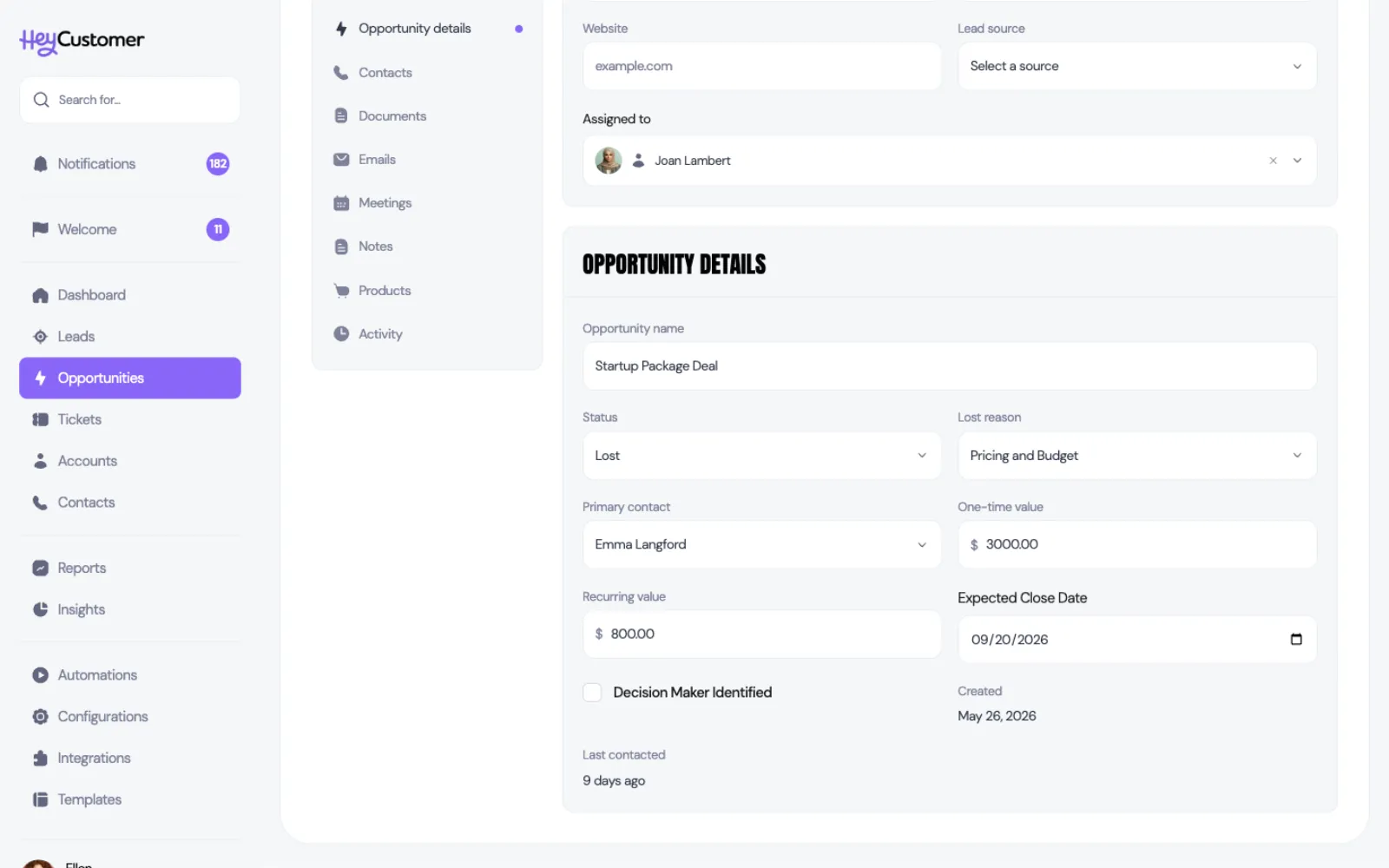
The Opportunity Details panel of an opportunity named Startup Package Deal. The Status dropdown reads Lost and a Lost reason dropdown beside it reads Pricing and Budget, above the primary contact, one-time and recurring values and an expected close date.

To close several at once, select them in the list view and choose Mark lost, then pick the reason they share. There's a skip option when they don't share one, or when you'd rather set the reasons individually later.
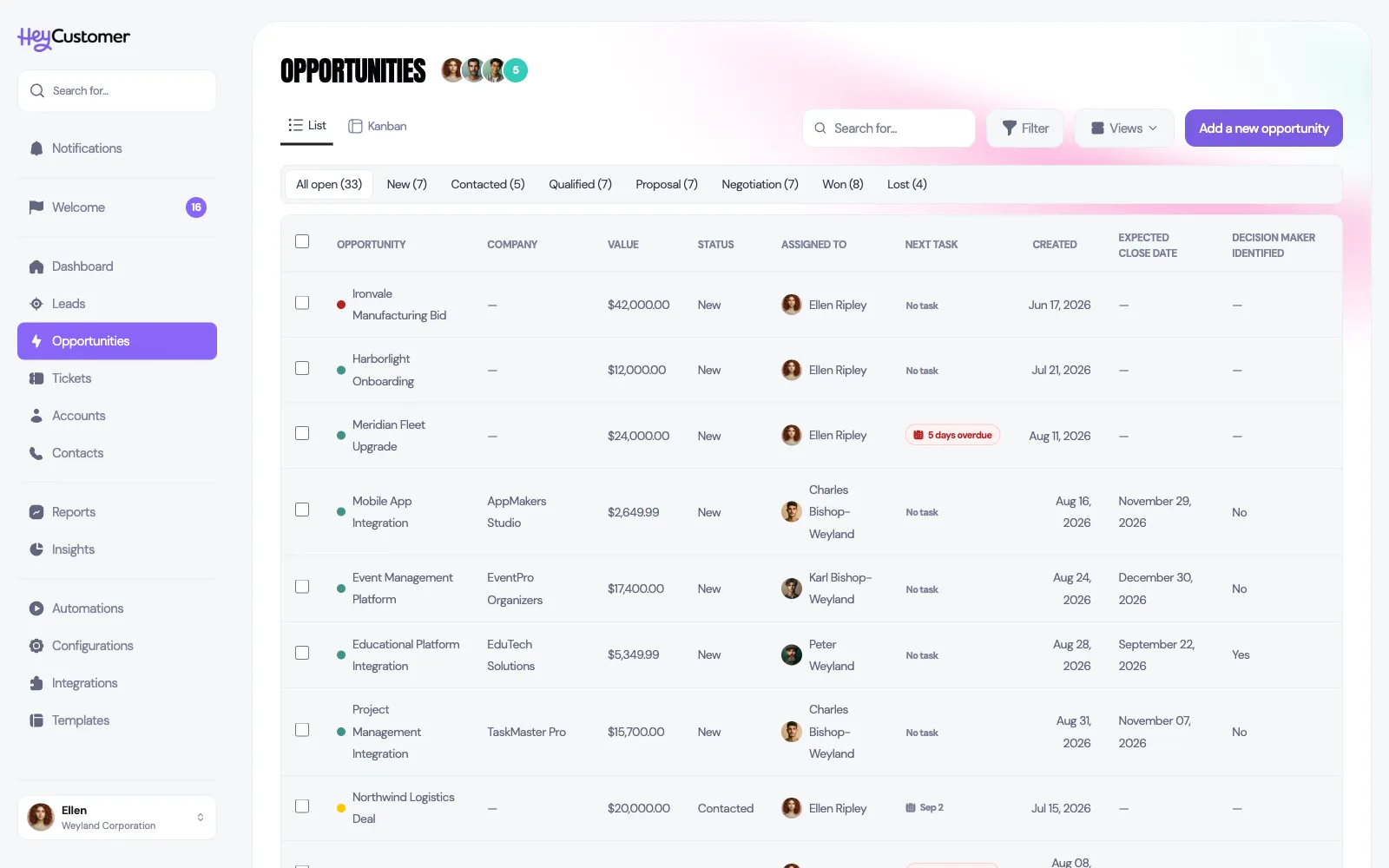
The Opportunities list view. Tabs across the top read All open with a count of 22, then New, Contacted, Qualified, Proposal, Negotiation, Won and Lost, each with its own count. Below, a table lists opportunities with columns for opportunity, company, value, status, assigned owner, created date, expected close date and a custom field, with a checkbox on each row.

Good to know

  • Opportunities arrive here from your leads. Converting a lead opens an opportunity in the first status of your pipeline, keeps the contact and the owner, and starts it at a value of zero for you to fill in.
  • Converting needs at least one open status to exist. If you've only got won and lost statuses, conversion stops and tells you so.
  • Every opportunity should have an owner. Assignment drives who gets notified and what each person sees in their own view of the pipeline.
  • Set your lost reasons up first, under Configurations then Lost Reasons. The picker offers whatever is on that list.
  • Reopening a lost opportunity clears its lost reason, so nothing in your reporting claims a live opportunity was lost for a reason.
  • An opportunity is more than a status and a number — contacts, documents, emails, meetings, notes and products all hang off the same record, so the history travels with it.
  • Your list columns can include custom fields you've added to opportunities, so the detail your team argues about is on screen instead of one click away.
  • Save a set of filters as a view and it's waiting for you next time, which beats rebuilding "my open opportunities over $10,000" every Monday.

Still need help? Email us at support@heycustomer.com

Related articles

pipeline, opportunity, opportunities, kanban, board, status, statuses, opportunity status, sales status, stage, stages, sales stage, opportunity value, forecast, won, lost, close, convert lead, assign owner, drag and drop, saved views