The difference between a person and the business they belong to
A contact is one person. An account is the business — or the household, or the one self-employed person — that you actually have a relationship with. Most accounts hold several contacts, and the work you do together lives on the account rather than on any one person.
How it works
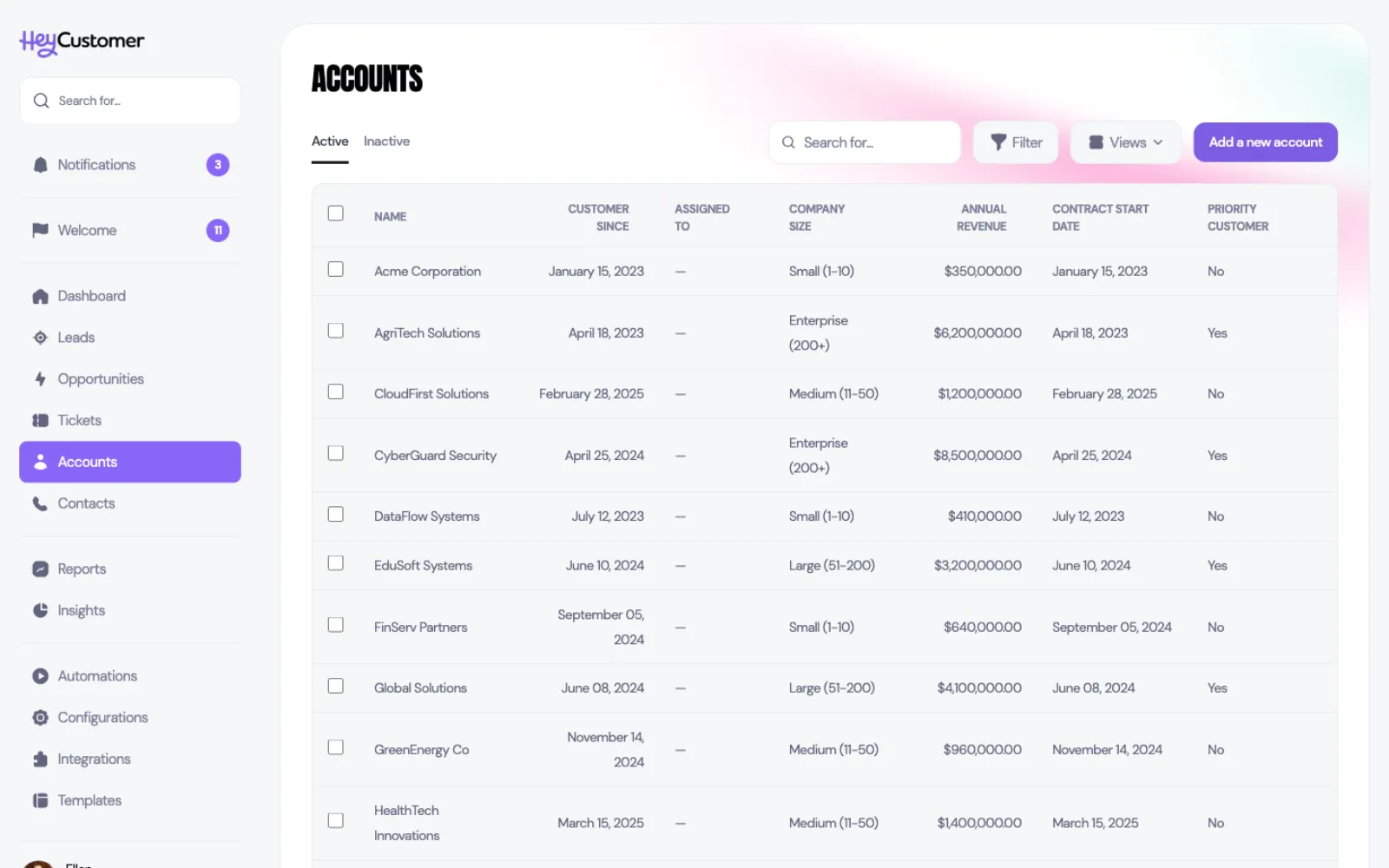
Think of it this way: you sell to Acme Corporation, but you talk to Tom Bradley. Acme is the account. Tom is a contact on it. When Tom moves on and someone else takes over, you add the new person as a contact and the account carries on — along with every opportunity, ticket and document you've built up.
An account can hold as many contacts as you need. A contact belongs to one account at most, and can also stand on their own if they aren't tied to a business yet.
Opening an account gives you its whole history in one place, in the list down the left: Contacts, Opportunities, Tickets, Documents, Emails, Meetings, Notes, Products/Services and Activity. Emails and meetings roll up from the contacts on the account, so you can see the whole conversation with a company without visiting people one at a time.
Accounts that create themselves
You often don't have to create the first account by hand. When you mark an opportunity as Won, Hey Customer builds an account out of the lead behind it — named after the lead's company, and carrying its phone number and website. The contact from that lead is moved onto the new account, and the opportunity you just won is filed under it.
From then on, the account is where you go to add the next opportunity or log a support ticket. Both have their own Add a new button on the account's page, and anything you create there is attached to the account automatically.
Two details worth knowing. If an account with that company name already exists, the won opportunity joins it rather than creating a duplicate. And an opportunity that never started life as a lead won't produce an account this way — create the account yourself and attach the opportunity to it.
Add an account
Select Accounts in the left sidebar, then Add a new account.
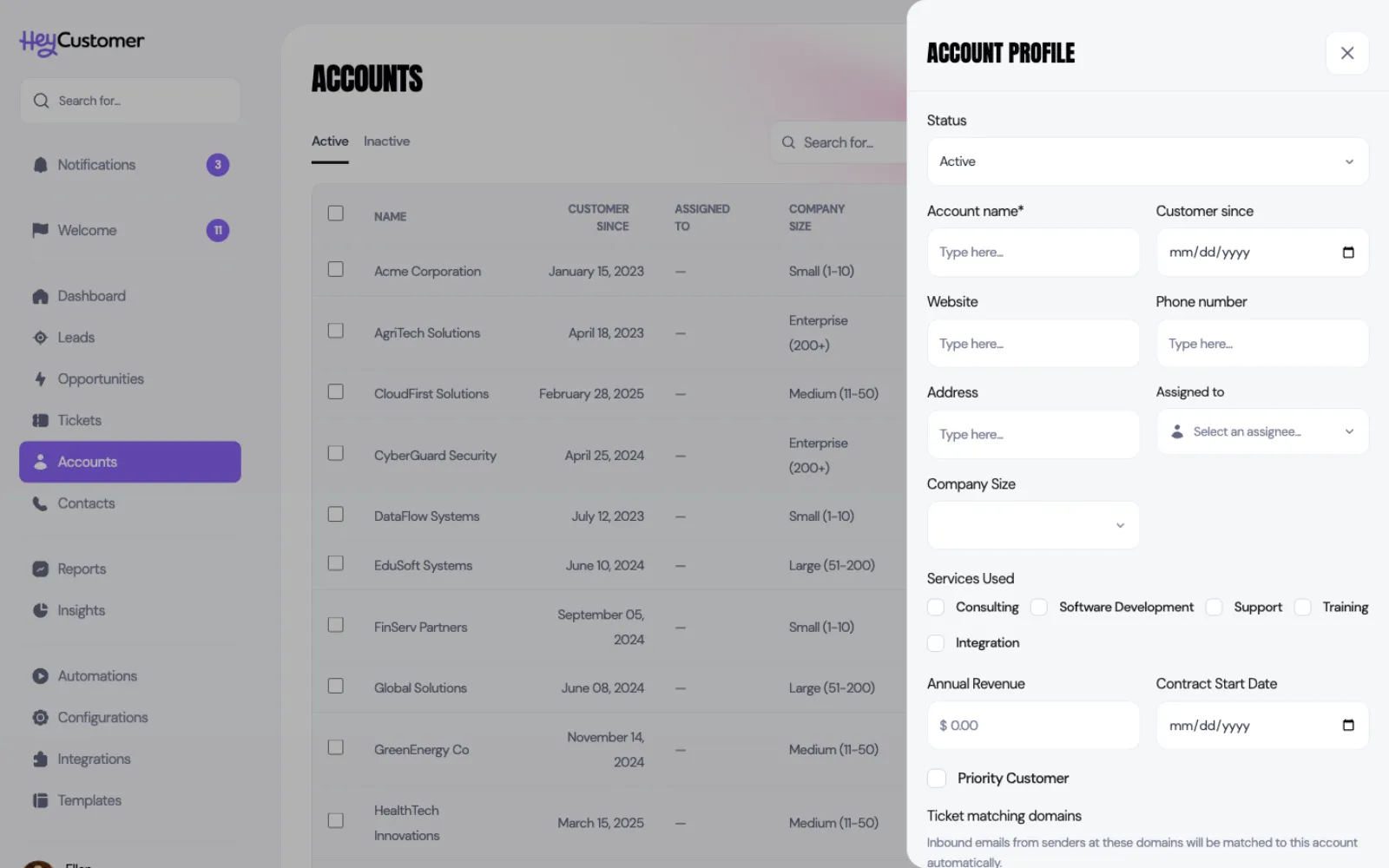
Set the Status. New organizations start with Active and Inactive.
Enter the Account name. It's the only field you have to fill in.
Add whatever else you know: Customer since, Website, Phone number and Address.
Choose an Assigned to owner — the person on your team who looks after this customer.
Fill in any custom fields your organization has added for accounts.
Under Ticket matching domains, select Add domain and enter the company's email domain, such as acme.com.
Select Add this account.
Ticket matching domains are what let support email find its own way home. When a message arrives from someone at a domain you've listed, the ticket it creates is filed against that account without anyone sorting it by hand.
To change any of this later, open the account and edit it on the Account details section, then select Save changes.
Add a contact
There are two places to add a person, and the difference is only whether they arrive already attached to an account.
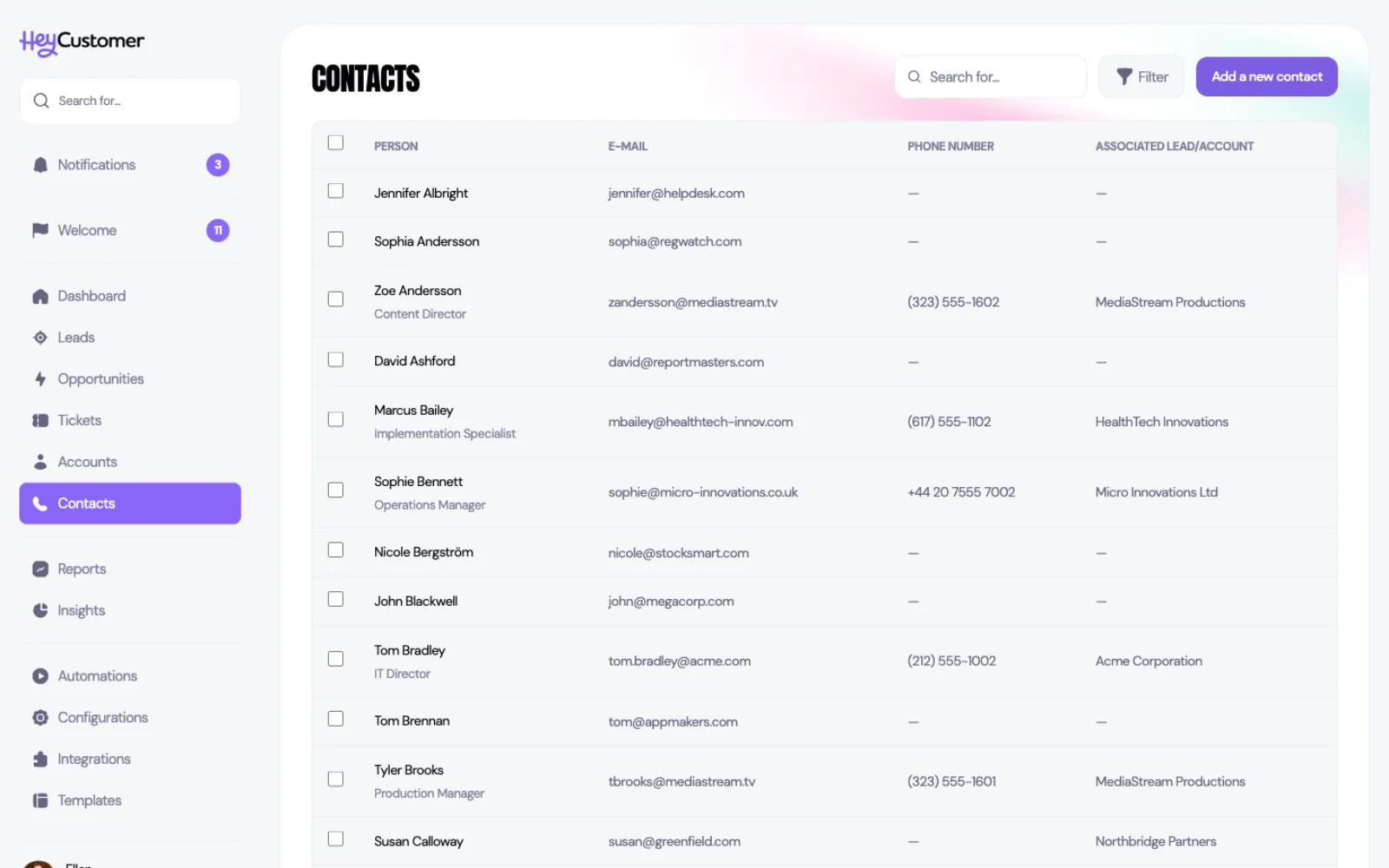
Select Contacts in the left sidebar, then Add a new contact. To create someone already attached to a company, open the account instead, go to its Contacts section, and select Add a new contact there.
Enter their First name and Last name. Both are required; everything else is optional.
Add their Job title.
Add one or more email addresses, each labeled Work or Personal. Select Add email for another.
Add phone numbers the same way, labeled Office, Mobile or Home.
Save the contact.
The Associated Lead/Account column on this page tells you at a glance who belongs to a company and who is still standing on their own.
Edit a contact, or move them onto an account
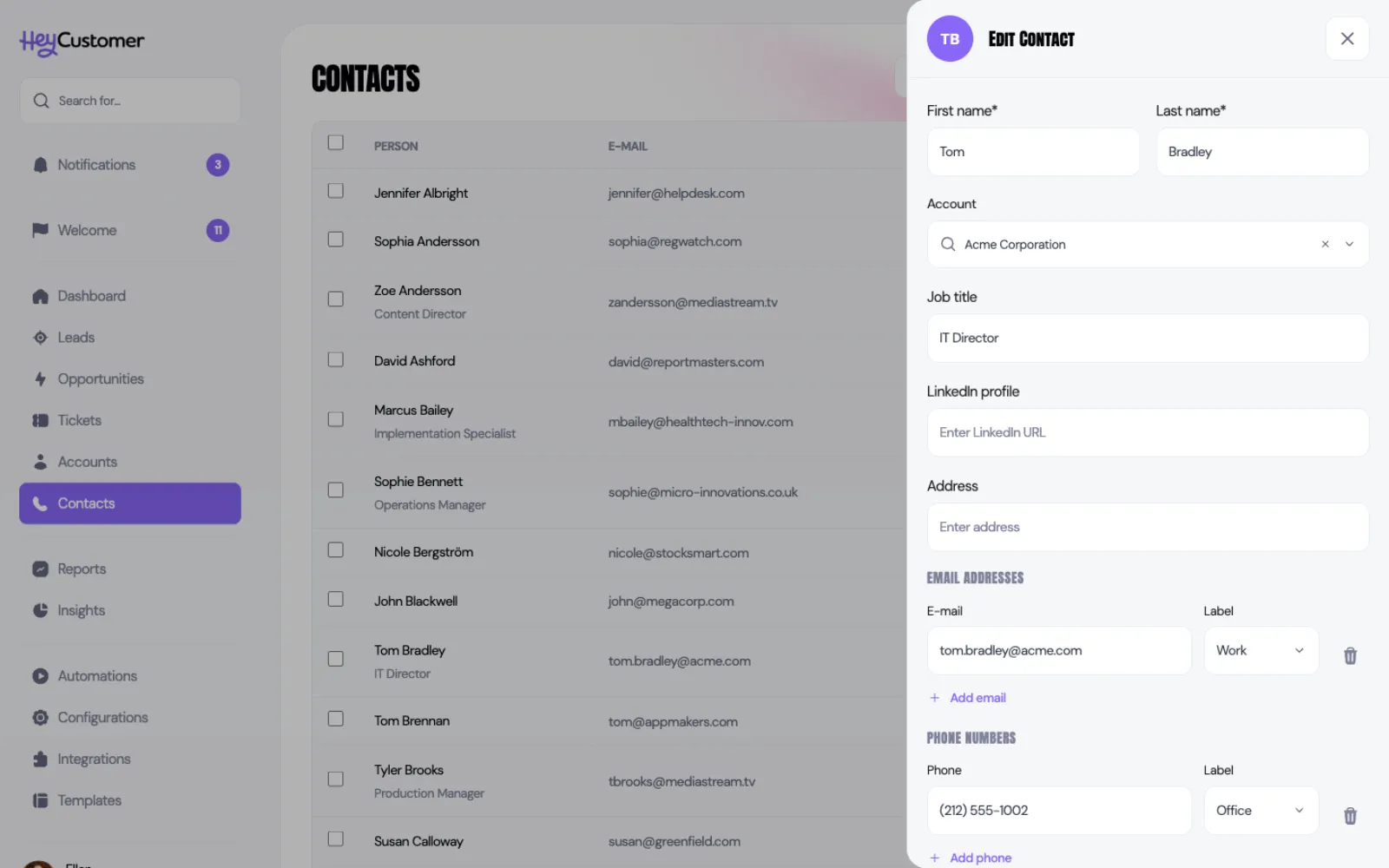
On the Contacts page, select the person's row. Their details open in a panel on the right.
Select Edit.
Use the Account box to search for the company and select it. Clear it with the × to detach them again.
Change anything else you need: name, job title, LinkedIn profile, address, email addresses and phone numbers.
Save your changes.
If that person already has tickets filed under a different account, Hey Customer offers to move those tickets across as well. Only the ticket's account changes — status, assignee and notes all stay as they were.
Good to know
An account needs a name and nothing else. You can fill in the rest as you learn it.
A phone number needs at least 10 characters. Digits, spaces, dashes, brackets, dots and a leading + are all accepted.
Creating and editing accounts is controlled by permissions. If you can't see Add a new account, or an edit is refused, ask an administrator to add those permissions to your group.
Account statuses are yours to shape under Configurations, then Account Statuses. Add your own, rename them, drag them into order, or archive ones you've stopped using.
Archiving an account moves it to Inactive. It drops off the Active tab but keeps every contact, opportunity, ticket and document. Open it from the Inactive tab and select Unarchive account to bring it back. There's no way to delete an account, which means you can't lose one by accident.
Custom fields can be added to accounts — not to contacts. Set them up under Configurations, then Custom Fields, and they appear on every account straight away.
Each email domain can be claimed by only one account in your organization. If a domain is already taken, remove it from the other account first.
An email address that's already on a contact belonging to a different account can't be reused. Sort out the duplicate on that other account before adding it here.
Deleting a contact is permanent, and only possible when they have no active opportunity and no lead with an opportunity behind it. Their tickets and opportunities aren't deleted with them — those records stay, just without that person attached.
Moving a contact onto an account keeps their lead history, so you can still see where they originally came from.
A contact with an email address can be given access to your support portal from their panel, which lets them raise and follow their own tickets.
Search on the Accounts page covers account name, phone number and status. Search on the Contacts page covers name, email address and phone number.