Build a catalog and attach it to accounts and deals
Build a catalog of what you sell — products, services, plans, retainers — with your standard prices, then attach them to the accounts who buy them and the deals you're working.
How it works
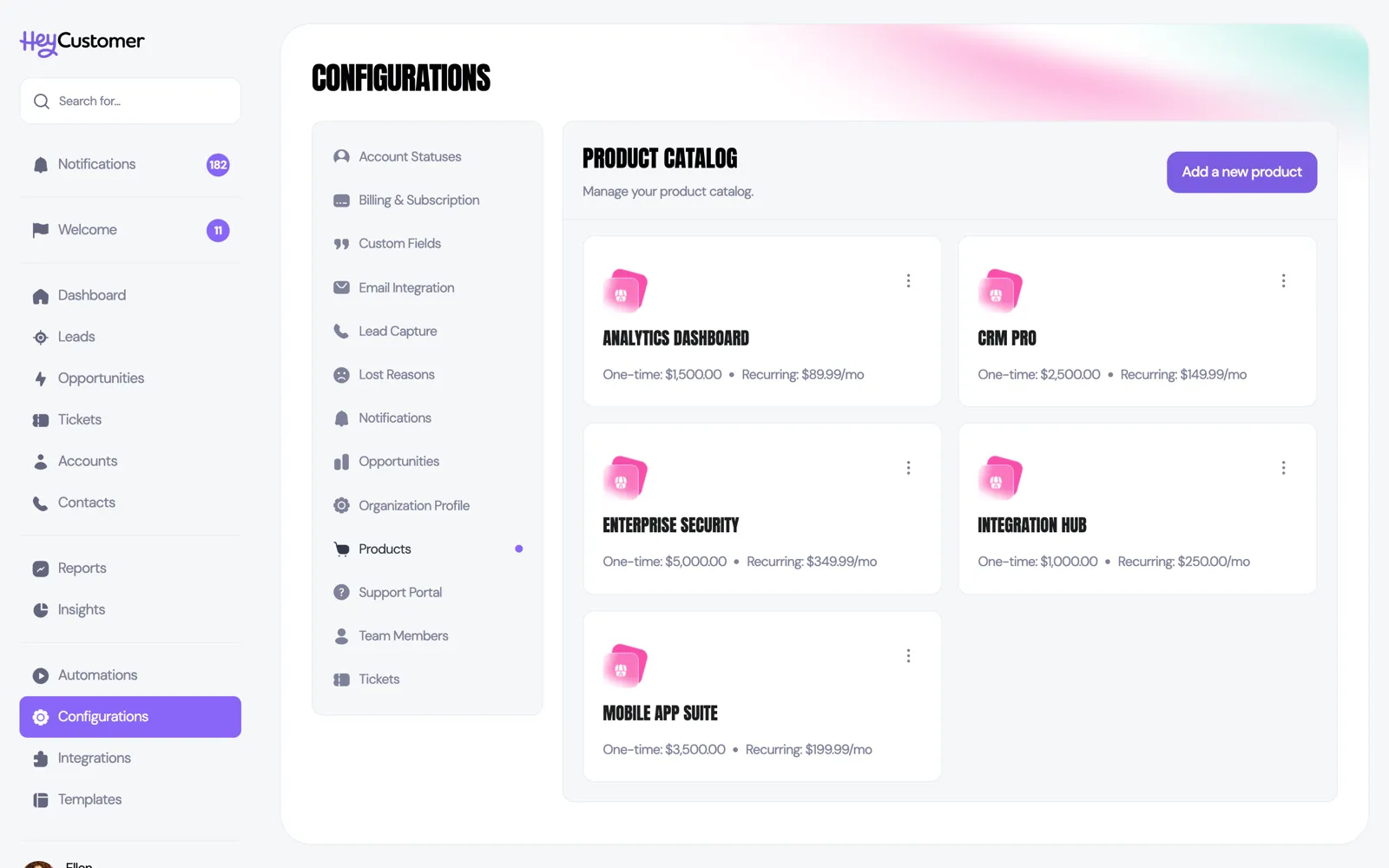
Your catalog lives in Configurations > Products. Each entry has a name and two optional prices: a one-time price for anything charged once, and a recurring price for anything charged every month. Plenty of items only need one of the two, and you can leave the other blank.
Those prices are defaults, not fixed rules. When you attach a product to an account or a deal, the default price fills in for you and you can change it for that customer or that deal without touching the catalog.
Add a product or service
Go to Configurations > Products.
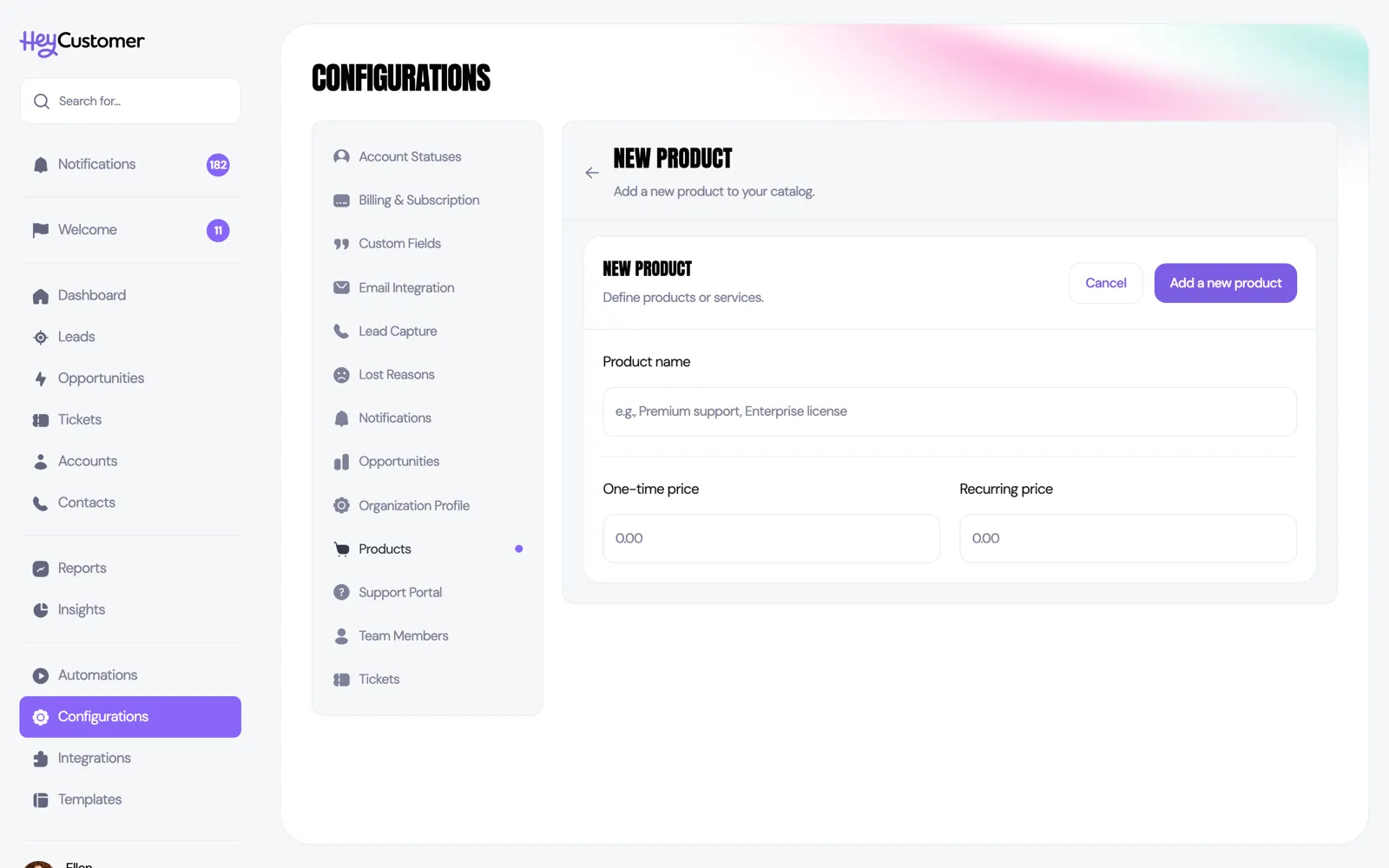
Click Add a new product.
Enter a Product name — for example "Premium support" or "Enterprise license".
Enter a One-time price, a Recurring price, or both. Leave a price blank if it doesn't apply.
Click Add a new product to save.
To change a product later, open it from the list and choose Edit. Editing the catalog price changes the default used for future attachments — it doesn't rewrite prices already agreed on existing accounts and deals.
Attach a product to an account
Use this to record what a customer actually has.
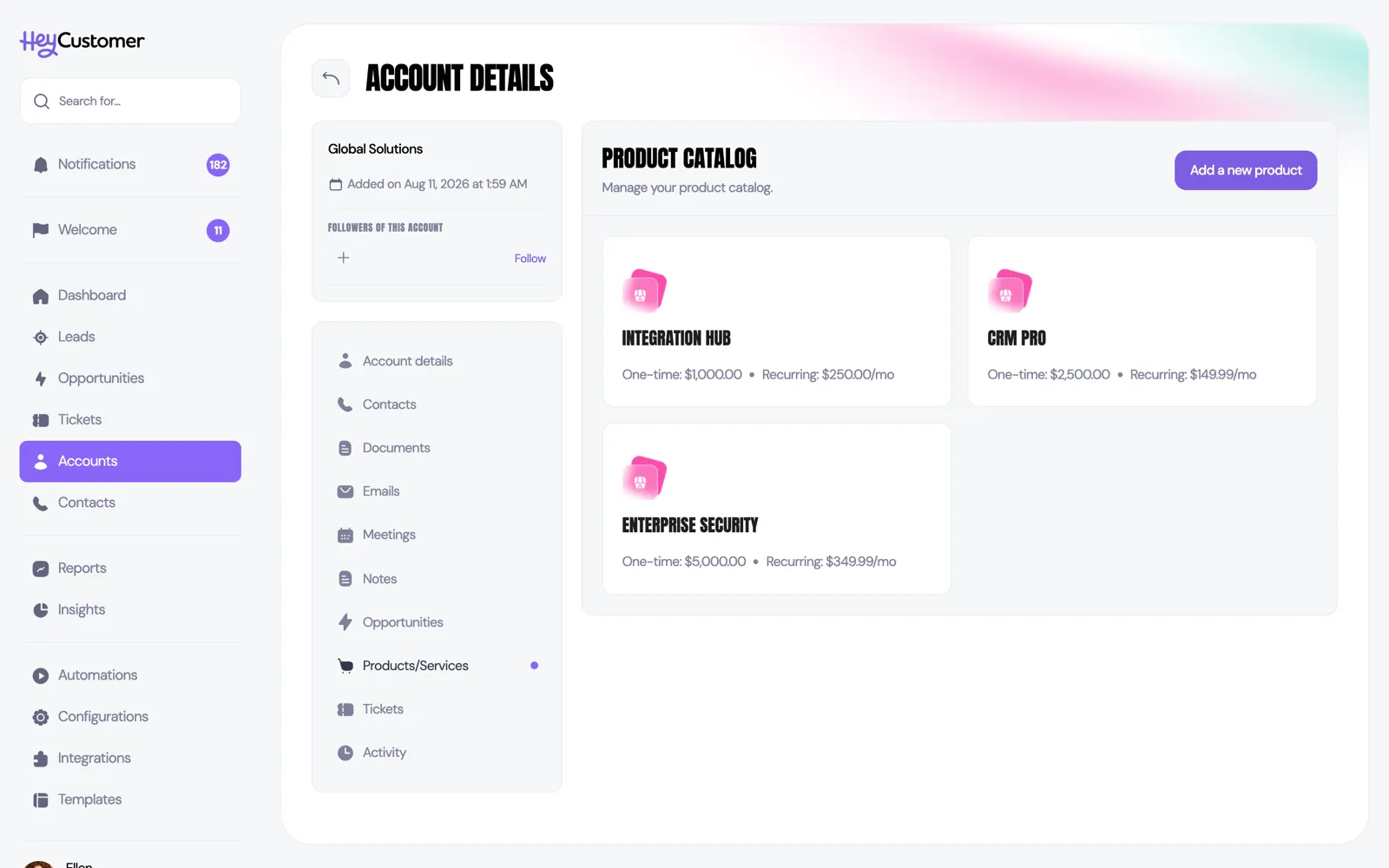
Open the account and go to its Products/Services section.
Click Add a new product.
Choose a product from the list. Its catalog prices fill in automatically.
Adjust the one-time or recurring price if this customer pays something different.
Click Add this product.
Each product appears as a tile showing what this account pays. Click a tile to change the prices or remove the product.
Attach a product to a deal
Use this to record what a deal is actually for.
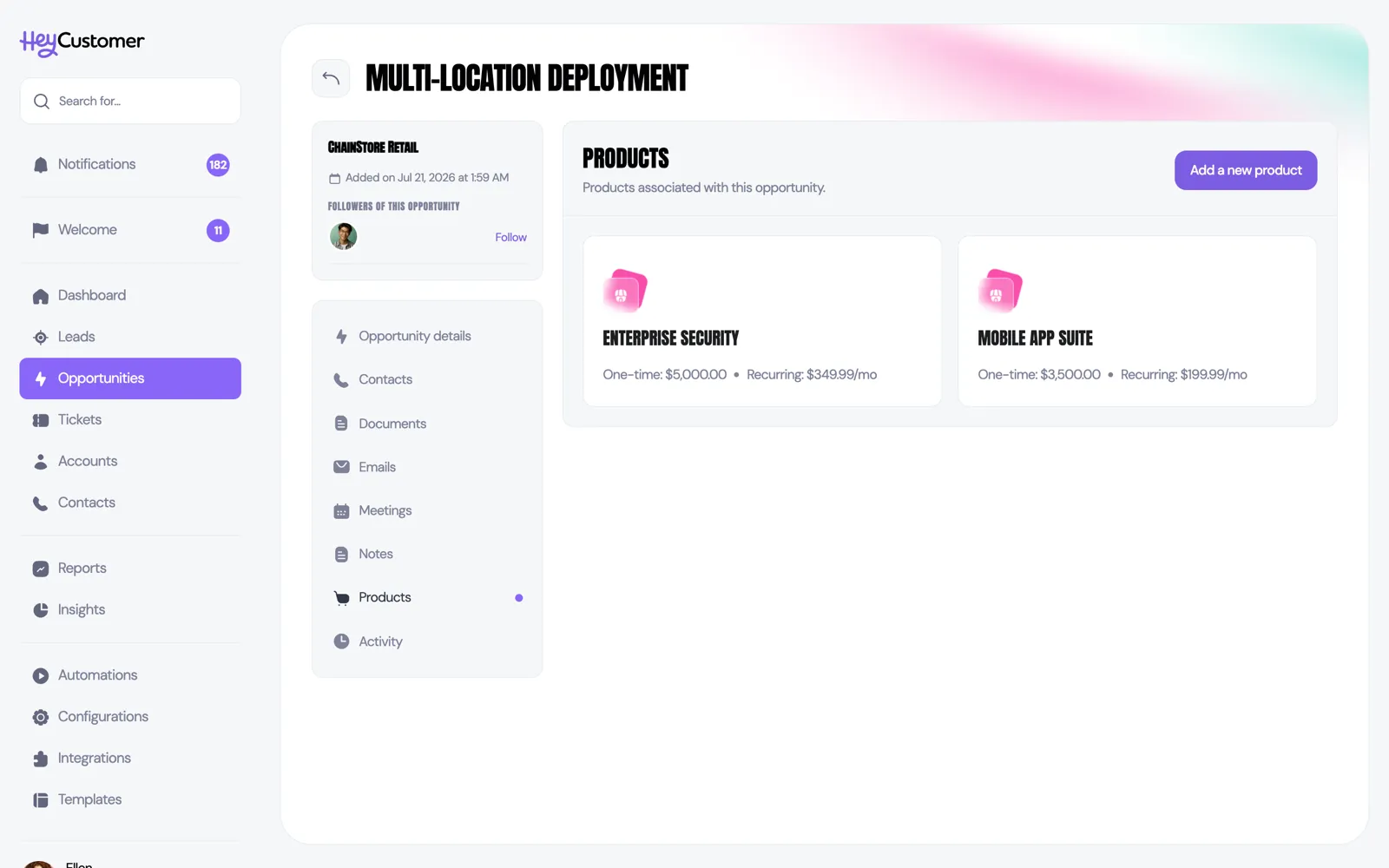
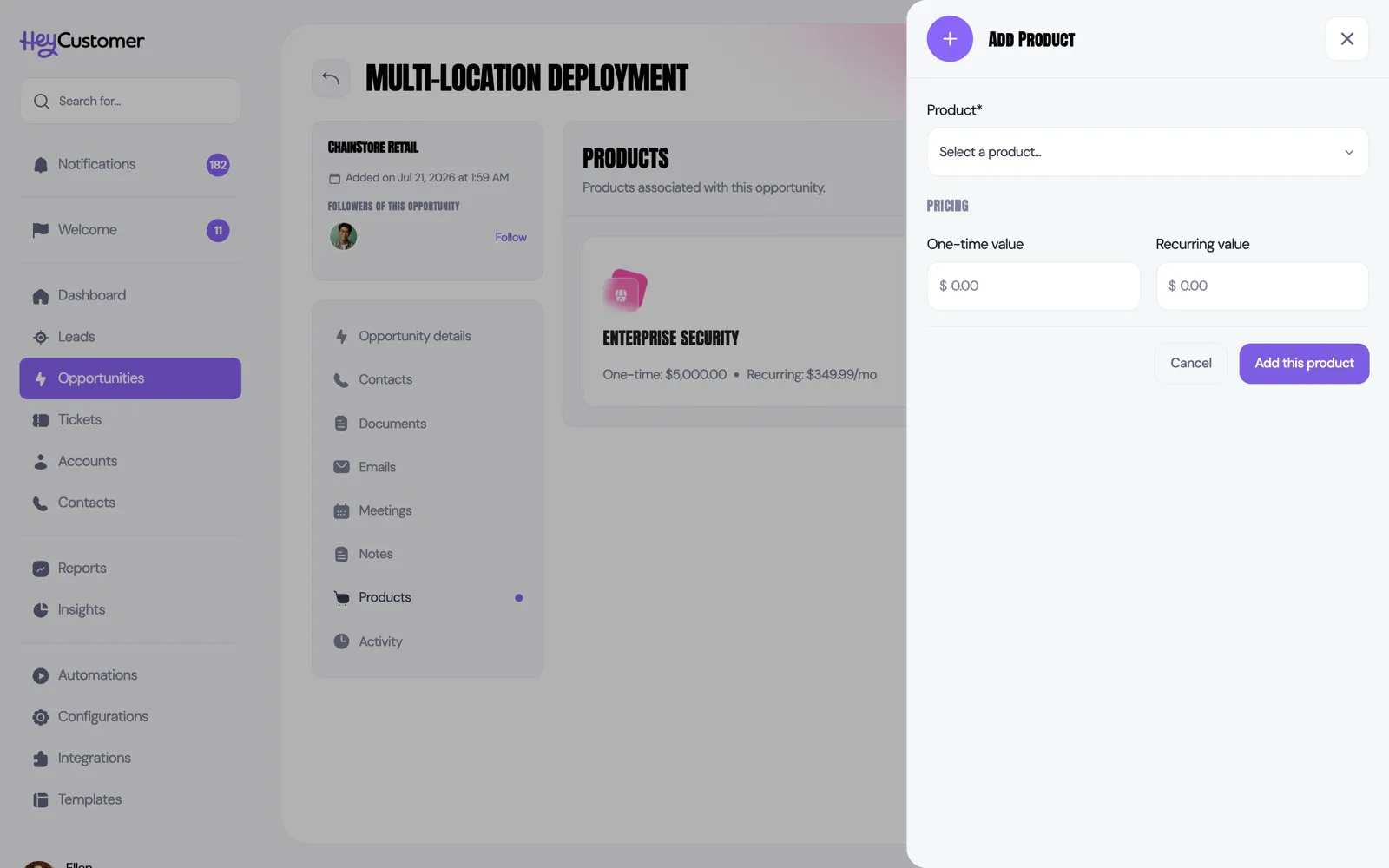
Open the opportunity and go to its Products section.
Click Add a new product.
Choose a product. Its catalog prices fill in as the starting values.
Adjust the one-time or recurring value for this deal.
Click Add this product.
The deal's own one-time and recurring values are separate numbers that you set on the deal itself. Attaching products records what's being sold; it doesn't change those totals, so keep them in step by hand.
Retire a product
Go to Configurations > Products.
Open the menu on the product and choose Archive.
The product disappears from the catalog and from the list you pick from when attaching products.
Archiving doesn't delete anything. Accounts and deals that already have the product keep it, and you can bring it back at any time: click View archived products at the bottom of the list and choose Unarchive.
Good to know
Recurring prices are shown per month.
Both prices are optional, but a product with neither won't show a price anywhere.
A product can only be attached once to the same account, and once to the same deal.
Removing a product from an account keeps the record in the background so your history stays intact. Removing one from a deal takes it off for good.
Products and the prices attached to accounts are both available as report sources, so you can report on what's sold and what each account pays.
Managing the catalog needs the "Access all configurations" permission. Seeing product pricing on an account needs the "Account Documents & Pricing" permission.