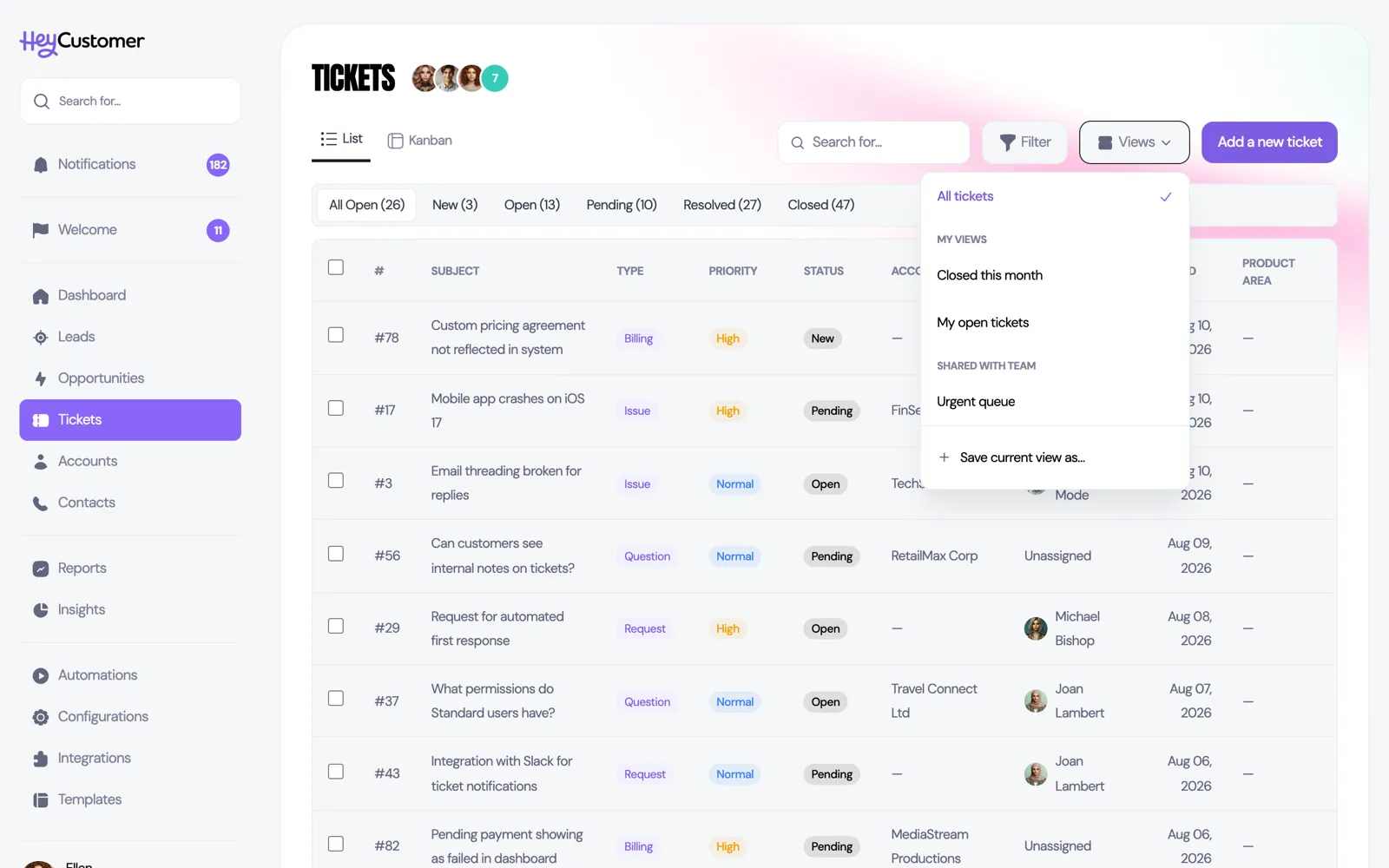
A saved view is a filtered list you can name and come back to — "My open tickets", "Deals closing this month", "Leads from the website" — one click instead of setting the same filters every morning.
How it works
Saved views work on four lists: accounts, leads, opportunities, and tickets. Each list has a Views button next to its filters.
You build a view by filtering the list the way you want it, then saving it with a name. From then on, choosing it from the Views menu puts the list straight back into that state. Views belong to whoever made them, and you can share one with your whole organization if it's useful to everyone.
Save a view
Open a list — Accounts, Leads, Opportunities, or Tickets.
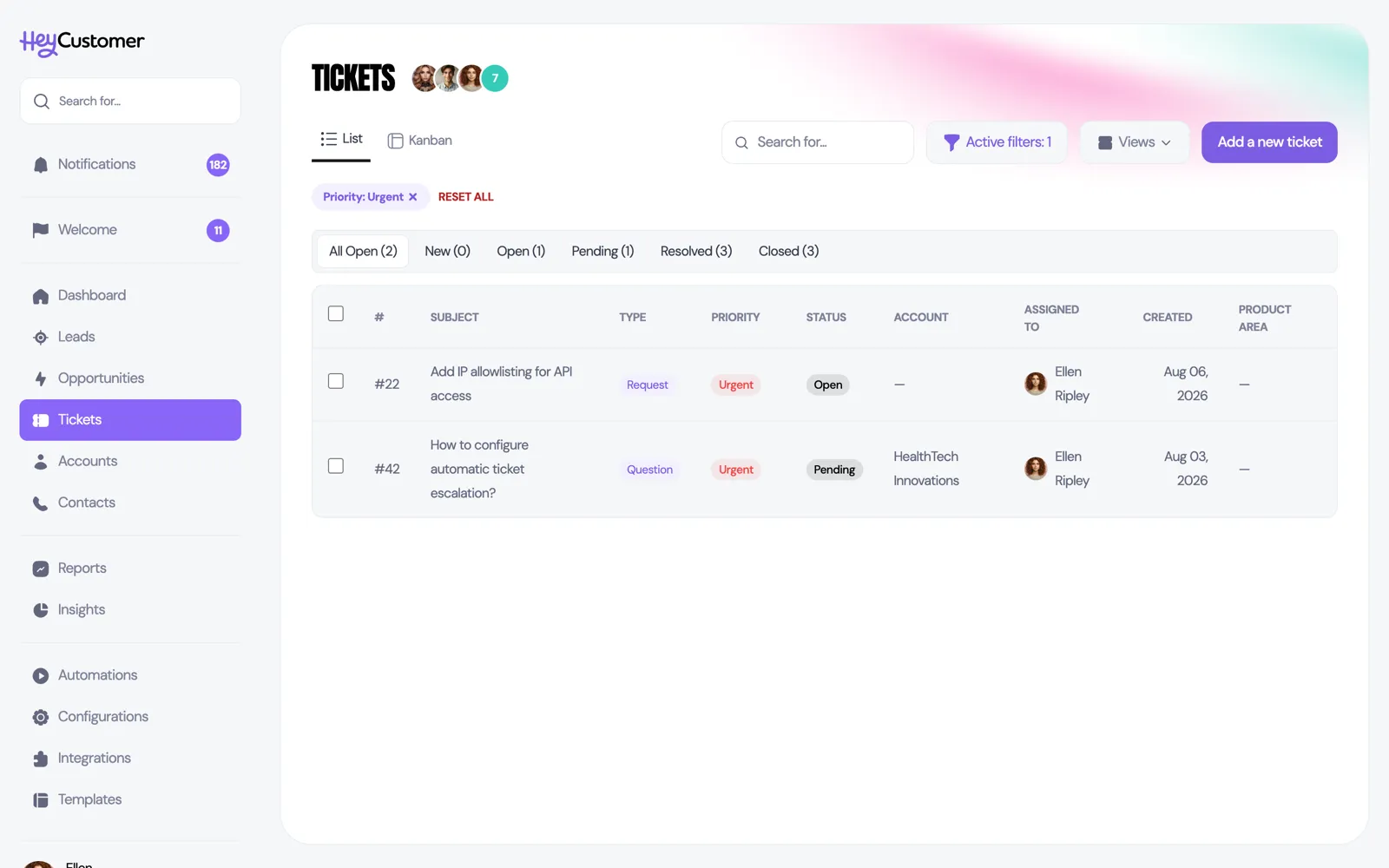
Use the Filters button to narrow the list down. Your choices appear as pills above the table.
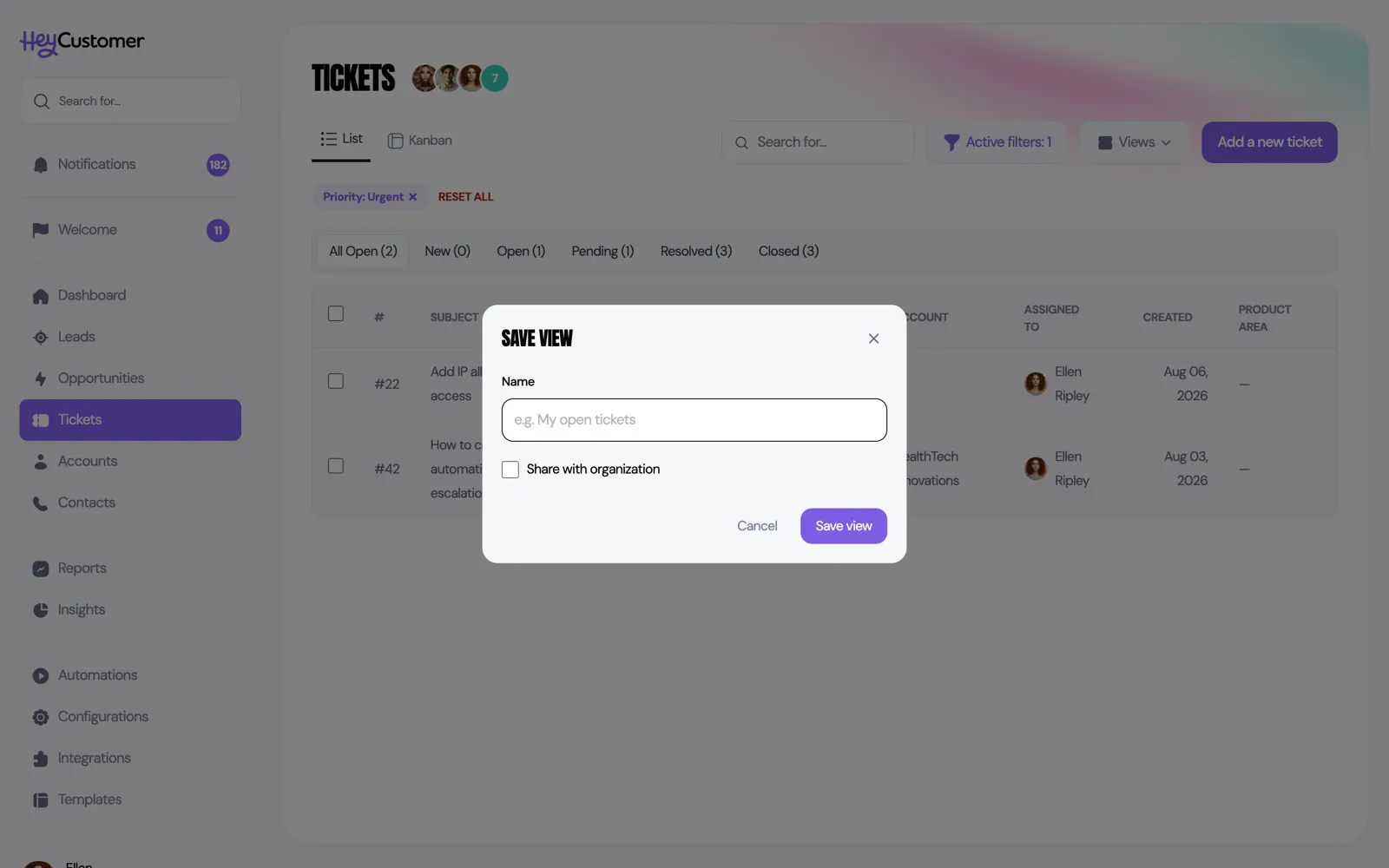
Click Views, then Save current view as…
Give the view a name.
Check Share with organization if everyone should be able to use it.
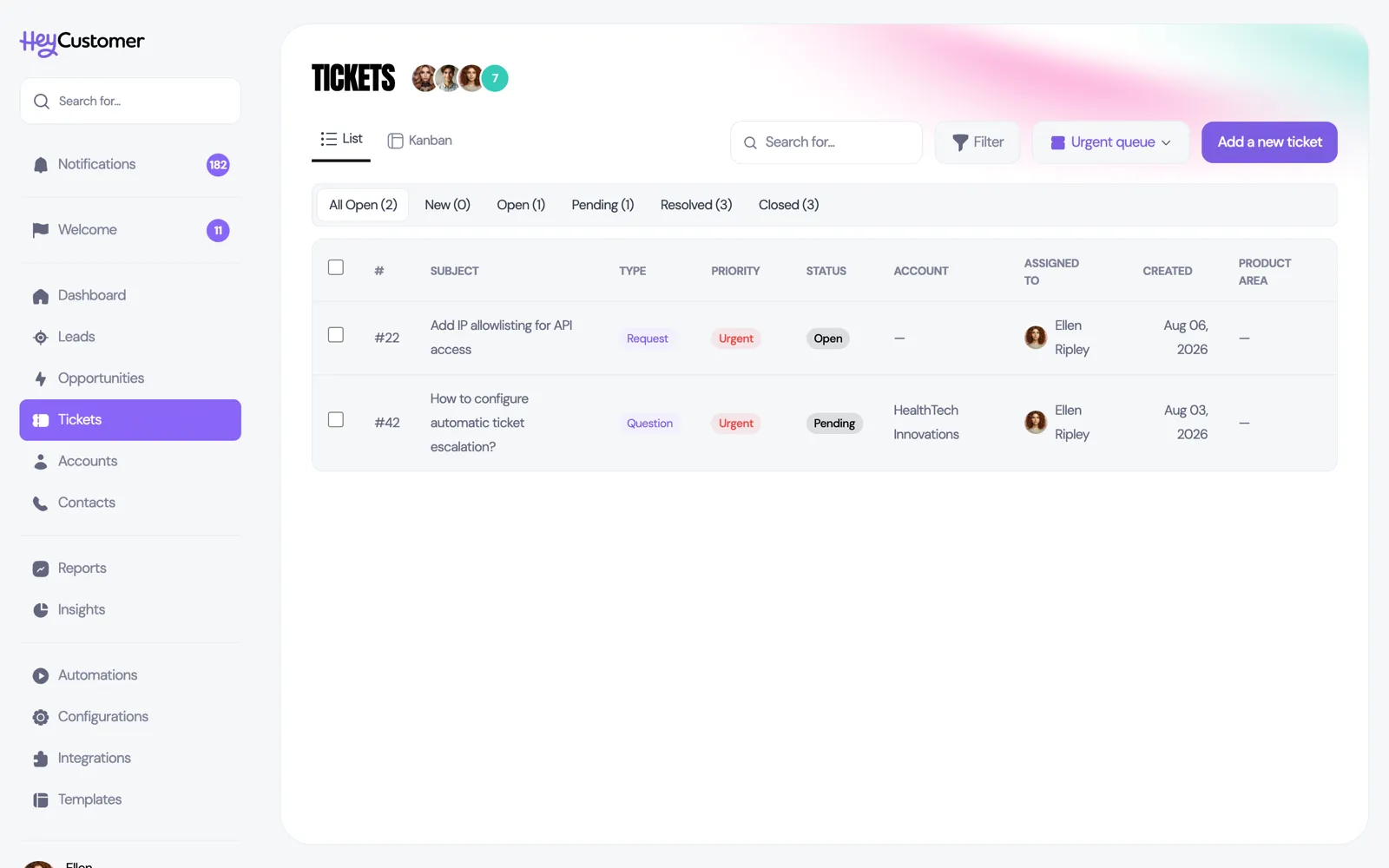
Click Save view. The list reloads with your new view applied.
You need at least one filter applied before you can save. If you open the save box with nothing filtered, Hey Customer asks you to narrow the list first — an unfiltered view would just be the list you already have.
Use and manage your views
Click Views on any of the four lists.
Pick a view. Your own are under My views; ones your teammates shared are under Shared with team.
The button now shows the view's name instead of "Views", so you always know what you're looking at.
To go back to the unfiltered list, choose All tickets (or accounts, leads, opportunities) at the top of the menu.
To delete one of your own views, hover over it in the menu and click the trash icon.
With a view open, you can still add more filters on top. Those extra filters narrow the view further for as long as you're on the page — they don't change the saved view itself.
What each list can filter on
A view remembers the filters available on its list:
Tickets — owner, type, priority, status, created date, closed date.
Opportunities — owner, status, created date, won date, lost date.
Leads — owner, lead source.
Accounts — status, assigned to.
Date filters are saved as the period you chose, not as fixed dates. A view filtered to "this month" shows this month every time you open it, not the month you saved it in.
Good to know
A view saves your filters. It doesn't save anything you typed in the search box, the column you sorted by, or whether you were on the board or the list.
The "Unassigned" filter option isn't kept when you save a view. Add it back as a filter after opening the view when you need it.
Views are tied to one record type. A ticket view won't appear on the leads list.
Sharing a view makes it visible to everyone in your organization, but only you can rename or delete it. If a shared view needs changing, the person who made it has to change it.
View names can be up to 100 characters, and each of your views for the same record type needs a different name.
Views respect permissions. If someone can only see leads and deals assigned to them, a shared view still shows them only their own records.
saved view, saved views, custom view, save a filter, my open tickets, filter list, share a view, list view, views dropdown, my views, shared views, delete a view, filtered list, quick filters