
Connect Hey Customer to Claude, Google, Microsoft and Slack
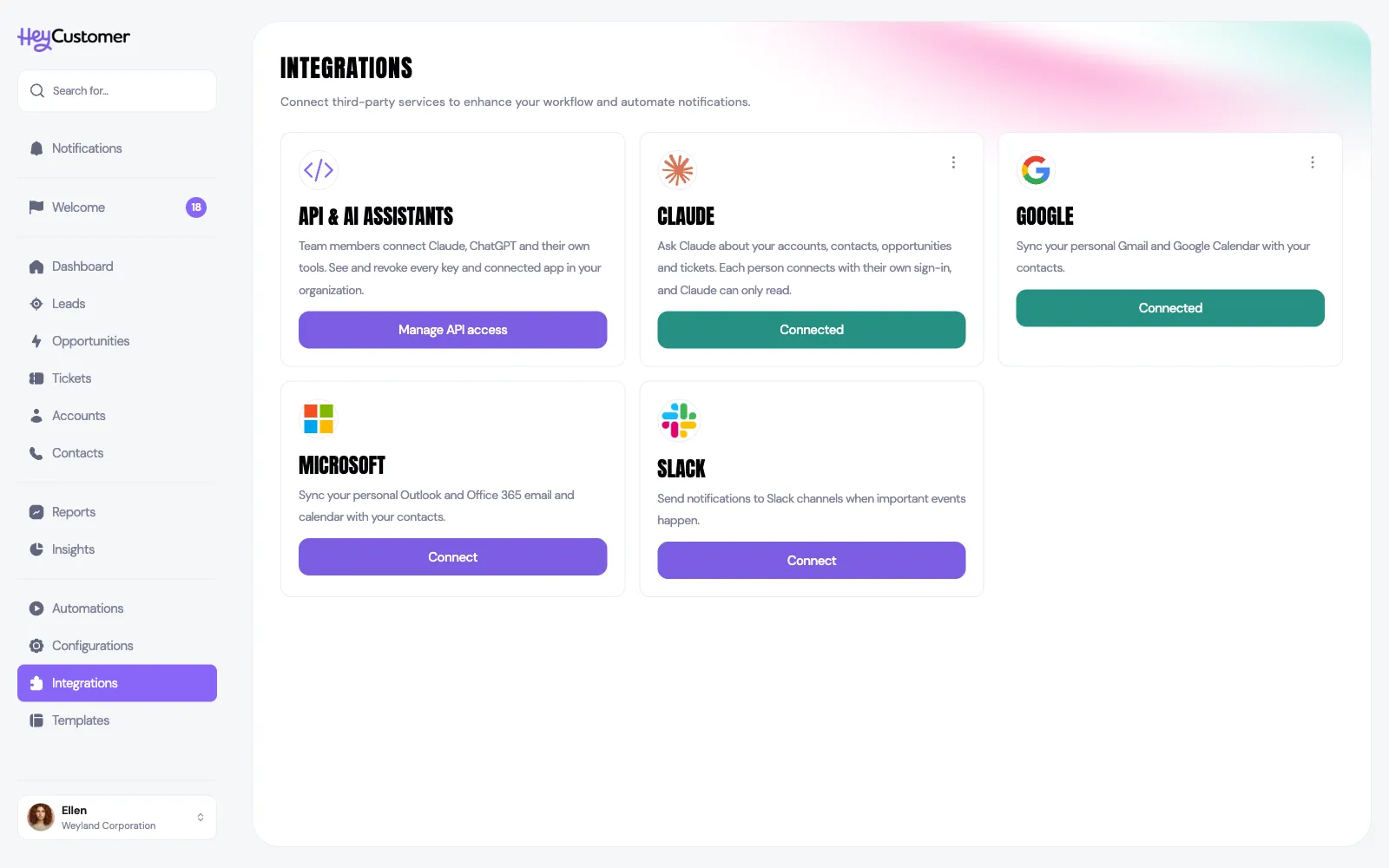
Hey Customer connects to the other services your team already uses, so your email, your calendar and your team chat all feed the same records. Everything you can connect lives on one screen, and this article covers what each connection does and how to set it up.
Select Integrations in the left-hand menu to see everything Hey Customer can connect to. Each service gets a card showing what it does and whether it's connected yet.
Three of these services are personal and one is shared. Google and Microsoft connect your mailbox and your calendar, and Claude connects your Claude, so every person on the team connects their own — a card marked Connected means you have connected it, not your colleagues. Slack is different: one Slack workspace serves the whole organization, so it only needs setting up once. The API & AI assistants card is different again: it doesn't connect a service, it shows the API keys and AI assistants your team has connected.
You need permission to manage integrations to open this screen. If you don't have it, Integrations won't appear in your menu and someone with administrator access will need to make the connection for you.
Connecting Claude lets you ask Claude about your accounts, contacts, leads, opportunities and tickets, and it answers from your Hey Customer records. Select Add to Claude on the card to open Hey Customer in the Claude directory, then select Connect, sign in to Hey Customer and choose the organization Claude may read. Claude sees exactly what you can see in Hey Customer, and it can only read. Connecting needs the API keys & AI assistants permission.
The full steps, and how to connect ChatGPT and other assistants, are in Connect Claude, ChatGPT and other AI assistants.
Connecting Google links your Gmail and Google Calendar to your contacts. Email you send from Hey Customer goes out from your own address, so recipients see you as the sender and their replies land in your inbox — where Hey Customer picks them up and files them against the right contact. Meetings from your calendar are matched to contacts the same way and appear on the record alongside the email.
Calendar access is read-only. Hey Customer reads your meetings; it never creates, moves or cancels anything in your calendar.
Microsoft works exactly like Google, for Outlook and Office 365 mailboxes and calendars. If some of your team is on Google and the rest on Microsoft, that's fine — each person connects whichever they use.
Connecting Slack lets Hey Customer post into your channels when something happens. Two features use it.
The first is your notification rules, under Configurations then Notifications. Each rule — a new lead created, an opportunity won, an opportunity lost, a ticket created, a ticket created from your customer portal — has a Send to Slack switch and a channel to send it to. Turn it on, pick the channel, and save.
The second is automations. When you build an automation, Post to Slack is one of the actions you can add, so a rule you've written can announce itself in a channel. Hey Customer writes the message; you choose the channel.
Either way the message arrives with the details filled in and a button that opens the record in Hey Customer.
Your team can connect AI assistants such as Claude and ChatGPT, and their own tools and scripts, to Hey Customer. Nothing is connected from this screen: each person does it under Profile then API & connected apps, and each connection sees exactly what its owner can see in Hey Customer, and nothing more. Both need the API keys & AI assistants permission. Keys and assistants are read-only for now.
Select Manage API access on the card to open Configurations then Security, which lists every active key and connected AI assistant in your organization — whose it is, when it was created and when it was last used — and lets you revoke or disconnect any of them. Either stops working straight away. The same page keeps a log of who created, revoked and connected access. Opening it also needs access to configurations.
The API reference, with examples you can try, is at developers.heycustomer.com.
Once you're back, the card reads Connected.
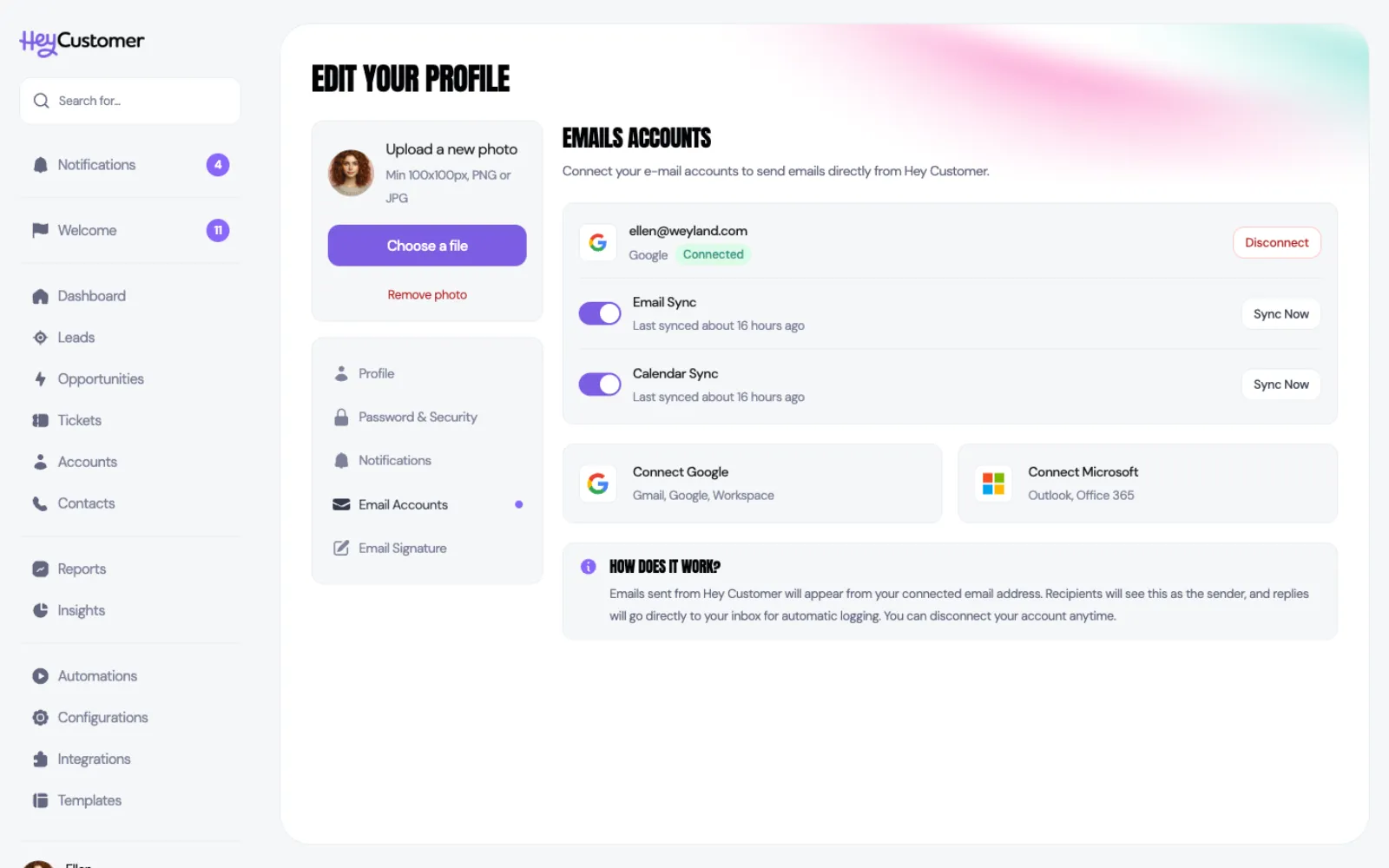
Your email and calendar sync switches live on this page too, along with a Sync Now button if you'd rather not wait for the next run.
To disconnect Slack, select the three-dot menu on the Slack card and choose Disconnect. Hey Customer stops posting straight away. Any notification rules still set to send to Slack keep their setting, and a reminder appears on your Notifications page until you reconnect or switch them off.
Google and Microsoft are disconnected from your Email accounts page rather than the card — select Disconnect next to the account. The three-dot menu on those cards takes you there with Configure.
Claude is disconnected from Profile then API & connected apps — select Disconnect next to Claude. The three-dot menu on the Claude card takes you there with Configure.
/invite @Hey Customer, or pick a channel it's already in.Still need help? Email us at support@heycustomer.com