Bring two records for the same customer together, and stop duplicates before they start
When the same customer ends up in Hey Customer twice, you can merge the two records into one, so their emails, meetings, notes and history all live in one place.
How it works
You can merge two contacts, two leads, two opportunities, two accounts or two tickets. You can also merge a lead into an opportunity, which is the most common duplicate: a lead comes in from a web form while a teammate has already entered an opportunity for the same customer.
A merge keeps one record and folds the other into it. Everything linked to the folded-in record moves to the one you keep: notes, tasks, followers, activity history, and the contacts, opportunities, tickets and documents attached to it. If both records have the same email or meeting logged, it shows once afterward.
The folded-in record disappears from lists, search, reports, dashboards and insights. Old links to it, including links in notification emails, take you to the record you kept. A customer's reply to a merged ticket lands on the ticket you kept.
Merge two records
Start the merge
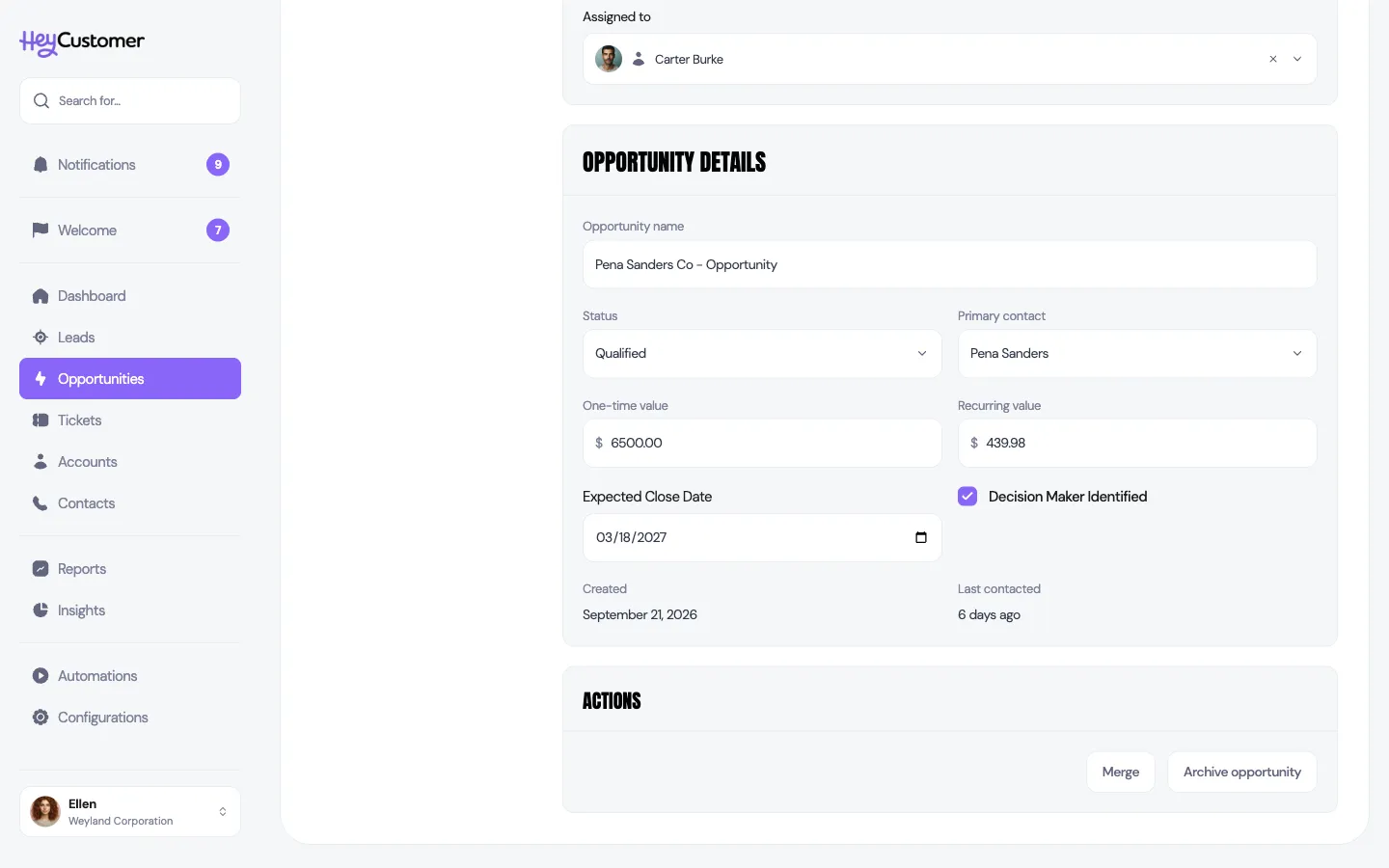
Open the record you want to keep and scroll to the ACTIONS card at the bottom. For a contact, open it and look at the bottom of its panel.
Click Merge.
Choose the other record
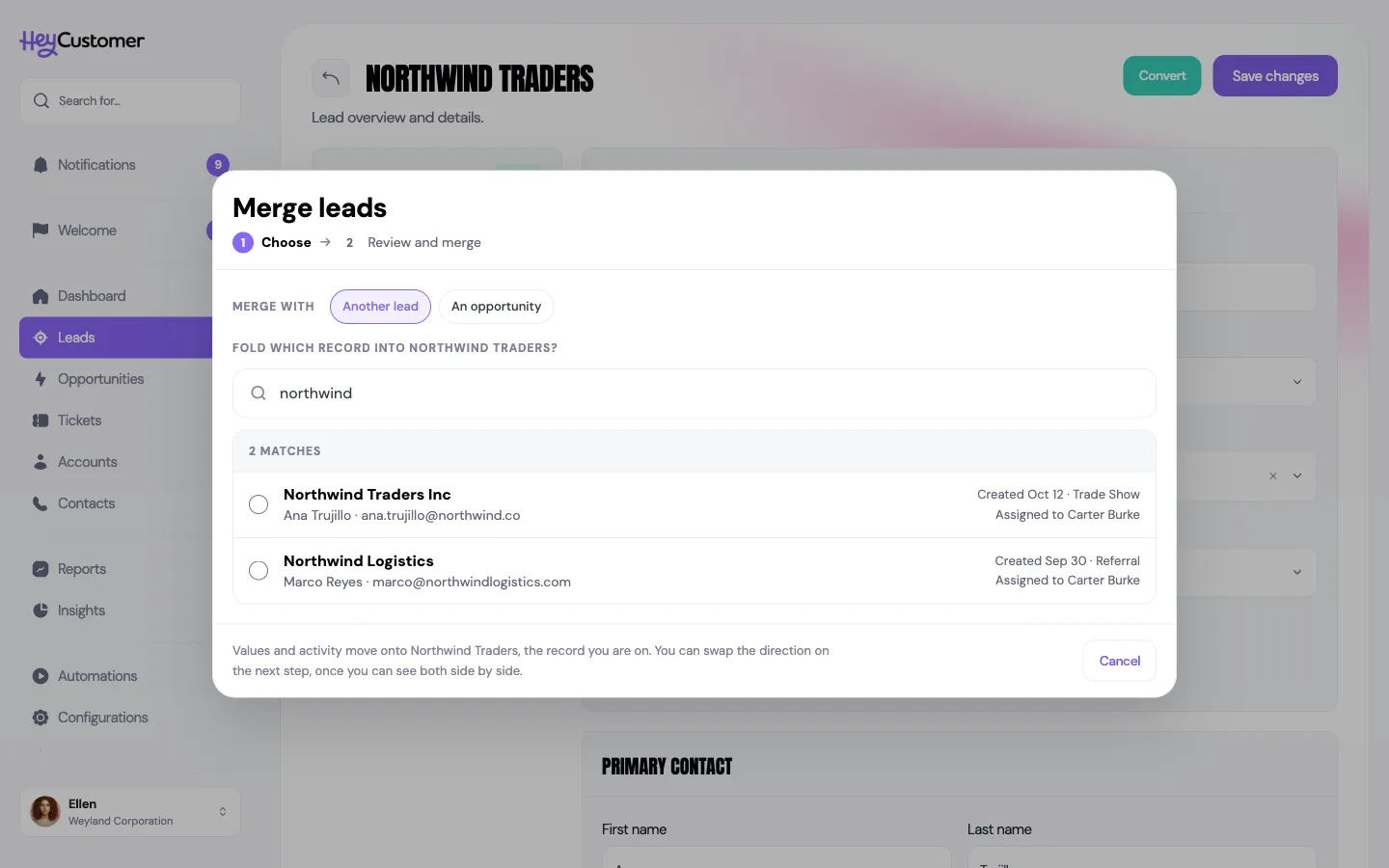
On a lead, choose Another lead or An opportunity.
Search for the other record by name or email address and pick it from the matches. Each match shows its contact, when it was created and who it's assigned to, so you can tell look-alikes apart. You can search tickets by number, such as #104.
Review and merge
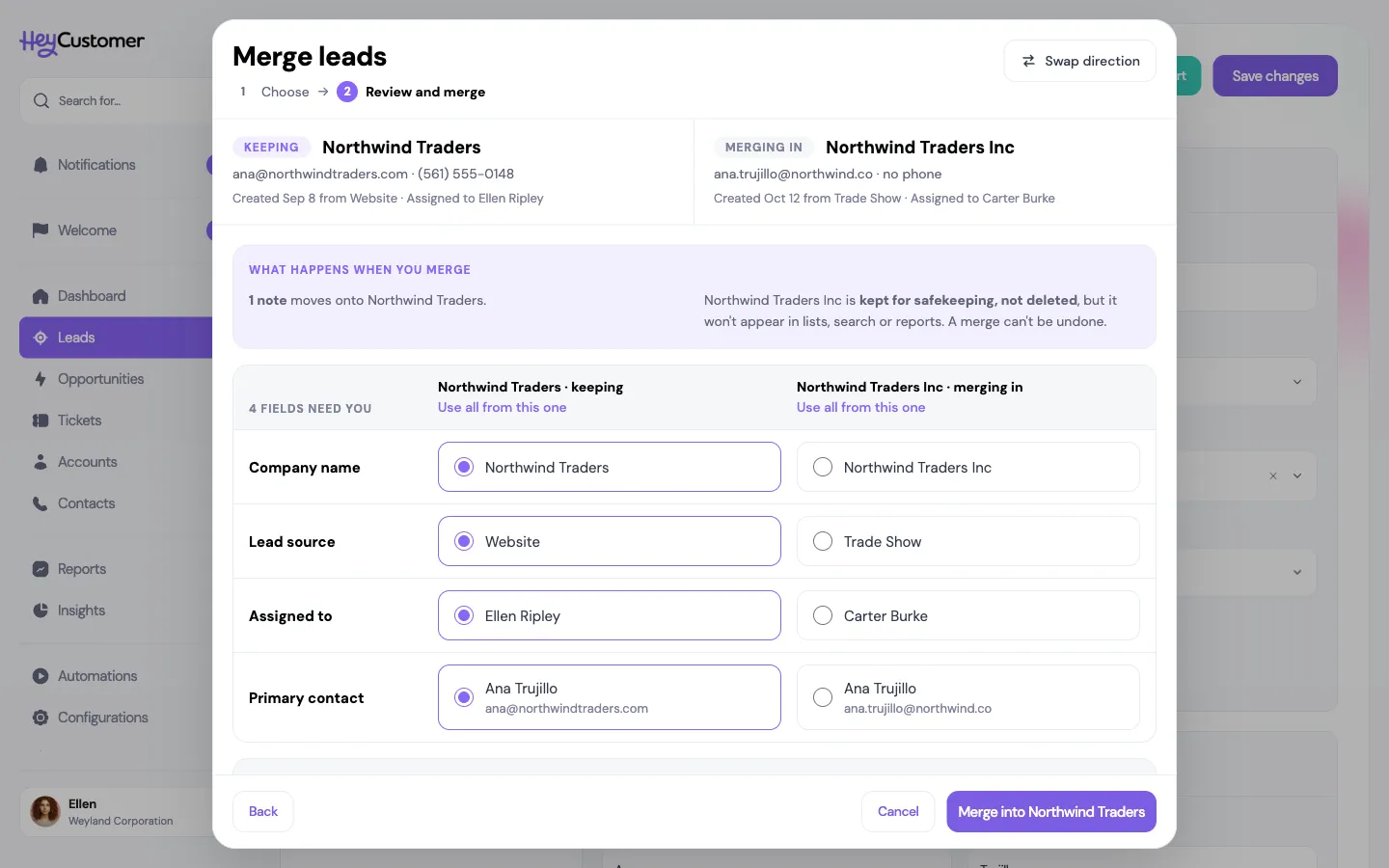
Review the two records side by side. The one you started from is Keeping; the other is Merging in. Click Swap direction to keep the other one instead. A lead merged with an opportunity always goes into the opportunity.
Where both records have a value and they differ, pick the one you want, or click Use all from this one under either record. Fields that are the same in both, or filled in on only one, resolve on their own; open fields resolved on their own to see them.
Read What happens when you merge, then click Merge into the record you're keeping. You land on it, with a message confirming the merge and saying how many duplicate emails and meetings were combined.
Merge a lead into an opportunity
Open the lead, click Merge, choose An opportunity, and pick the opportunity. The opportunity keeps its own values and takes the lead's notes, form submissions and history. The lead disappears.
If the lead's contact and a contact on the opportunity share an email address, they become one contact, so their emails and meetings show once. If no email address matches, the lead's contact is added to the opportunity.
Stop duplicates before they start
Lead forms. When someone you already know fills in a lead form, Hey Customer uses their existing contact instead of creating a second one. If they already have an active lead or an open opportunity, the submission is added to it, and whoever it's assigned to gets a notification. A form never changes an existing contact's name, phone or company.
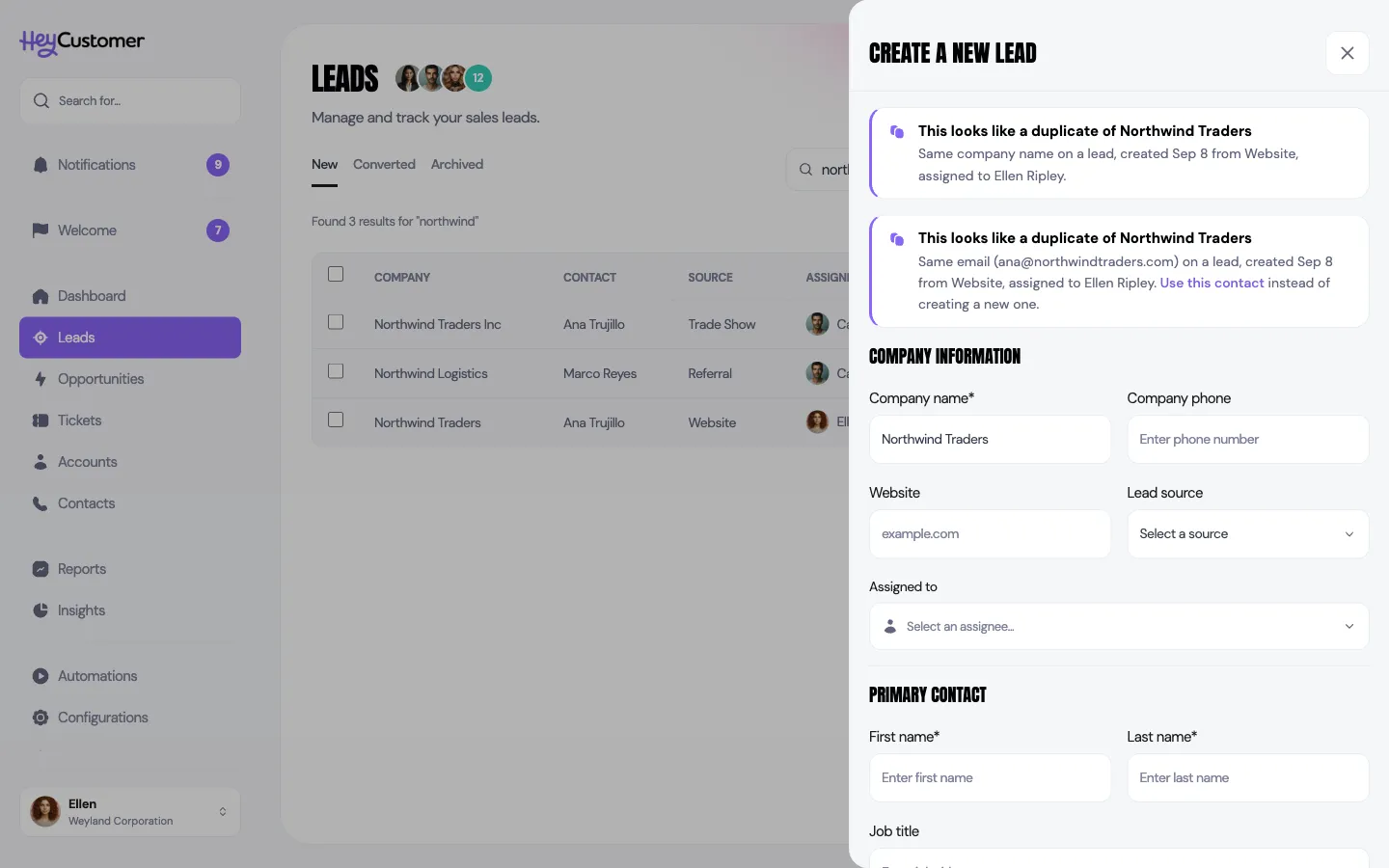
Creating records by hand. When you create a lead, opportunity, account or contact, Hey Customer checks what you type against what is already there. If something matches, a warning appears at the top of the form saying what it looks like a duplicate of, with a link to it. It never stops you from saving.
Email address (new lead, opportunity or contact): the warning says which record the address is on. On a lead or opportunity, select Use this contact in the warning to create the record on the existing contact instead of a new one.
Company name (new lead or opportunity) and account name (new account): the warning names the account, active lead or open opportunity with that name.
First and last name (new contact, and the contact on a new lead or opportunity): the warning names the contact and where they already are, such as their account or an opportunity they're on, so you can tell whether it's the same person.
Names match exactly, ignoring capital letters and extra spaces, so “Acme” doesn’t match “Acme Inc”. If you save before the check has finished, Hey Customer stops once so you can read the warning; save again to go ahead.
Good to know
A merge can't be undone. The merged-in record is kept for safekeeping, not deleted, but it no longer appears anywhere.
Anyone on your team can merge two records they can see. Merging accounts needs permission to edit accounts. If you only see leads and opportunities assigned to you, you can only merge those.
If the record you fold in was assigned to a teammate, they get a notification saying it was merged and where it went.
Both records' activity logs record the merge, who did it and when.
Tickets: the ticket you keep keeps its number, status and service level clock. The other ticket's conversation, notes and attachments join it, and its requester follows the kept ticket so they still get replies. Nothing is sent to the customer about the merge.
Opportunities: the opportunity you keep keeps its own line items. Check Add the other opportunity's line items too to bring them over. That changes the value, and the review step shows the new amount before you merge.
Accounts: the account you keep takes the other's contacts, opportunities, tickets, leads, documents, products and ticket matching domains. Its customer-since date defaults to the earlier of the two. Portal users of the other account can see the kept account's tickets afterward.
A lead that was already converted can't be merged. Merge its opportunity instead.
Merging isn't available through the API or AI assistants.
Your counts in Insights and reports can drop by one after a merge, because the duplicate no longer counts.