
Keep the right people in the loop, in the app, by email and in Slack
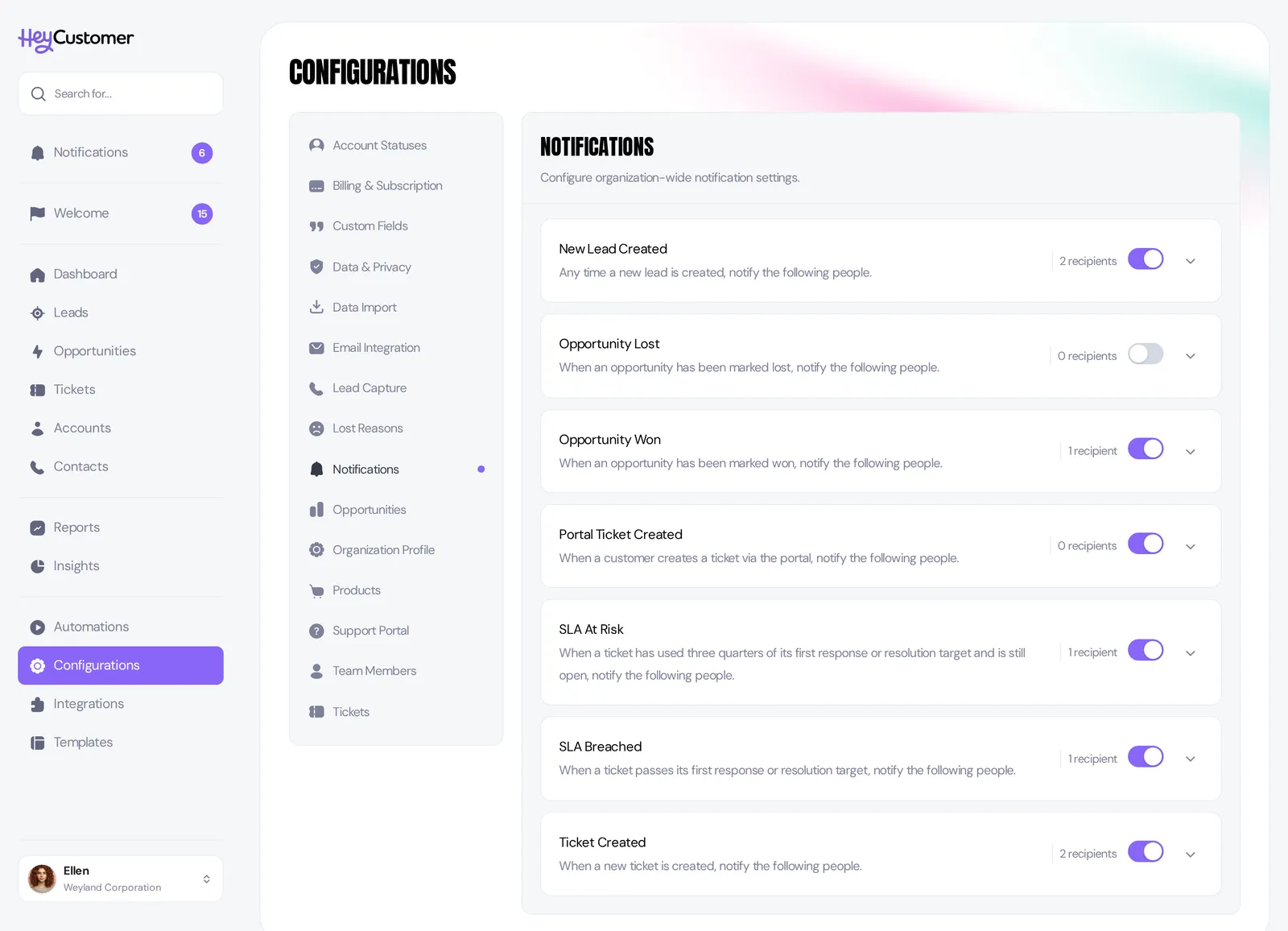
Hey Customer keeps your team in the loop three ways — in the app, by email, and in Slack — using a mix of rules you set up and updates that follow you automatically.
There are two kinds of notification. Rules are the ones you configure: pick an event, pick who should hear about it, and optionally send it to a Slack channel too. Automatic updates are the ones nobody has to set up — being assigned something, a task of yours falling due, or a change to a record you follow.
In-app notifications always arrive. They collect in Notifications in the sidebar, with a badge showing how many you haven't read. Email is on by default and each person can turn it off for themselves. Slack is opt-in per rule and only available once your Slack integration is connected.
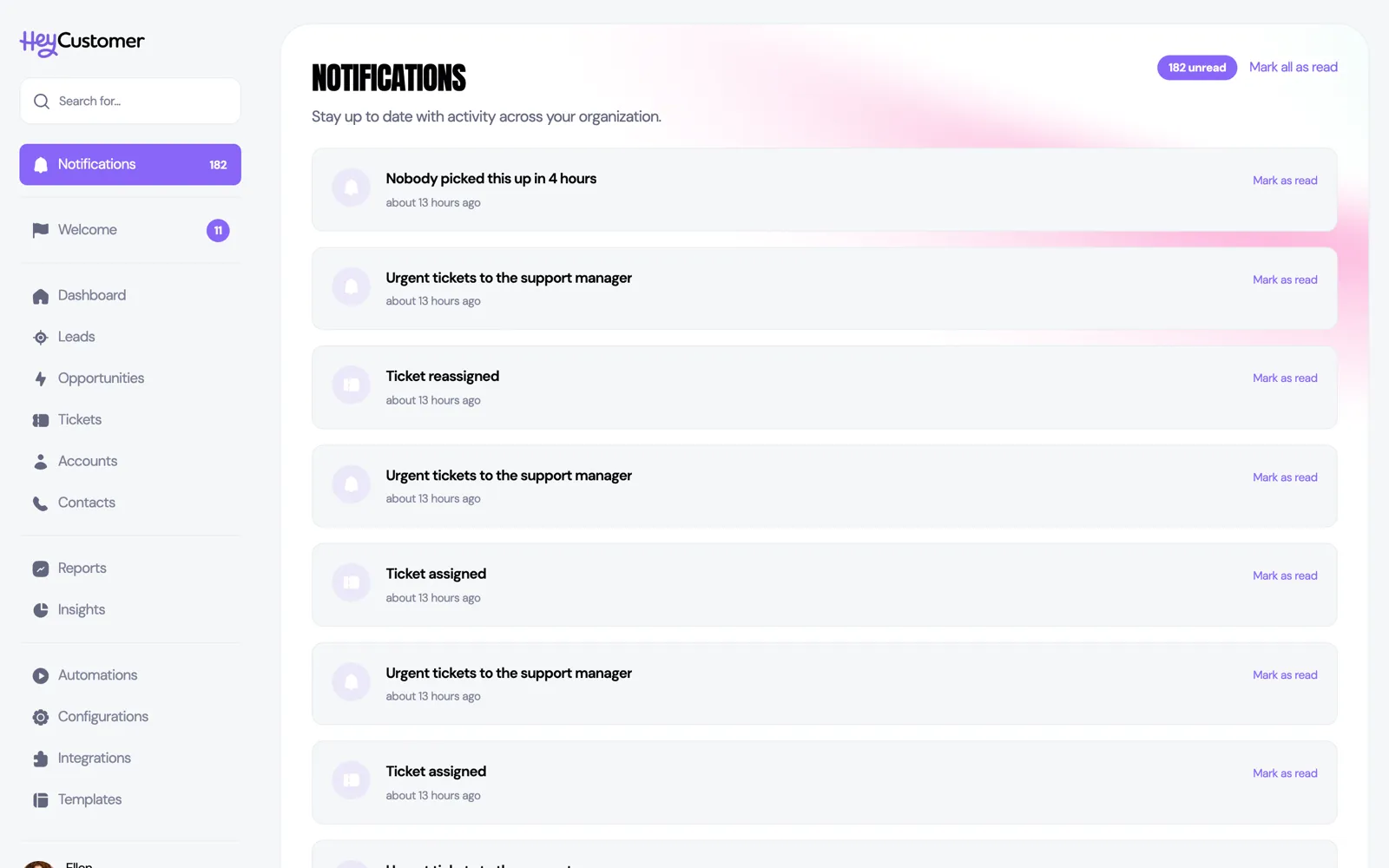
Rules live at Configurations > Notifications. There are seven:
The two ticket rules and SLA Breached are on when you start. The three sales rules and SLA At Risk are off until you turn them on.
The two SLA rules only ever fire for an organization that has switched service levels on, and they check every minute. They are covered in full in Set and track service level targets.
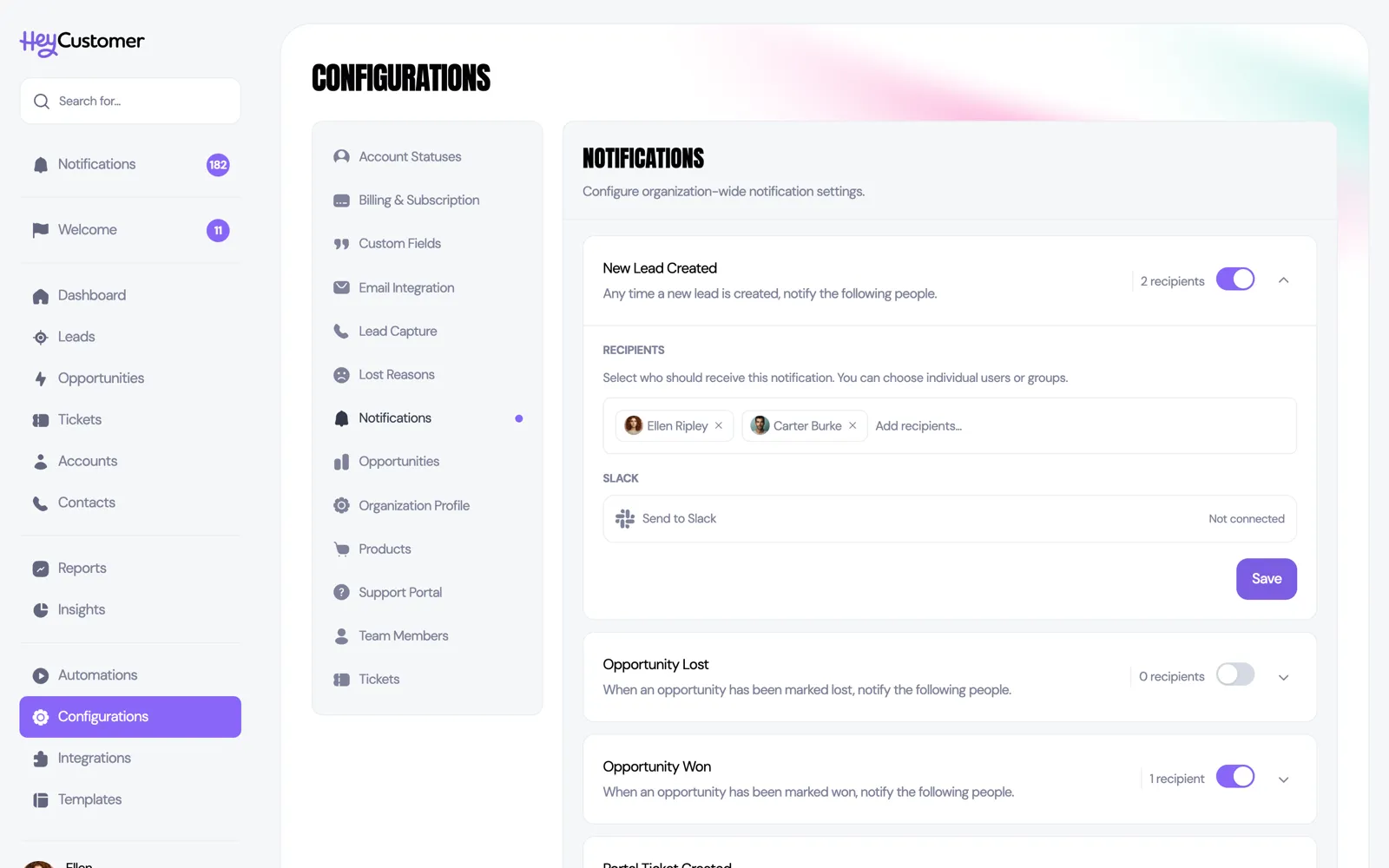
Picking a group is the low-maintenance choice: the notification goes to whoever is in that group when the event happens, so you don't have to revisit the rule every time someone joins or leaves.
Each rule shows how many recipients it currently has, so you can spot a rule that's switched on but going nowhere.
The Slack section of a rule stays greyed out and reads "Not connected" until your organization has connected Slack. Once it's connected, turn on Send to Slack on any rule and pick the channel it should post to. Each rule can go to its own channel — new leads to your sales channel, portal tickets to support.
If a channel in the list says Hey Customer isn't in it, invite the bot in Slack first — open the channel and type /invite @Hey Customer — or pick a channel it's already in. Otherwise the post can't be delivered, and the account owner and anyone who can access all configurations get an email asking them to invite it.
Slack is a channel post, not a personal message. It's in addition to the in-app and email notifications your recipients get, not instead of them.
Accounts, leads, opportunities, and tickets each have a list of followers, shown as a stack of avatars in the sidebar of the record.
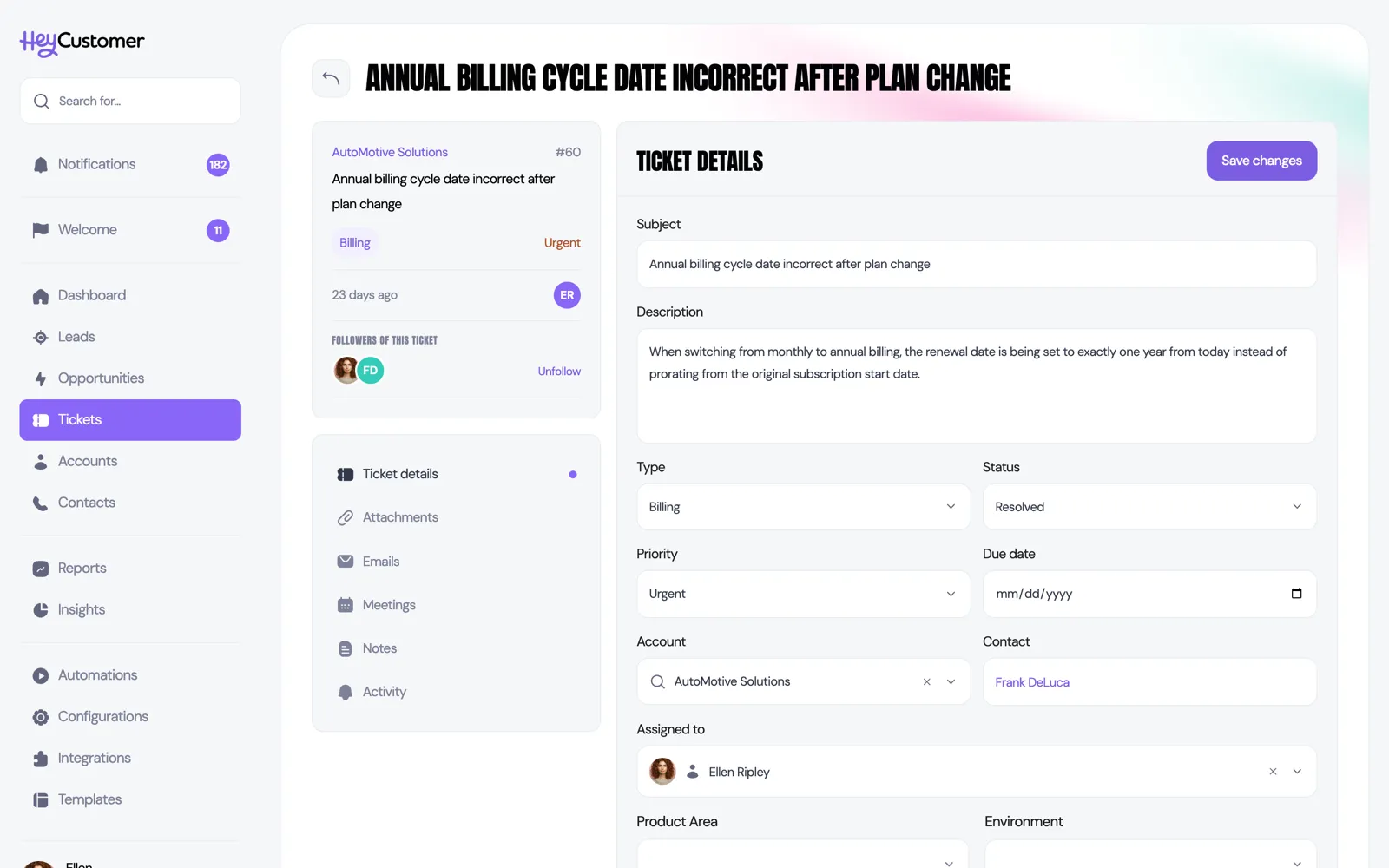
People are added as followers automatically:
To follow or stop following something yourself, use the Follow and Unfollow link next to the avatars. To add someone else, click the avatar stack and search for them. You can add both teammates and contacts.
Followers hear about ticket status changes and new Notes on tickets they follow. Whoever made the change doesn't get notified about their own action.
Contacts who follow a ticket are treated as customers: they get an email when the ticket's status changes and when a note marked visible to the customer is added — never for internal notes.
Some notifications always send, because they're about work landing on someone's desk:
These arrive in the app and by email. They aren't listed in Configurations and can't be turned off there — the way to control them is to stop following the record, or to turn off your own email notifications.
Still need help? Email us at support@heycustomer.com