Keep open tickets, your pipeline and targets in view on an e-ink screen
Connect a TRMNL e-ink display to Hey Customer to keep your open tickets, your pipeline and your targets in view all day, without opening the app.
How it works
TRMNL is a low-power e-ink display that shows screens from the plugins you add to it. The Hey Customer plugin adds a screen with your organization's numbers, and TRMNL updates it on the schedule you choose in your TRMNL account.
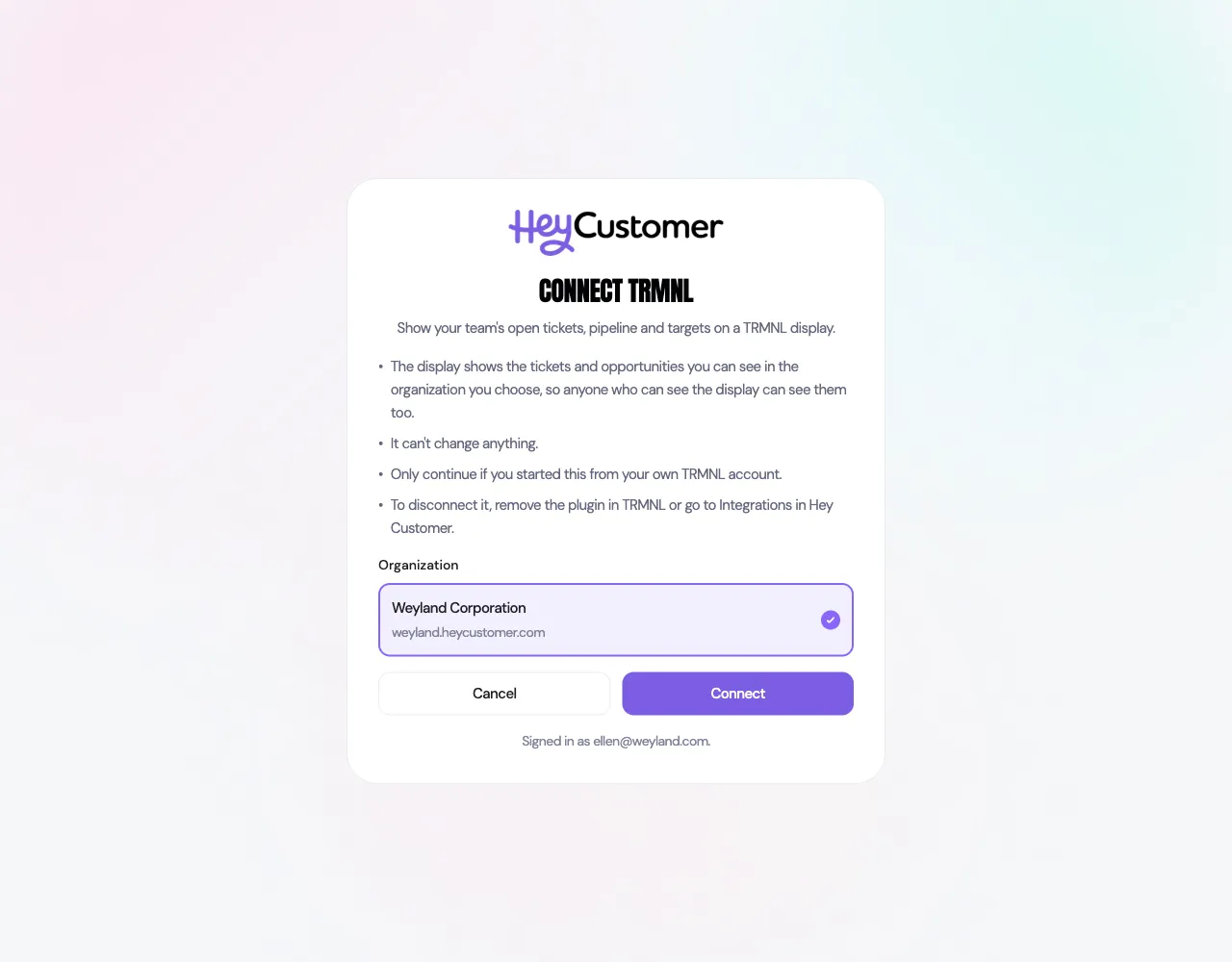
When you install the plugin, you sign in to Hey Customer and choose which organization the display shows. From then on it shows that organization as you see it. If your permission group only lets you see the leads and opportunities assigned to you, the pipeline and target numbers count only those. Open tickets always count every ticket in the organization.
The display can only show information. It can't create, change or delete anything in Hey Customer.
What the display shows
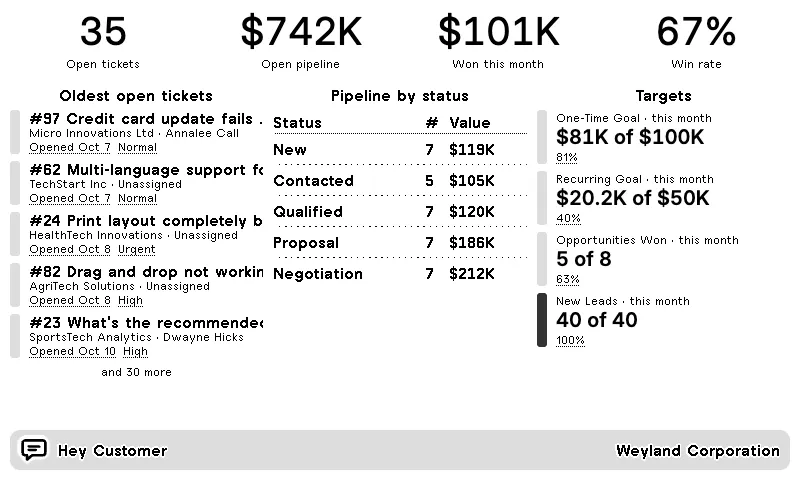
Across the top are four headline numbers:
Open tickets: how many tickets are open right now.
Open pipeline: the combined one-time and recurring value of your active opportunities. Archived opportunities don't count.
Won this month: the value of opportunities won so far this calendar month.
Win rate: of the opportunities won or lost in the last 12 months, the share you won.
On a full screen you also see:
Oldest open tickets: the five tickets that have waited longest, each with its account, who it's assigned to, the date it was opened and its priority. A ticket that has missed its service level is marked Overdue. The line underneath says how many more are open.
Pipeline by status: how many active opportunities are in each status, and their value, in the same order as your opportunities board.
Targets: progress toward each target you've set on Insights, for this month or this year, depending on how the target is set. Targets you haven't set are left off.
When the display shares the screen with other plugins, Hey Customer shows the four headline numbers and, when there's room, the oldest open tickets. Large amounts are shortened, so $742,350 appears as $742K.
Connect a TRMNL display
In your TRMNL account, find the Hey Customer plugin and install it.
When Hey Customer opens, sign in if you're asked to.
Choose the organization the display should show, then select Connect.
You're taken back to TRMNL. Name the plugin, save it, and add it to your device's playlist there.
The organization list only includes organizations where you're allowed to connect apps. If one is missing, see Good to know below.
See which organization a display shows
In TRMNL, open the Hey Customer plugin's settings and select Configure.
Hey Customer shows the organization the display shows and the person it shows it as.
Select Back to TRMNL to return. TRMNL refreshes the screen when you do.
To switch a display to a different organization, remove the plugin in TRMNL and install it again.
Disconnect a display
From TRMNL: remove the Hey Customer plugin. Hey Customer stops sending it anything.
From Hey Customer: go to Integrations, open the menu on the TRMNL card and select Disconnect. This disconnects every TRMNL display you've connected to that organization. To show Hey Customer on it again, install the plugin again in TRMNL.
Good to know
Connecting a display needs the API keys & AI assistants permission, the same one used to connect Claude and ChatGPT. An administrator can turn it on for your permission group under Configurations then Team Members.
If you lose that permission, are deactivated, or leave the organization, your displays stop showing its information right away.
Anyone who can see the screen can read what's on it, including customer names and amounts. Place the display with that in mind.
Each person connects their own displays, and you can connect more than one.
Reaching the Integrations page needs the Manage integrations permission. Without it, disconnect your display from TRMNL instead.
Connecting and disconnecting a display are recorded in the security log under Configurations then Security.
If your organization's subscription needs attention or the account is scheduled for deletion, the display shows a short message instead of your numbers.
How often the screen updates is set in TRMNL, not in Hey Customer.