
Ask an AI assistant about your accounts, opportunities and tickets
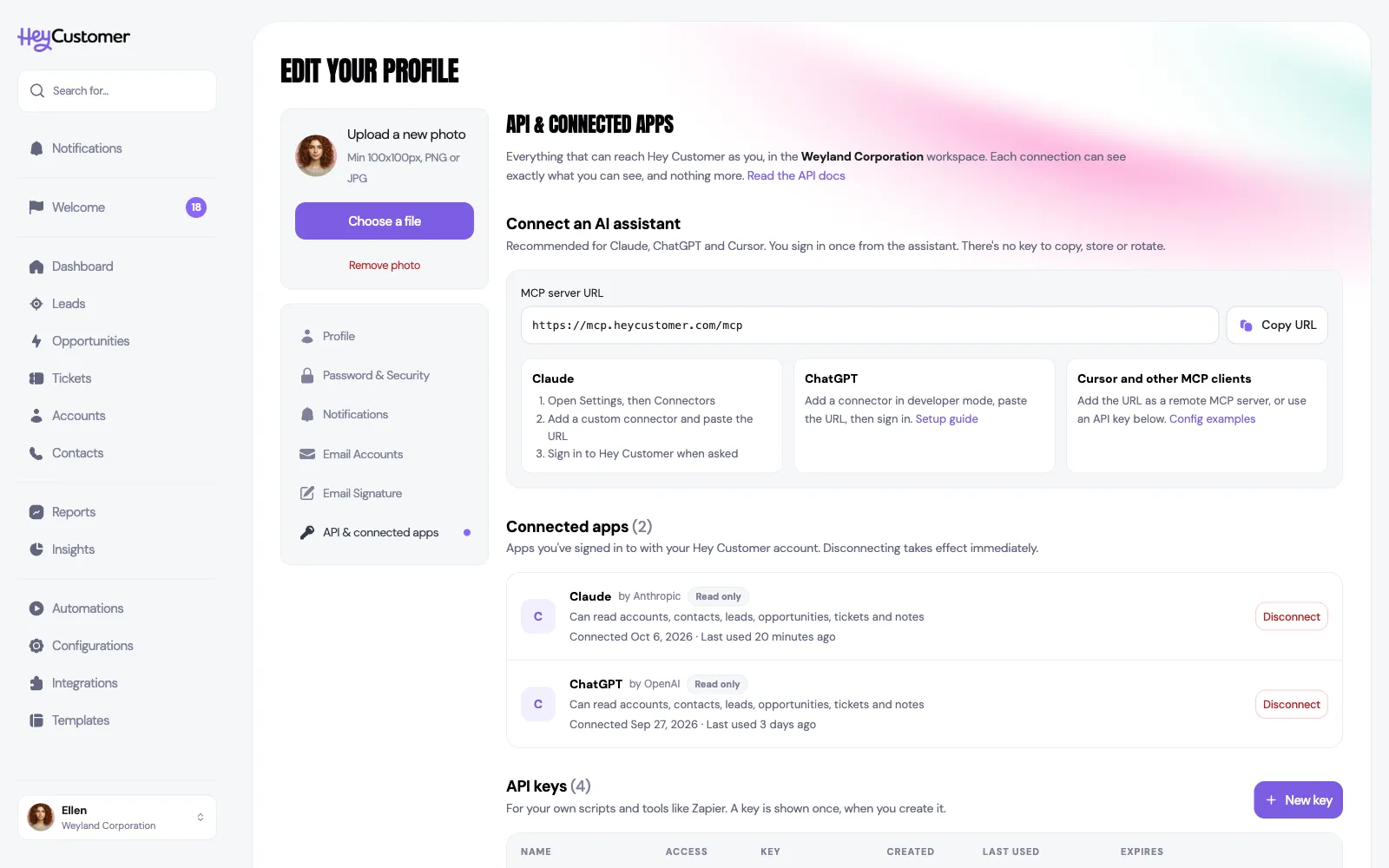
Connect an AI assistant such as Claude or ChatGPT to Hey Customer, and it can answer questions about your accounts, contacts, leads, opportunities and tickets using the same information you see in the app.
Hey Customer runs an MCP server, the standard way AI assistants connect to other apps. Its address is the same for everyone: https://mcp.heycustomer.com/mcp. You add that address to your assistant once and sign in to Hey Customer. From then on, when you ask about a customer, the assistant looks it up.
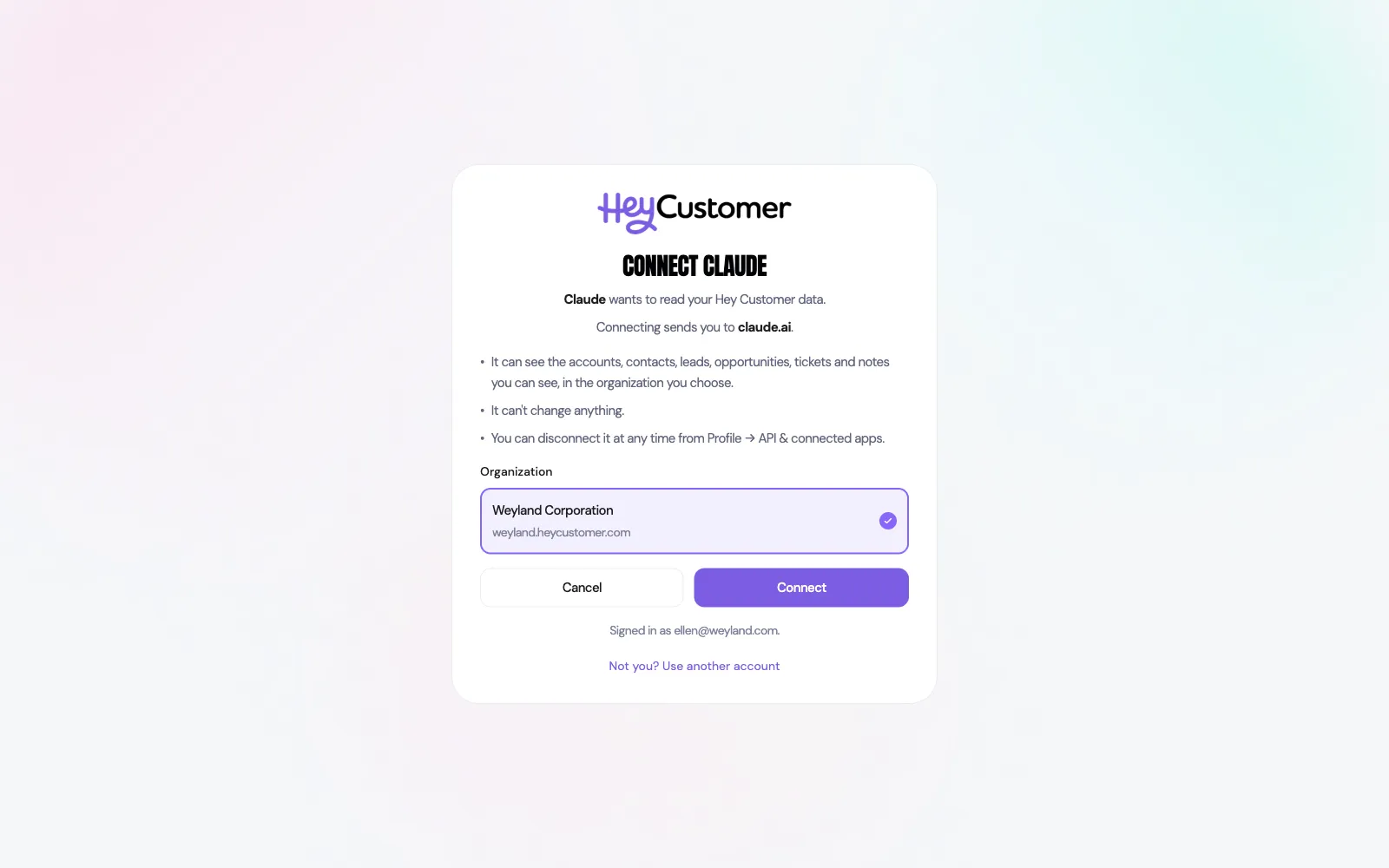
The assistant sees exactly what you can see in Hey Customer, in the one organization you choose when you connect, and nothing more. If your permission group only lets you see the leads and opportunities assigned to you, that's all your assistant sees too. It can only read: it can't create, change or delete anything.
You'll find the address, with a Copy URL button and short setup notes, under Profile then API & connected apps.
https://mcp.heycustomer.com/mcp. Leave any client ID and client secret fields empty.You're taken back to Claude, and the connection is ready to use.
https://mcp.heycustomer.com/mcp as the connector's address and choose to sign in with OAuth.Any tool that supports remote MCP servers connects the same way: add https://mcp.heycustomer.com/mcp as a remote (HTTP) server, and sign in when the tool asks. In Claude Code, run:
claude mcp add --transport http hey-customer https://mcp.heycustomer.com/mcpThen run /mcp, pick hey-customer and choose Authenticate.
If a tool can't sign in this way, give it an API key instead, sent in an Authorization: Bearer header. Configuration examples for Claude Code, Cursor, VS Code and the Claude and OpenAI APIs are at developers.heycustomer.com.
Before anything is shared, Hey Customer shows you which assistant is asking and what it will be able to do.
Your assistant can search Hey Customer by name, email address or ticket number, read any account, contact, lead, opportunity or ticket in full, list records filtered by things like status or who they're assigned to, and read the notes on a record. Every record it mentions comes with a link that opens it in Hey Customer.
Try questions like these:
Every assistant you've connected is listed under Profile then API & connected apps, with who makes it, what it can read, when you connected it and when it was last used. Select Disconnect and confirm to cut one off. It loses access straight away, and you can connect it again at any time.
Administrators can see and disconnect everyone's assistants under Configurations then Security, described in API keys.
Still need help? Email us at support@heycustomer.com