Control what each person on your team can see and do
Permission groups decide what each person on your team can see and do in Hey Customer — from who can change your settings to who can see opportunities that aren't theirs.
How it works
Permissions are granted to groups, never to one person at a time. You build a group, check the permissions it should have, and then put people in it. Everyone in a group has exactly the same access, and each person belongs to one group.
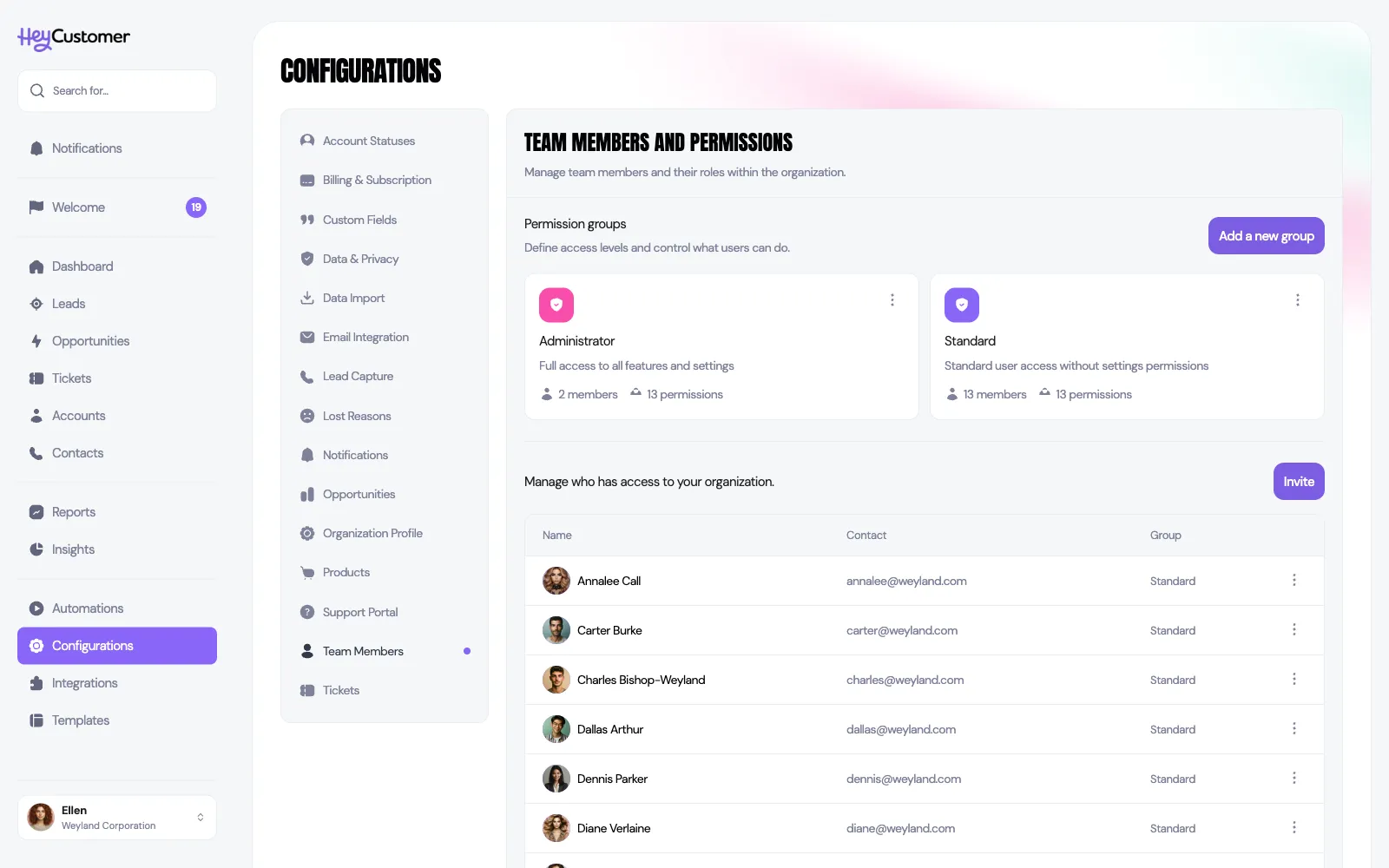
Every organization starts with two groups ready to use. Administrator has all thirteen permissions. Standard has everything except access to configurations, the three template libraries, integrations, and API keys and AI assistants — which suits most people who use the system day to day without running it.
You manage all of this in one place: Configurations > Team Members and Permissions. Groups are at the top, your team is below, and invitations that haven't been accepted yet sit at the bottom.
The thirteen permissions
Permissions are grouped into seven areas.
Configurations
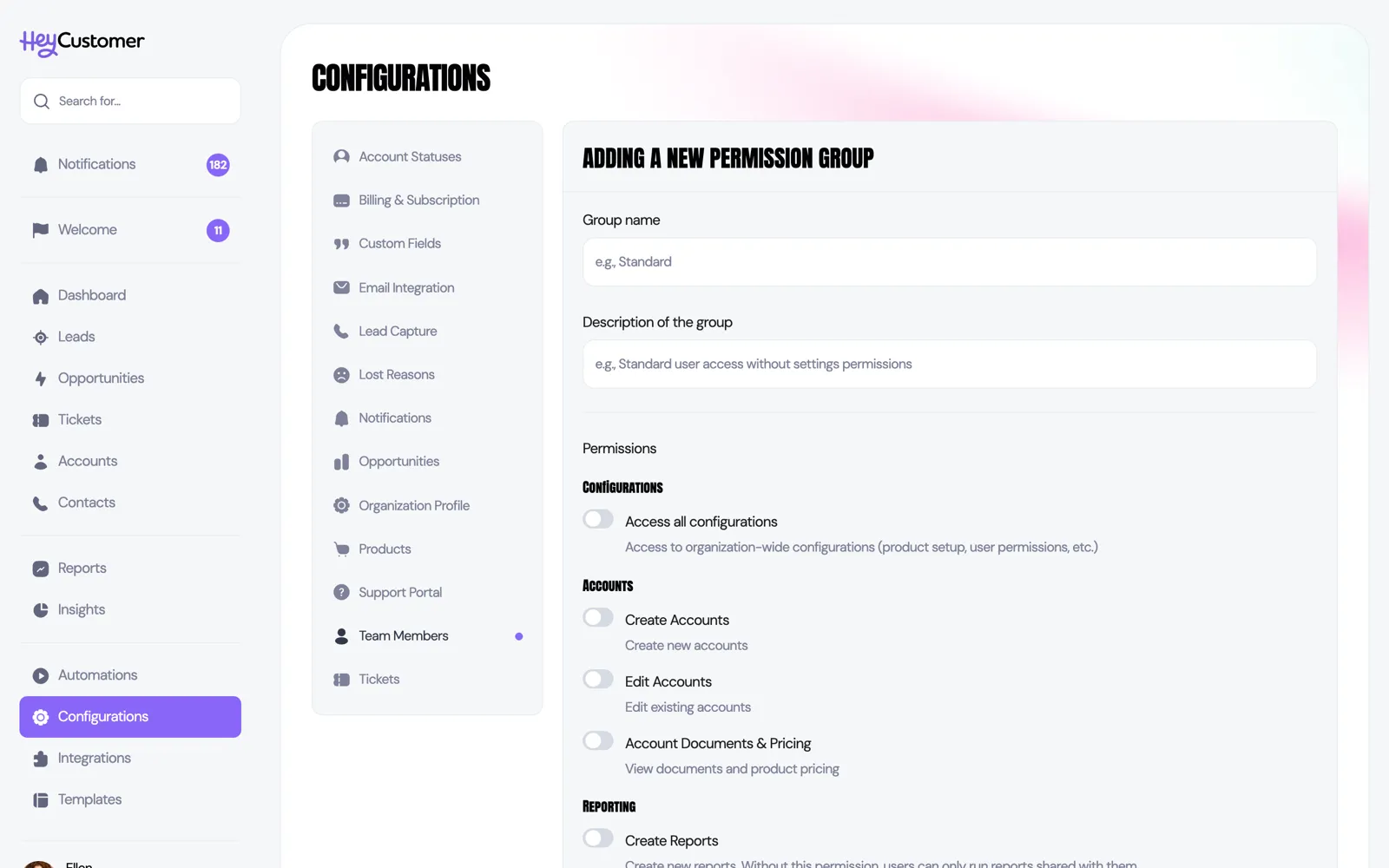
Access all configurations — open the Configurations area and change organization-wide setup: statuses, custom fields, products, notifications, team members, billing, and everything else in there.
Accounts
Create Accounts — add new accounts.
Edit Accounts — change existing accounts.
Account Documents & Pricing — see the documents and product pricing attached to an account.
Reporting
Create Reports — build new reports. Without it, a person can still run reports that have been shared with them.
Pipeline
Assignable to Leads and Opportunities — the person appears in the assignment dropdowns, so work can be handed to them.
View All Leads and Opportunities — see and edit every lead and opportunity. Without it, a person only sees the ones assigned to them.
Templates
Add & Edit Email Templates
Add & Edit Document Templates
Add & Edit Note Templates
Automations
Manage automations — create, edit, turn on or off, and delete automations.
Integrations
Manage integrations — connect, configure, and disconnect integrations such as Slack. Together with Access all configurations, it also opens Configurations > Security, where you can see and revoke everyone's API keys and connected AI assistants.
API keys & AI assistants — create personal API keys and connect AI assistants such as Claude and ChatGPT. Both can only read, see exactly what the person who set them up can see, and stop working while this permission is off.
Create a permission group
Go to Configurations > Team Members and Permissions.
Click Add a new group.
Give the group a Name and a short Description so the rest of your team knows what it's for.
Check every permission the group should have. They're listed by area.
Save the group.
To change a group later, open it and edit its permissions. Saving replaces the group's whole permission set with whatever is checked, so make sure the boxes you want to keep are still checked before you save.
Invite a teammate
Go to Configurations > Team Members and Permissions.
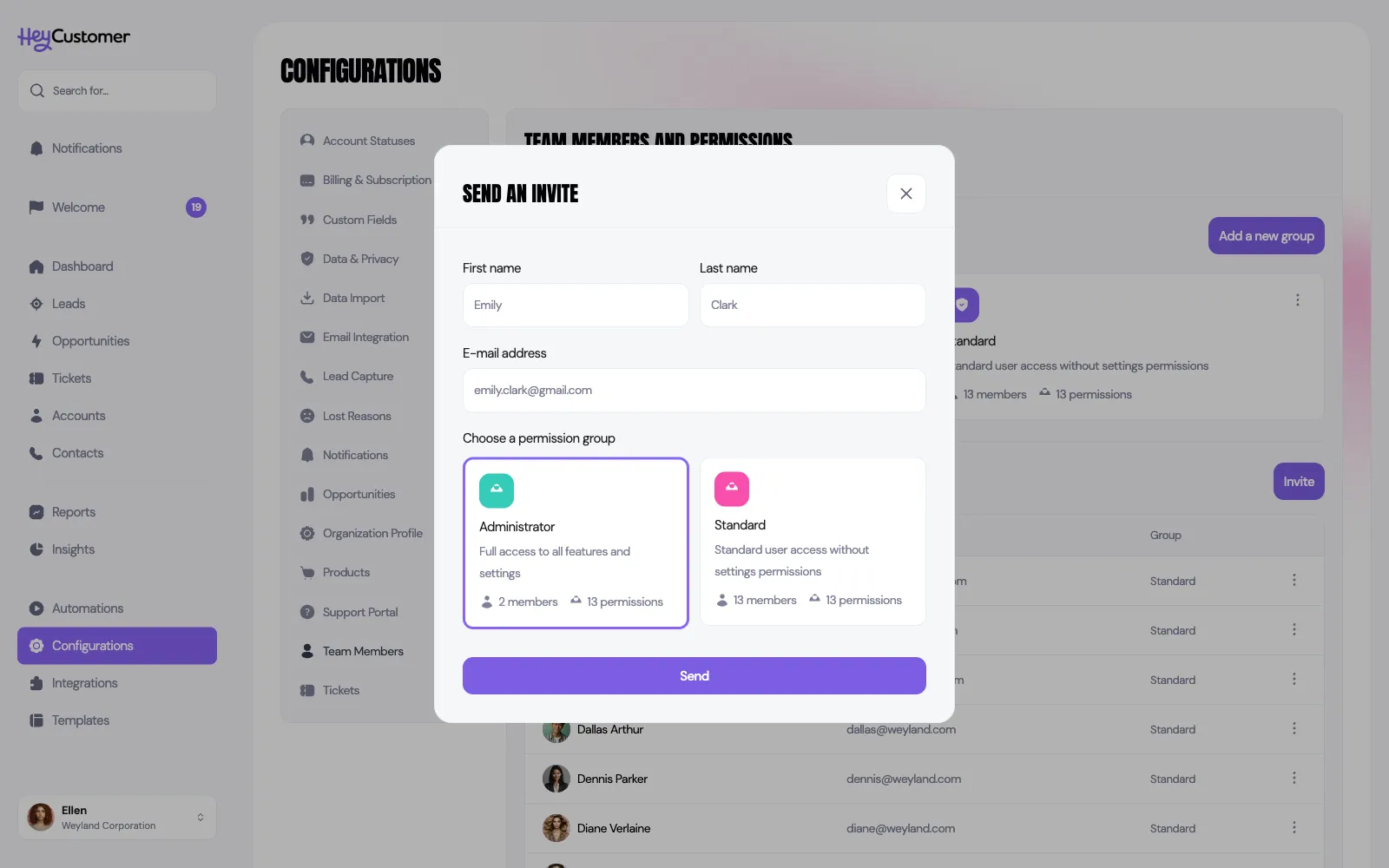
Click Invite.
Enter their first name, last name, and email address.
Choose the permission group they should join.
Send the invitation. They get an email with a link to set up their account.
Invitations you've sent but nobody has accepted appear under Pending invitations, where you can Resend or Cancel them. An invitation is good for 10 days; resending starts a fresh 10 days.
Change someone's access
Find the person in the team members table.
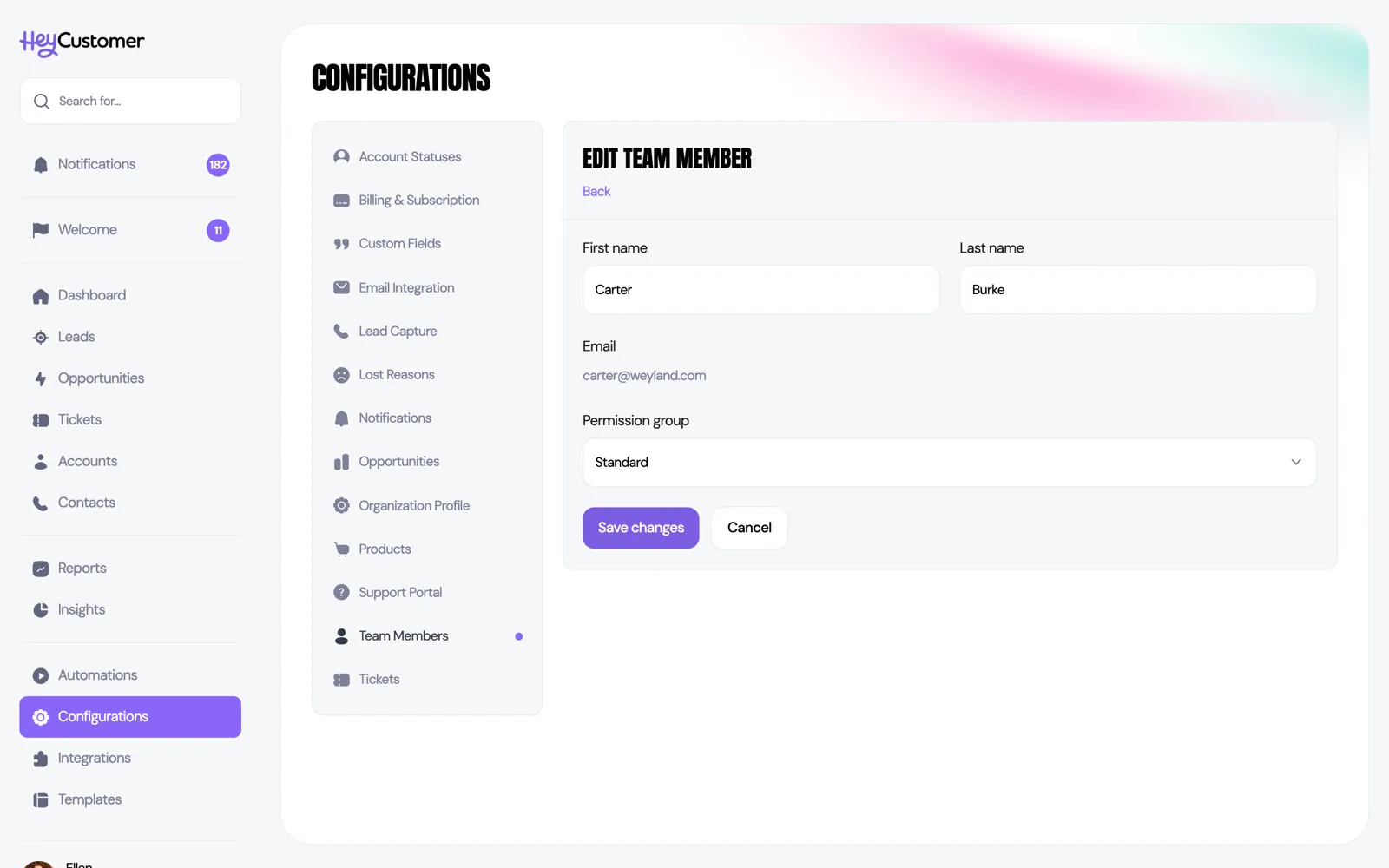
Open the menu at the end of their row and choose Edit.
Change their name or move them to a different permission group.
Save. Their access changes right away.
To remove someone's access without losing their history, choose Deactivate from the same menu. They move to an Inactive members list at the bottom of the page and can no longer sign in, but everything they created stays put. Reactivate brings them back.
The account owner
One person in each organization is the account owner, marked with an Owner badge in the team list. The account owner can't be deactivated and must always be in a group that has settings access — this is what stops an organization from accidentally locking itself out of its own configurations.
If the account owner should change, the current owner opens the menu next to the new person's name and chooses Transfer Ownership. Both people get an email confirming the change. Only the current account owner sees this option.
Good to know
Each person belongs to one group. To give someone a different mix of access, make a group for it.
When someone tries to do something their group doesn't allow, they see a message explaining which permission they're missing so they know what to ask for.
"View All Leads and Opportunities" affects more than the pipeline lists — without it, search results, the dashboard, and insights also only count that person's own records.
A template permission controls the whole library for that type. Without it, that template section isn't available to the person at all.
Settings access can't be removed from a group that contains the account owner.
A group that still has people in it can't be deleted. Move everyone to another group first.
You can't deactivate yourself, and you can't transfer ownership to yourself or to an inactive person.
You can't invite an email address that already belongs to a member of your organization or already has an invitation waiting.
permissions, roles, permission group, user role, access level, admin, administrator, standard user, invite a user, add a team member, deactivate a user, account owner, transfer ownership, settings access, who can see what, API keys, create API keys, AI assistant, Claude, ChatGPT, security