Shape the types, statuses and priorities your team works with
Every ticket in Hey Customer carries three things: a type, a status and a priority. Configurations, then Tickets, is where you decide what those three lists contain.
How it works
The three lists do different jobs. A type says what kind of request it is. A status says where it has got to. A priority says how urgent it is. Every ticket has exactly one of each, and you pick them from these lists whenever you create or edit a ticket.
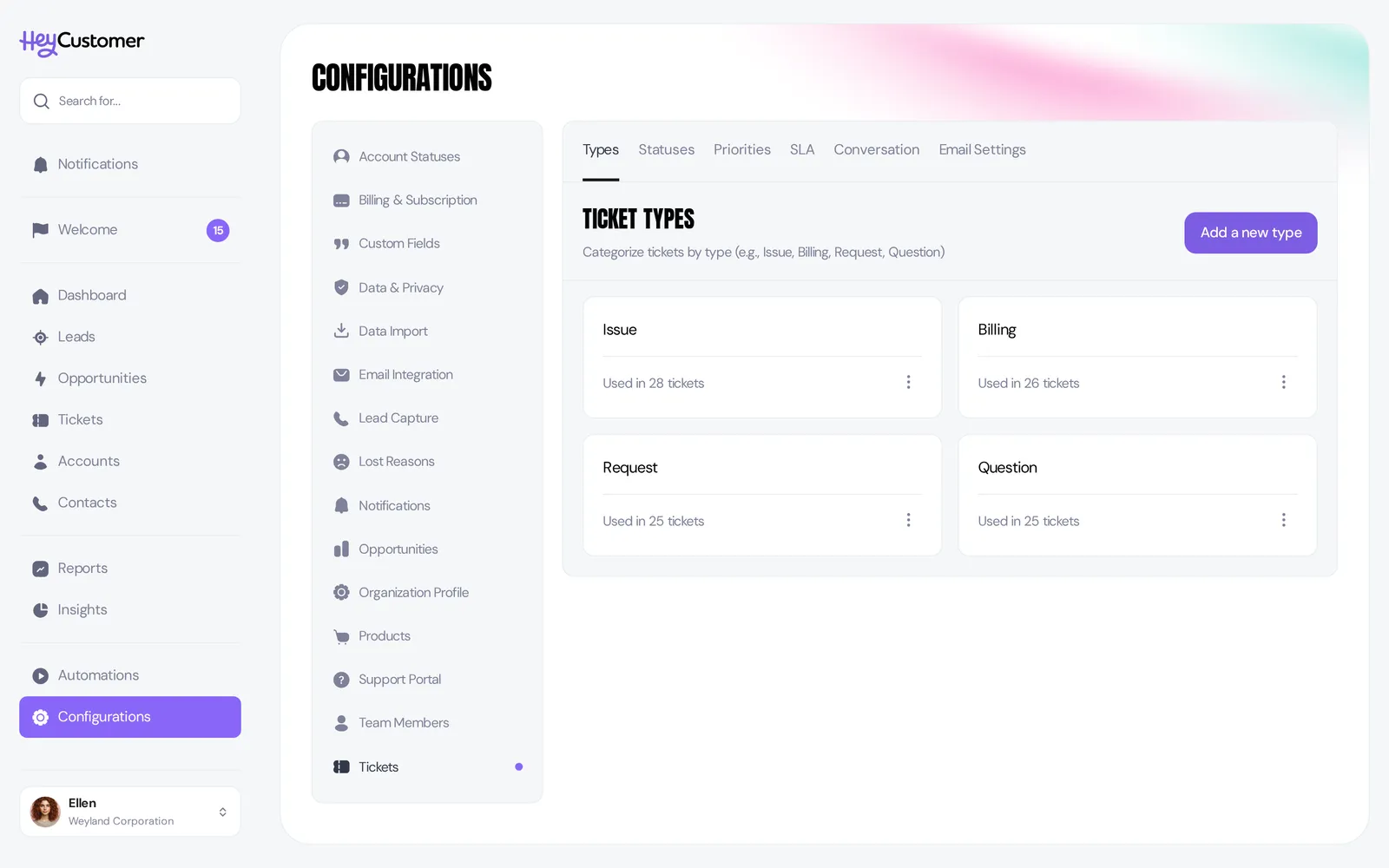
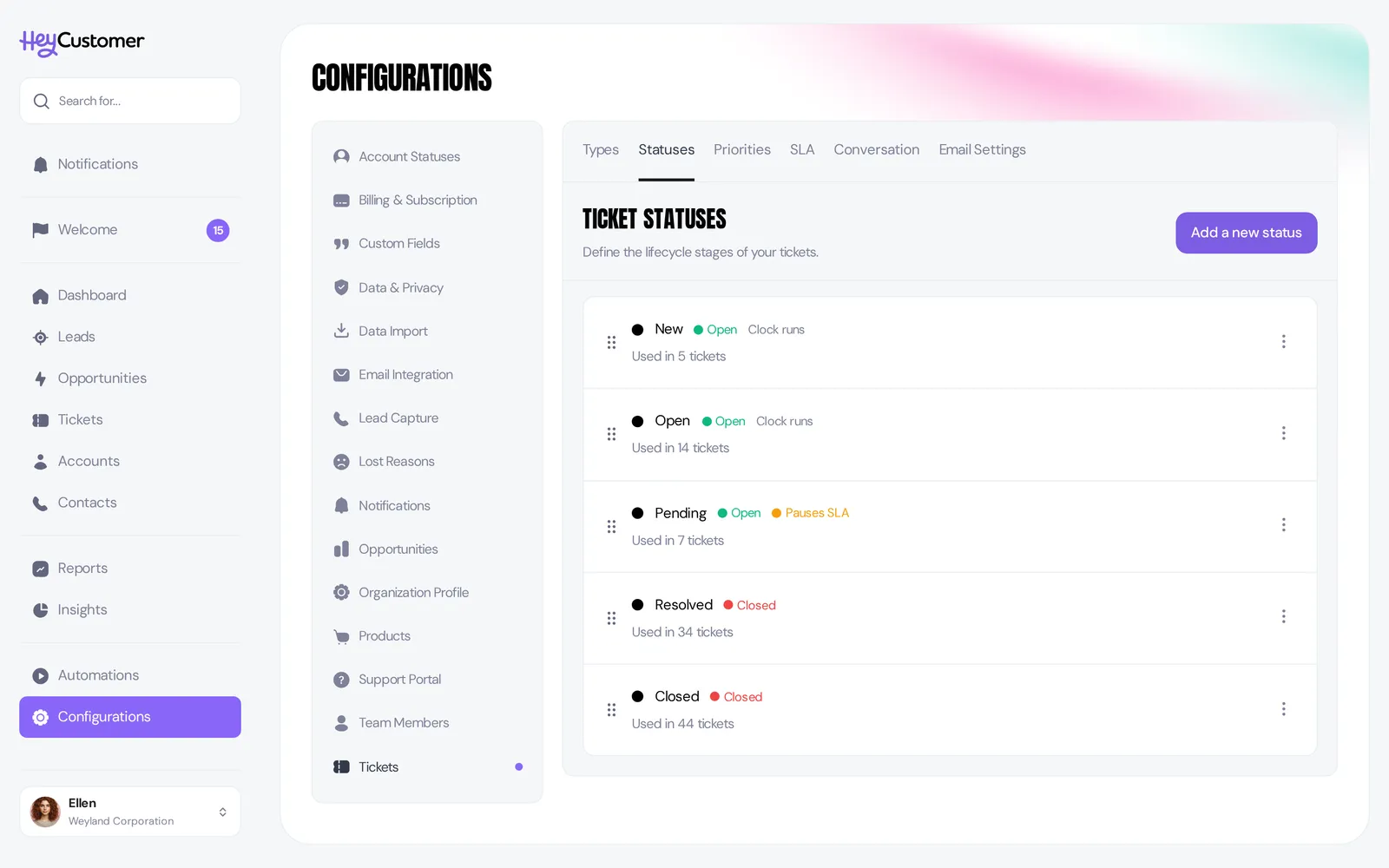
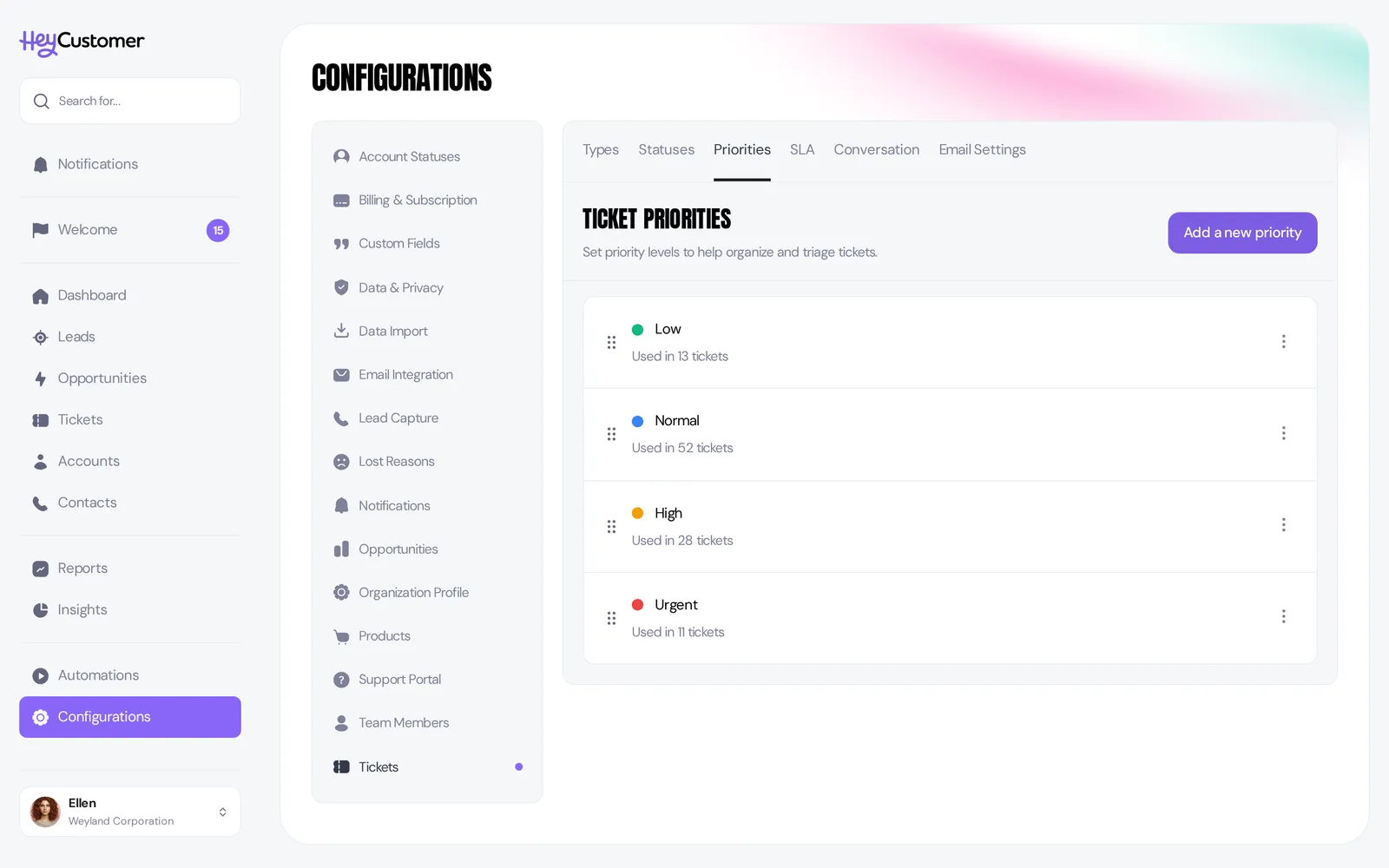
You don't have to set any of this up before you start. A new organization arrives with a working set already in place: types of Issue, Billing, Request and Question; statuses of New, Open, Pending, Resolved and Closed; and priorities of Low, Normal, High and Urgent. Most teams rename a few things and carry on.
Changes take effect straight away, across the whole organization. Under each entry you'll see how many tickets are using it, so you can tell what's in active service before you change anything.
Open your ticket settings
Select Configurations in the left sidebar.
Select Tickets from the list of configuration areas.
Move between the lists using the tabs across the top: Types, Statuses, Priorities, SLA, Conversation and Email Settings.
This article covers the first three. Conversation and Email Settings are a different job — they control tickets that arrive by email, and they have their own article. SLA is where you set response and resolution targets.
Ticket types
A type is the plainest of the three: it has a name and nothing else. Use it to sort work by the kind of request coming in, so you can tell a billing question from a broken feature at a glance.
On the Types tab, select Add a new type.
Enter a Name.
Select Add.
To change one later, select the ⋮ menu on its card and choose Edit.
Ticket statuses
A status has a name, a color, and one more setting that matters more than either: its classification, which is either Open or Closed. Statuses classified as Open carry one extra choice — whether a ticket sitting in them pauses the SLA clock.
The classification is what Hey Customer actually counts. Your open and closed ticket filters, and the support figures on your dashboard, all read the classification rather than the name. So a status called "Waiting on customer" is still counted as open work until you classify it as Closed. When a ticket moves to any status classified as Closed, Hey Customer records the date it was resolved, the date it was closed, and who closed it.
On the Statuses tab, select Add a new status.
Enter a Name.
Pick a Color using the swatch, or type a hex value such as #3B82F6.
Set the Classification to Open or Closed.
On an Open status, check Pauses the SLA clock when a ticket in that status is waiting on the customer, so its resolution target stops counting while it sits there. The option is switched off on Closed statuses, which have nothing left to count.
Select Add.
Drag a status by the handle on its left to change the order your team sees.
Ticket priorities
A priority has a name and a color. The order you put them in is the order your team sees in the priority picker, so most people run them from least to most urgent.
On the Priorities tab, select Add a new priority.
Enter a Name.
Pick a Color.
Select Add.
Drag priorities by the handle to reorder them, the same way as statuses.
Retire something you've stopped using
You have two ways to take an entry out of service, and the right one depends on whether anything is using it.
Select the ⋮ menu on the entry you want to retire.
Choose Archive to take it out of circulation. It stays on the tickets that already have it, but nobody can pick it for new work. Archived entries collect in an Archived section further down the tab, where Unarchive brings one back.
Choose Delete to remove it for good. This only appears when nothing is using the entry — if it's on even one ticket, archive it instead.
Good to know
You need permission to reach Configurations at all. If Configurations isn't in your sidebar, or you're sent back to your profile with a message, ask an administrator to add configuration access to your group.
Names have to be unique within each list. You can't have two ticket types both called Billing.
Adding an entry with the same name as an archived one brings the archived entry back instead of creating a duplicate — handy if you retire something and change your mind.
Your first response time is recorded when somebody on your team actually answers the customer — the first reply sent from a ticket's Conversation tab by a person rather than an automation. Renaming or reordering your statuses doesn't affect it.
Ticket types can't be dragged into a different order. They show in the order you created them, so add them in the order you want to see them.
Statuses and priorities carry a color; types don't.
A priority's position in the list is for your team's benefit only. Nothing is calculated from it, so moving Urgent to the top won't change how anything is sorted or reported.
The count under each entry — "Used in 26 tickets" — includes tickets in every state, not just open ones. It's the quickest way to check whether something is safe to retire.
Archiving a status doesn't move the tickets that already have it. They keep that status until someone changes it.
These lists are shared by every ticket in your organization, whether it was raised by your team, through the support portal, or by email.