
Book the next step, get reminded the day it's due, and leave a record when it's done
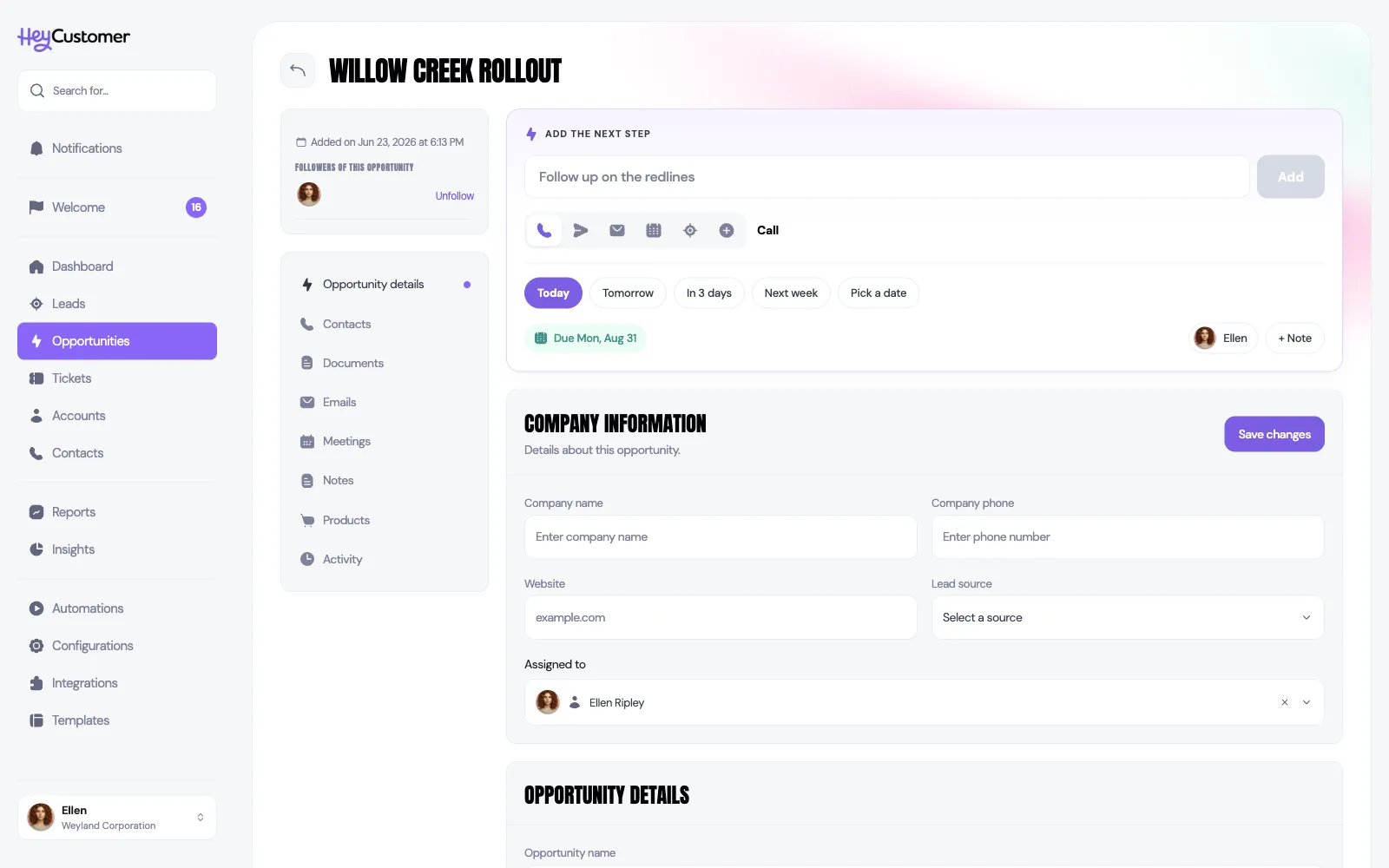
An opportunity goes quiet when nobody has decided what happens next. Hey Customer asks you to name that one thing — the call, the email, the site visit — keeps it in front of you on the record, reminds you the morning it's due, and writes it to the timeline once it's done.
Every open opportunity has room for a next step at the top of its record, above whichever section you're looking at. It follows you between Opportunity details, Contacts, Notes and the rest, so you never have to go looking for it.
It shows one of three faces. With nothing booked, it's a box asking what happens next. With something booked, it's a single row naming the step and its date, with a Done button. Once that date has passed, the same row turns red and offers Reschedule instead of a snooze.
Next steps live on opportunities and nowhere else. Won, lost and archived opportunities show nothing at all — there is no next step for work that's finished.
A title and a date are the only things required, which is the point — booking the next step should take a couple of seconds. Two optional extras sit on the right: the assignee chip, which starts as you and can hand the step to a teammate, and + Note, for context you'll want later ("what was agreed, what's blocking").
On the morning a next step is due, Hey Customer sends one reminder to whoever it's assigned to. It arrives at 8am in your organization's time zone, as a notification in the app and, if you have email notifications turned on, as an email as well. The reminder is titled Task due — same thing, different word.
That's one reminder, on the day, and no more. There's no advance warning the day before, and nothing chases you again once a step goes overdue. Overdue work is meant to be seen rather than resent to you: it turns red on the opportunity, shows as a red chip on the pipeline board and in the list's Next Task column, and drives the Follow-ups count on your dashboard.
The reminder goes to the assignee alone — not to whoever created the step, and not to everyone following the opportunity.
Select Done on the next step row. That opens a short confirmation rather than finishing it silently, because two useful things happen here.
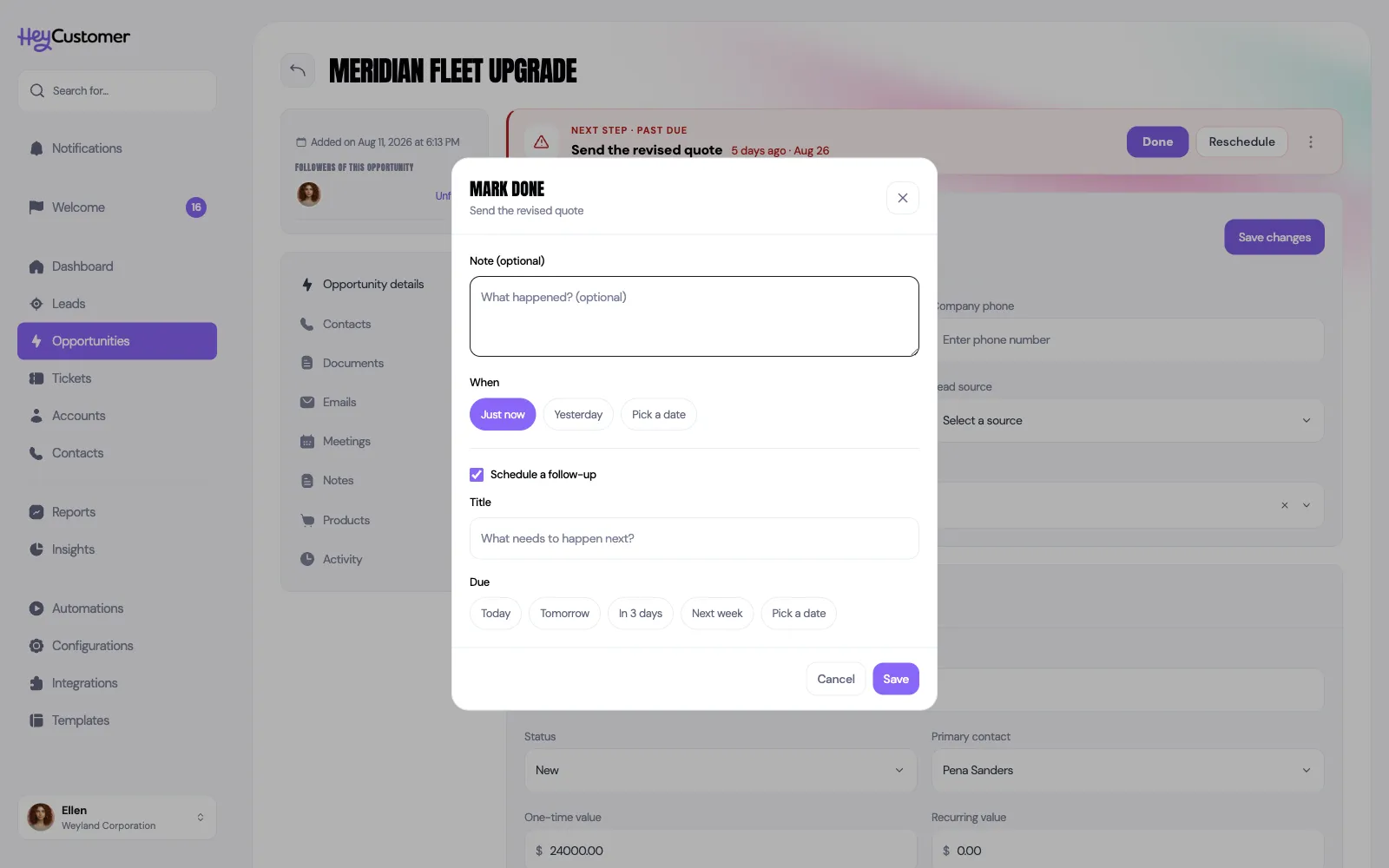
If there's genuinely nothing to book next, clear the checkbox and save. The opportunity will then show the empty box again, and it will start counting toward the "no next step" work on your pipeline.
A step you're not going to get to today has two ways out, and which one you're offered depends on whether it's late.
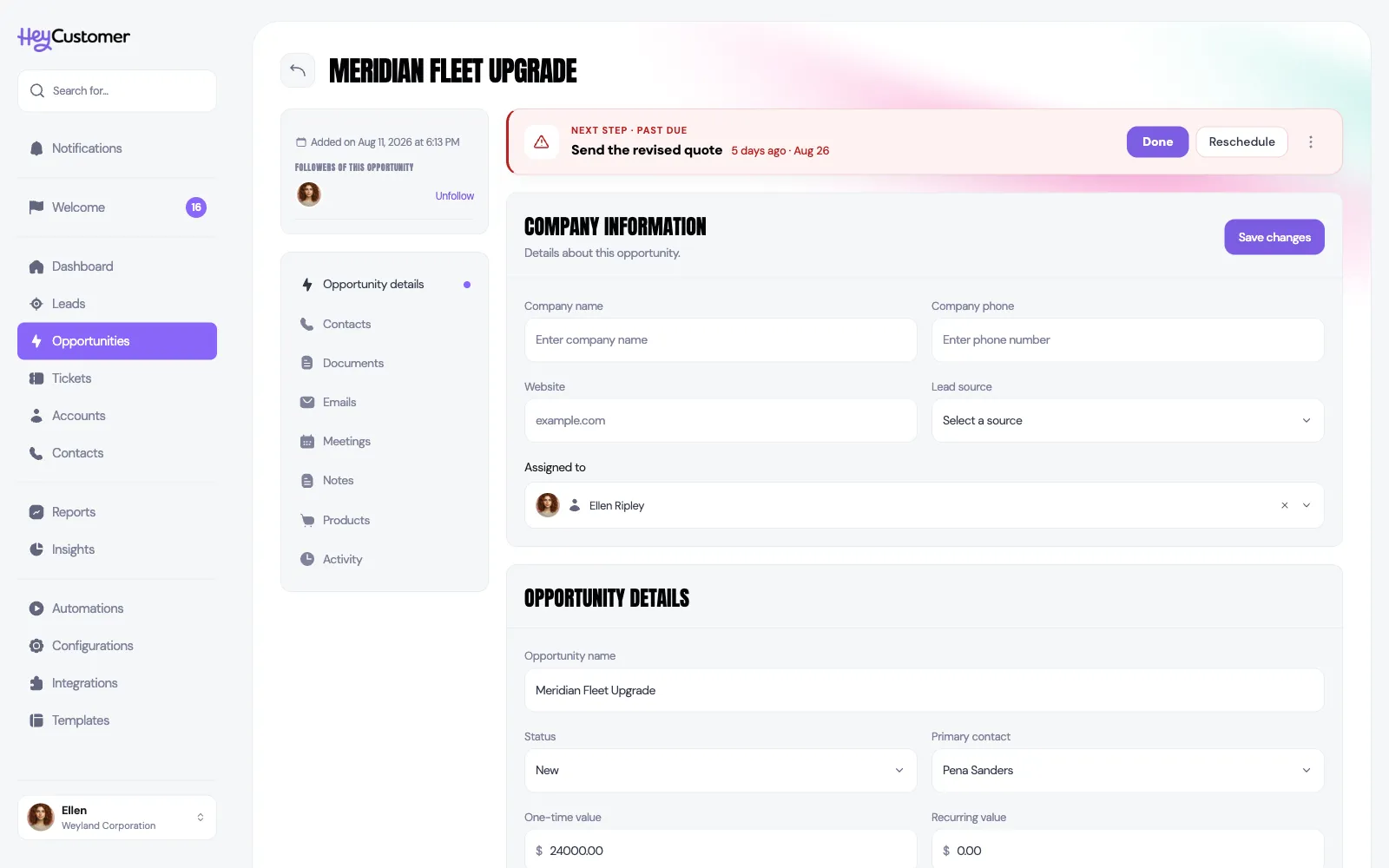
Canceling leaves no trace on the timeline, and that's intentional — a call you decided not to make isn't a conversation you had with the customer. Completing a step does leave a trace, which is the next section.
Completing a next step writes it to the opportunity's Activity section, as the kind of contact it was: a completed Call reads as a logged call, a completed Meeting as a logged meeting. The entry carries the step's own title, so the timeline says "Call about the renewal terms" rather than a generic "Logged a call", along with your note and whoever completed it.
Recent completions also appear under Recent activity on the dashboard, named by opportunity and by the kind of contact.
The timeline is the record. There's no separate list of finished next steps to go hunting through — what you did lives on the opportunity it was done for, mixed in with the emails, notes and meetings that surround it.
Select Dashboard in the left-hand menu. The Follow-ups tile, first under Pipeline, is your personal picture of what you owe people.
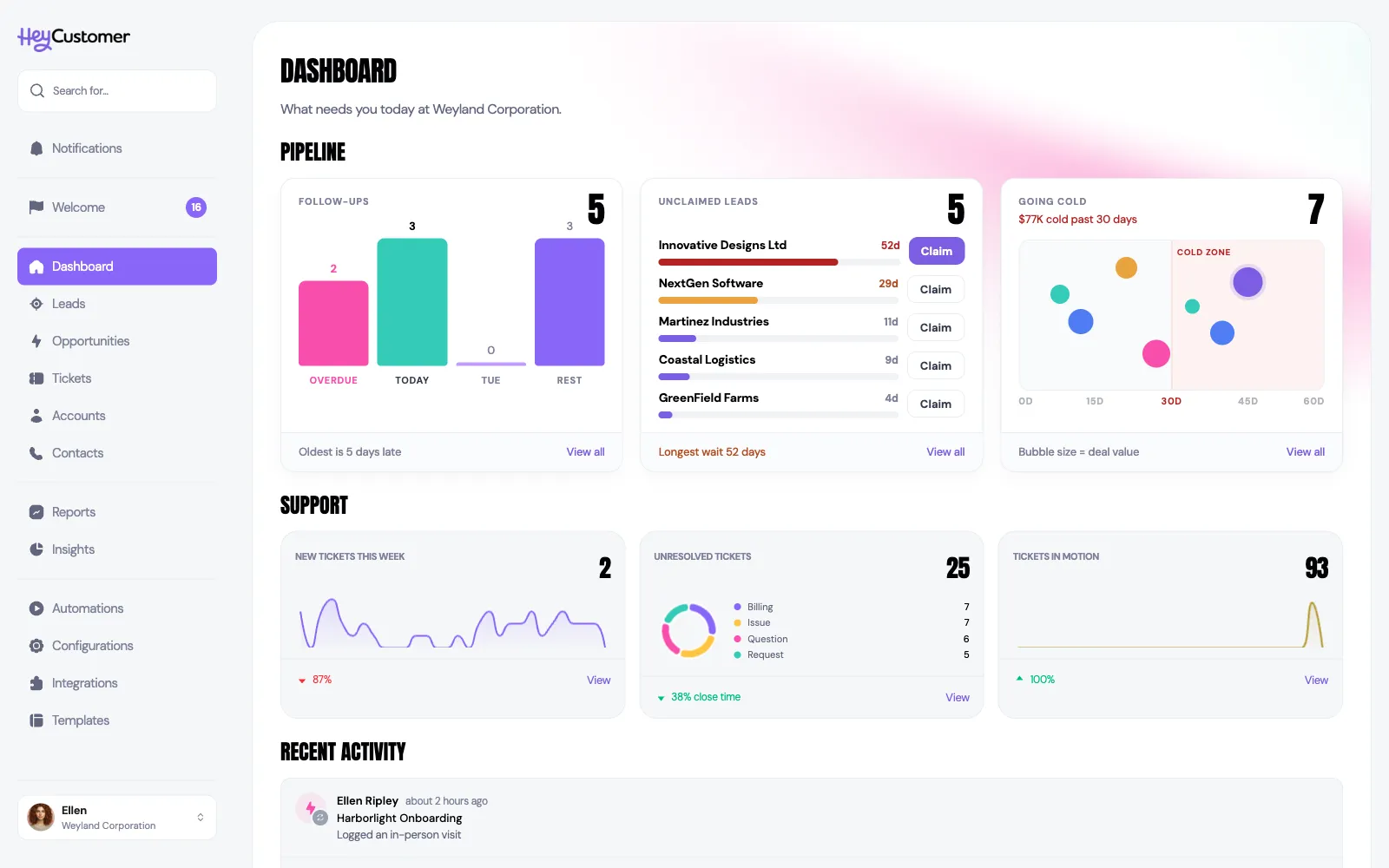
The big number is the work that has to happen today: opportunities assigned to you whose next step is overdue or due today, added together. The four bars break the same picture out by urgency — overdue, due today, the next working day, and everything else scheduled. The footer tells you how late the worst one is, and View all opens your pipeline filtered to exactly the overdue and due-today work.
Two things to know about the tile. It counts opportunities, not individual steps, so an opportunity with three open steps counts once. And it's yours alone — it only ever counts opportunities assigned to you, so a quiet tile doesn't mean the team is quiet.
Still need help? Email us at support@heycustomer.com