Rules that assign, escalate and chase while you're doing something else
An automation is a rule that watches your leads, opportunities or tickets and does something the moment it needs doing — assigns the urgent ticket, tells the right people, nudges the lead nobody has called back. You set it up once, and it keeps working whether or not anyone is looking.
How it works
Every automation is three decisions: when it should run, which records it applies to, and what it does. The builder walks you through them in that order — Trigger, Conditions, Actions.
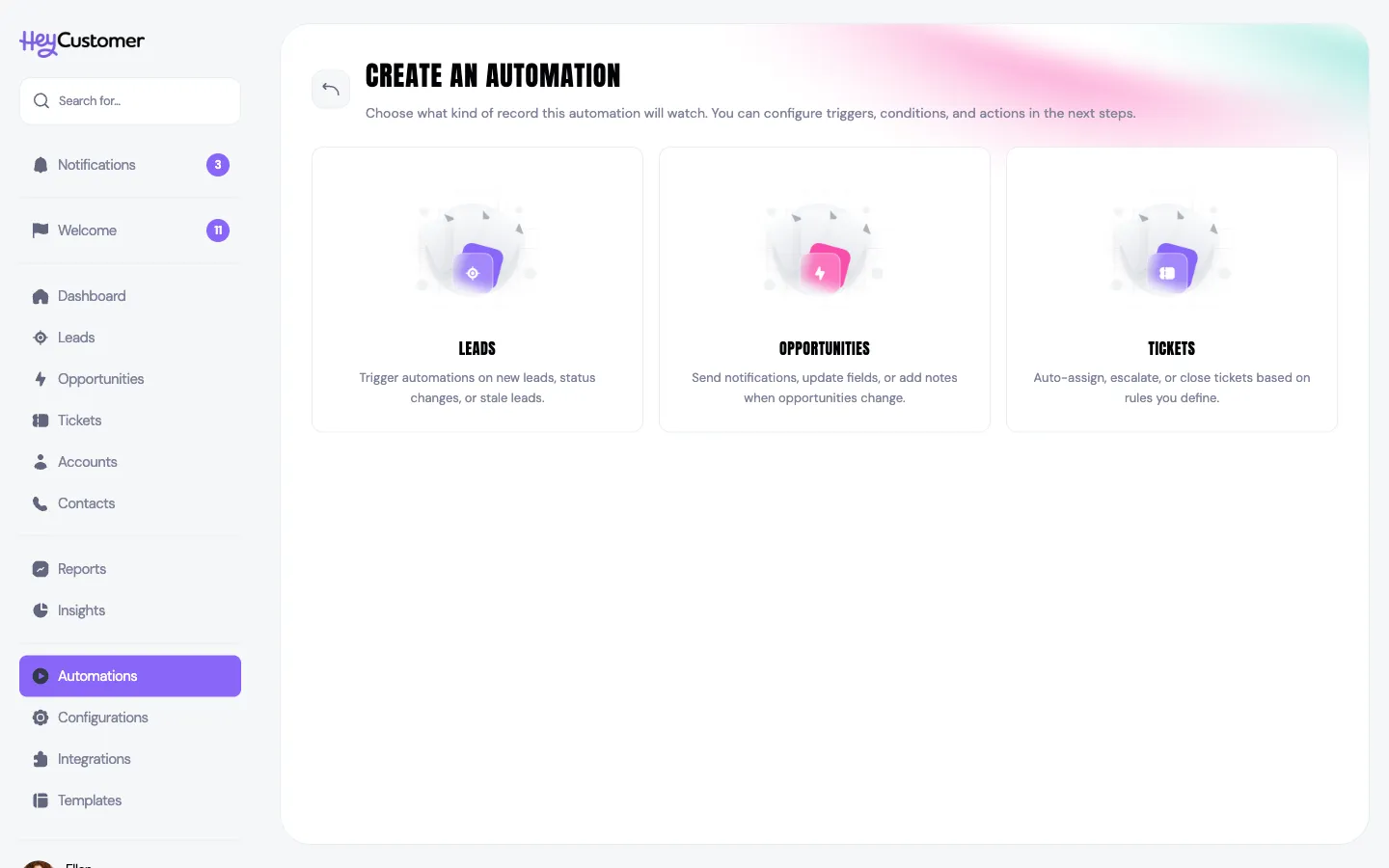
An automation watches one kind of record: leads, opportunities or tickets. That choice is the first thing you make, and it shapes everything after it, because the fields you can test and change depend on what you're watching.
Triggers come in two flavors. An event trigger fires when a record is created or updated. A time elapsed trigger fires when a record has been sitting for longer than you're willing to wait — four hours since it arrived, a week since anyone touched it. Time is what turns a rule into a safety net: it catches the things that quietly didn't happen.
When an automation acts on a record, the work is credited to Hey Customer Automation rather than to a person, so it's always clear what was done by a rule and what was done by hand.
Build an automation
Select Automations in the left sidebar, then Create a new automation.
Choose what the automation watches: Leads, Opportunities or Tickets.
Name the automation at the top of the page. Write it so anyone on your team can tell what it does — you'll be reading this name in the run history later.
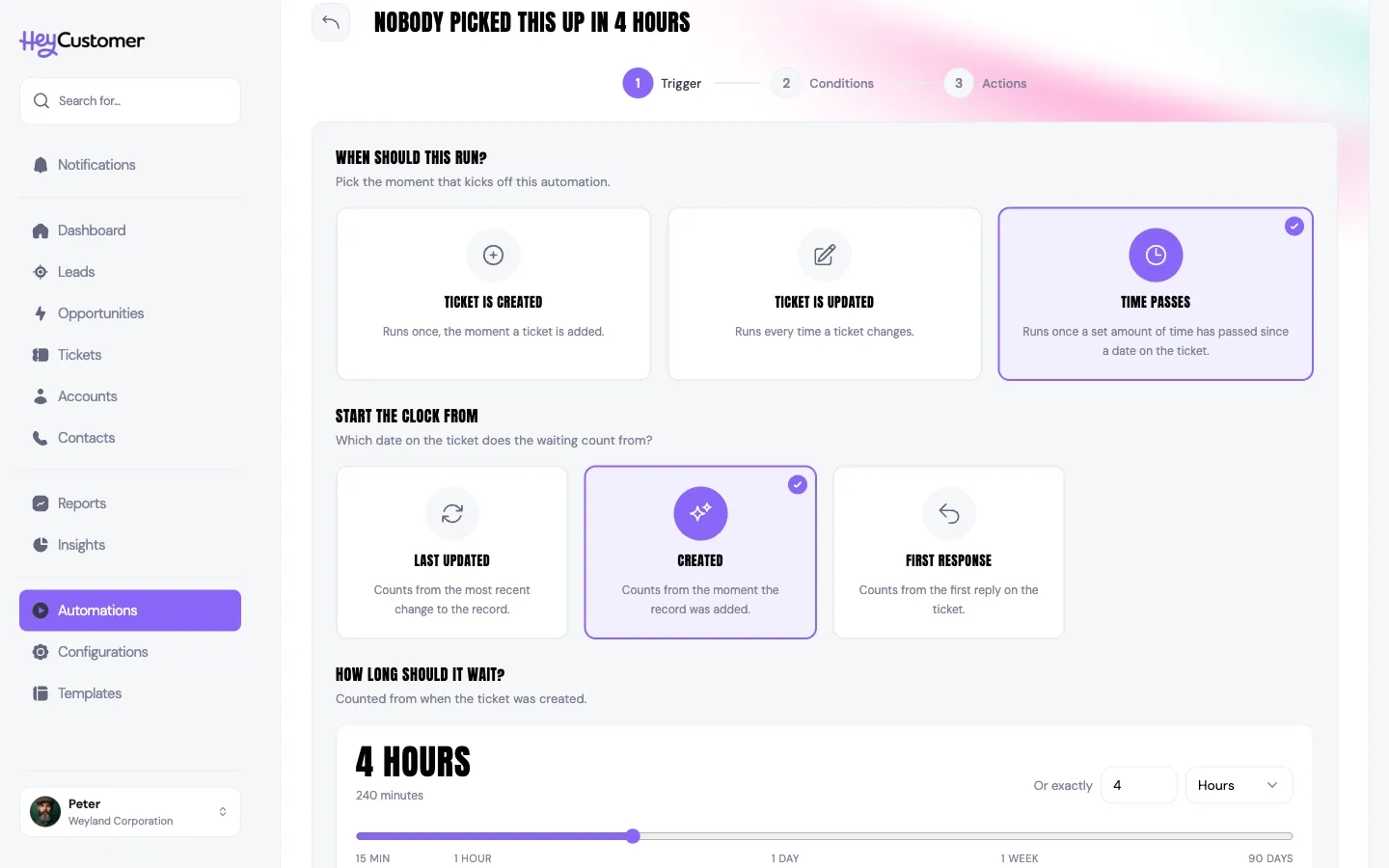
Under When Should This Run?, pick a trigger tile: Ticket Is Created, Ticket Is Updated or Time Passes (the first two are named for whatever you're watching).
For Time Passes, choose which date to Start The Clock From — Created, Last Updated, Last Contacted or First Response, depending on the record — then set How Long Should It Wait? by sliding the dial, tapping a preset like 4 hours or 1 week, or typing an exact amount in minutes, hours or days.
Select Next Step.
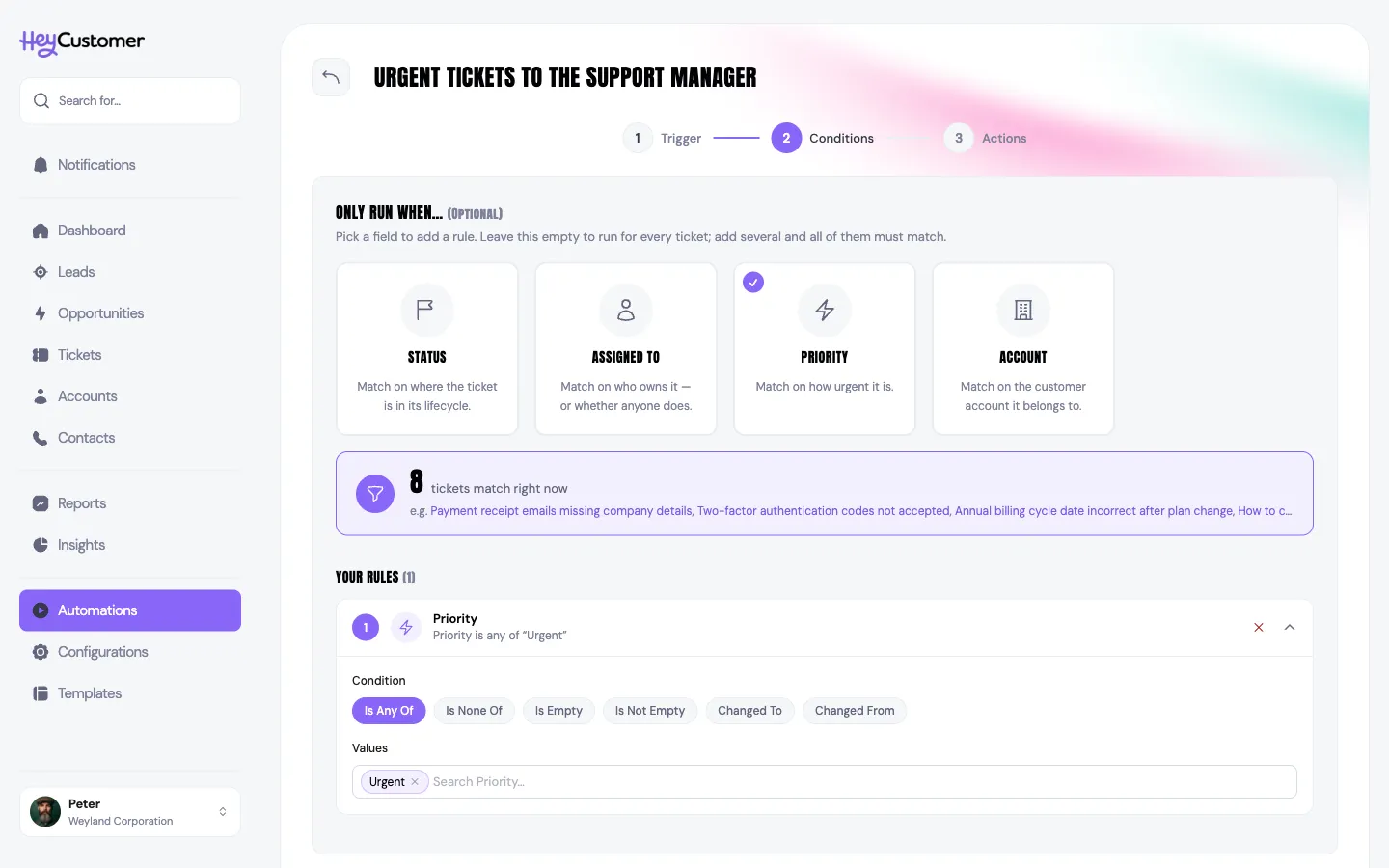
Under Only Run When…, select a field tile — Status, Priority, Assigned To and so on — to add a rule. On the rule card, pick how to compare it (Is Any Of, Is None Of, Is Empty and so on) and choose the values. Add as many rules as you need — a record has to satisfy every one of them. The panel above the rules shows how many of your existing records match right now, with a few examples, so you can see what the rules catch before you save.
Select Continue. Conditions are optional; skip this step and the automation applies to every record of that type.
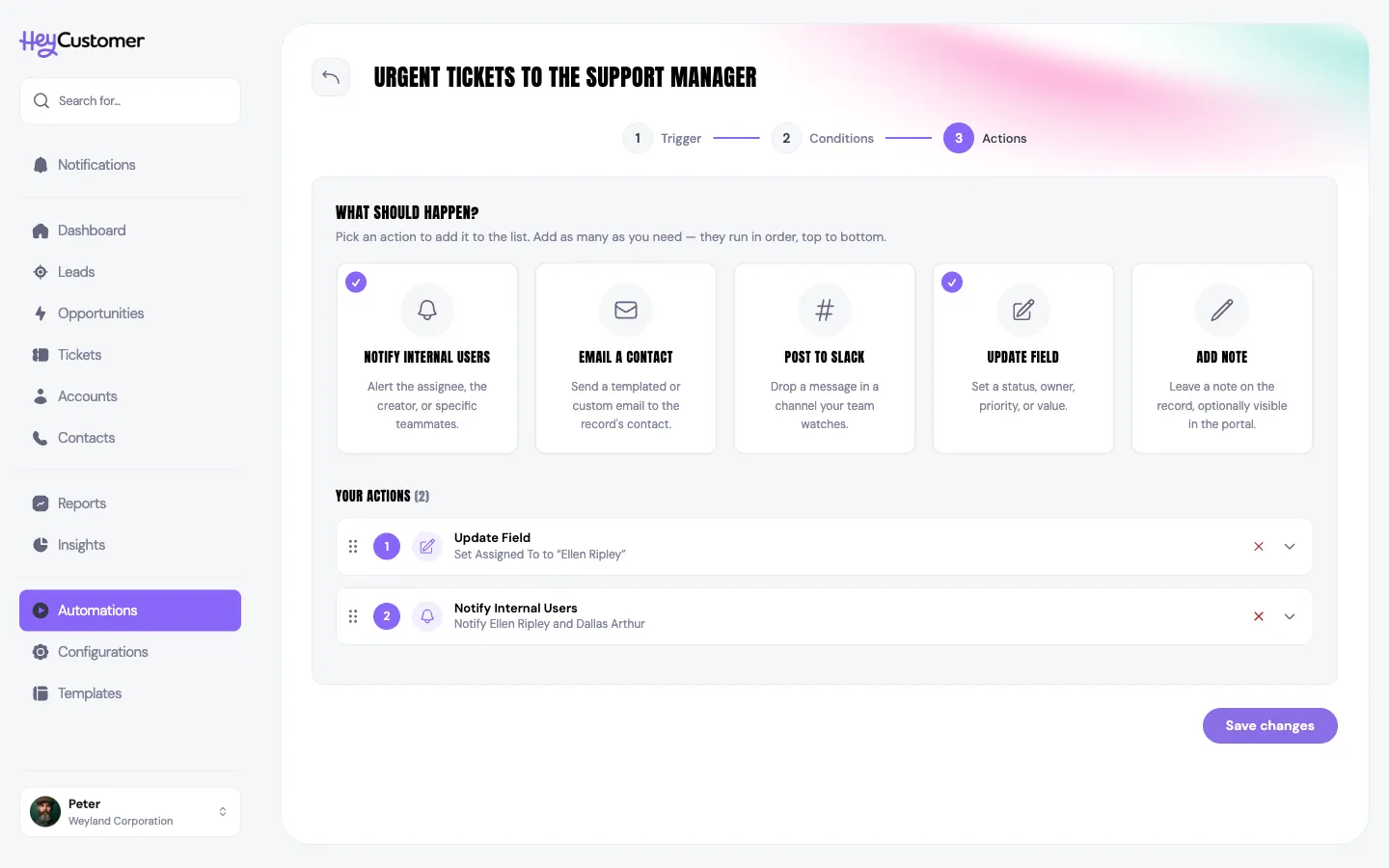
Under What Should Happen?, select an action tile to add it to Your Actions: Notify Internal Users, Email A Contact, Post To Slack, Update Field or Add Note. Select a tile again to add another of the same kind.
Fill in each action's details — each card collapses to a one-line summary once it's set up. Actions run top to bottom, so put the one that changes the record before the one that announces it; drag the handle on a card to reorder.
Select Create automation. It starts working straight away.
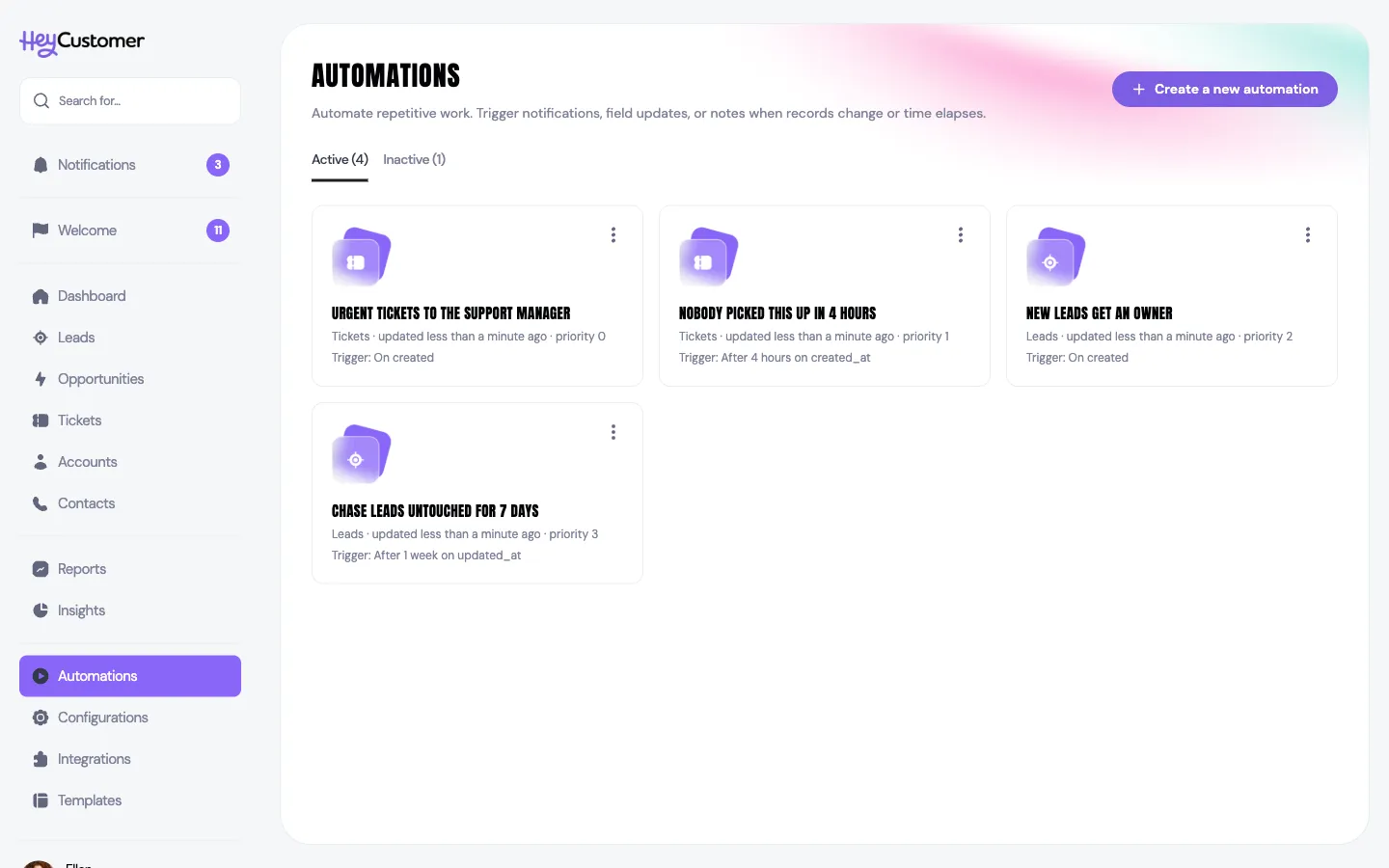
Send urgent tickets straight to a manager
The classic case: something marked Urgent shouldn't wait in a queue for someone to notice it. Here's the rule that takes care of it.
Watches: Tickets
Trigger: Ticket Is Created
Condition: Priority — Is Any Of — Urgent
Actions: Update Field, setting Assigned To to your support manager; then Notify Internal Users, with the manager and their backup picked as specific users.
Now an urgent ticket has an owner within seconds of arriving, and that owner knows about it. Put the Update Field action first so that by the time the notification goes out, the ticket already shows the right name.
The same shape works for any "this one is special" rule. Swap the condition for Account — Is Any Of — your three biggest customers, and their tickets get the same treatment regardless of priority.
Catch the tickets nobody answered in time
Response promises are only as good as the thing that notices when you've missed one. A time-based automation is that thing: it looks for tickets that have been sitting too long and raises its hand.
Watches: Tickets
Trigger: Time Passes — start the clock from Created, wait 4 hours
Condition: Status — Is Any Of — New
Actions: Notify Internal Users, with your support leads picked as specific users; then Add Note, recording that the ticket was escalated.
The condition is what makes this work. Without it the rule would fire on every ticket four hours old, answered or not. With it, the only tickets that qualify are the ones still sitting untouched in New — exactly the ones you want to hear about.
To tell a whole group at once rather than naming people one by one, add a Post To Slack action and choose the channel your team already watches. Connect your workspace under Integrations first, and the channel picker appears in the builder.
Start the clock from Last Updated instead for a different promise: a ticket that's open but hasn't moved in two days, which is a slower and more embarrassing kind of miss.
Give every new lead an owner
A lead with nobody's name on it is a lead nobody chases. This rule closes that gap the moment one arrives — including leads that come in overnight from a form on your website.
Watches: Leads
Trigger: Lead Is Created
Actions: Update Field, setting Assigned To to the person who works new leads; then Notify Internal Users so the sales team sees it land.
No conditions needed here — you want this to happen for every lead. If you'd rather the whole team saw new leads in one place, add a Post To Slack action alongside the assignment.
Chase the leads that have gone quiet
Leads rarely die from a decision. They die from two weeks of silence. This rule finds them before that happens.
Watches: Leads
Trigger: Time Passes — start the clock from Last Updated, wait 1 week
Condition: Status — Is Any Of — Active
Action: Notify Internal Users, set to Assigned User.
Choosing Assigned User instead of naming people means the nudge always reaches whoever owns that particular lead, without you maintaining a list. The same rule works on opportunities: watch Opportunities, start the clock from Last Contacted, and give it two weeks.
See what your automations have been doing
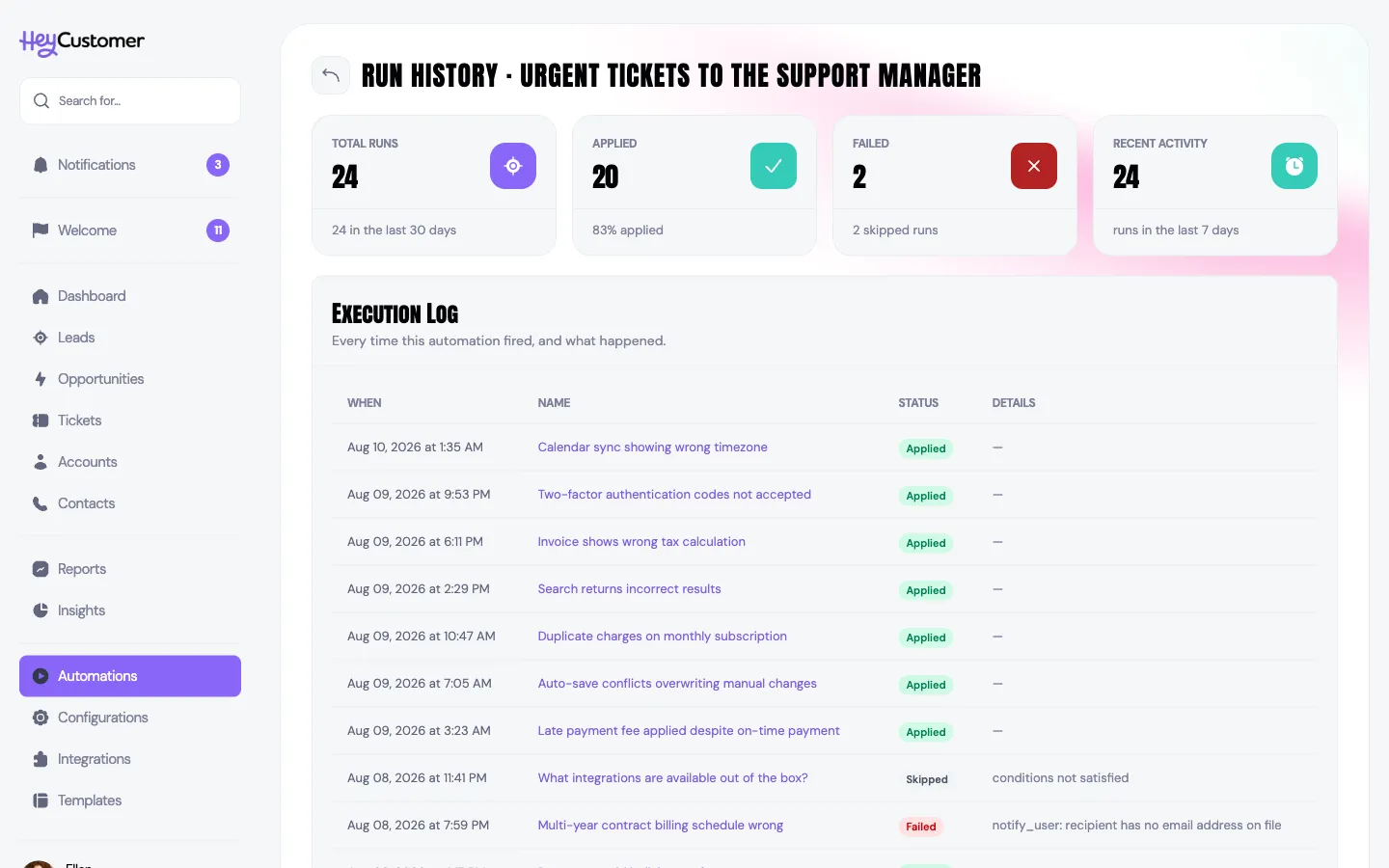
Open any automation to see how many times it has run, how many runs applied, and how many failed. Select View log on any of those for the detail.
Every run lands in the execution log with the record it ran against and one of three outcomes:
Applied — the conditions matched and every action completed.
Skipped — the automation was considered but the conditions didn't match. Normal and expected.
Failed — an action couldn't finish. The reason sits in the Details column, and it's usually something missing on the record, such as an email action on a record with no contact email.
Back on the Automations page, the Active and Inactive tabs separate what's running from what's switched off. The menu on each card lets you edit, deactivate, duplicate or delete it.
Good to know
You need the Manage automations permission to see the Automations page. If it isn't in your sidebar, ask an administrator to add it to your permission group.
Each automation watches one kind of record. To do the same thing to leads and tickets, build two.
The fields you can test in a condition are a fixed set. On tickets: Status, Priority, Assigned To and Account. On leads: Status, Assigned To and Account. On opportunities: Status, Assigned To, Account, One Time Value and Recurring Value.
The fields an automation can change are a similar set. On tickets: Status, Priority, Assigned To and Account. On leads: Status, Assigned To and Account. On opportunities: Status, Assigned To, One Time Value, Recurring Value and Last Contacted At.
Rules are joined with "and" — every rule has to match. To cover two unrelated situations, build two automations.
Alongside the usual comparisons, conditions on an updated-record trigger offer Changed To and Changed From, so you can act on a move into a status rather than on it merely being that status.
Time thresholds start at 15 minutes and go up in 15-minute steps. Hey Customer checks for records that have passed their threshold every 15 minutes, so a rule can fire up to 15 minutes after the moment it becomes true.
A time-based automation runs at most once per record. It won't nag you about the same ticket every 15 minutes.
Switching on a time-based automation does look back. Any record already past the wait time qualifies on the next check — including ones that went quiet long before you built the rule — so a "7 days without a touch" rule fires once for every lead that has already been sitting that long. If that's more than you want, add a condition to narrow it first.
Created triggers fire immediately. Updated triggers wait a few seconds, so a burst of quick edits counts as one change rather than several.
Changes made by an automation don't set off other automations, so rules can't cascade into a loop.
Actions run in the order they're listed. If one fails, the run is marked Failed and the actions below it don't run.
When several automations match the same record, they run in the order shown on the Automations page. Drag a card to change that order.
Notified teammates always get an in-app notification. They only get an email as well if they have email notifications turned on in their own profile.
Notifications can go to the record's assigned user, whoever created it, or a list of specific people you pick. To reach a whole team at once, post to a Slack channel instead.
Emailing a contact needs a contact with an email address on the record, or an address you type in yourself. Subjects and bodies accept variables — type {{ to see the list — and you can send a saved email template instead of writing one.
A note added by an automation is credited to Hey Customer Automation, and stays internal unless you check Customer Visible.
The match count on the Conditions step is a sanity check, not a run: it looks at your most recent records and tells you how many satisfy the rules as you write them. Rules that use Changed To or Changed From are left out of the count, since nothing is changing while you look. Saving an event-triggered automation never touches records that already exist; a time-based one starts considering them on its next check.
Duplicating an automation gives you a copy that starts switched off, which is a safe way to build a variation of a rule that's already working.
Deactivating is reversible and keeps the run history. Deleting is permanent.
automation, automations, automate, rule, rules, trigger, workflow, auto-assign, auto assign, assign ticket, route ticket, escalate, escalation, SLA, service level agreement, response time, overdue ticket, unanswered ticket, stale lead, follow up reminder, notify team, notification rule, alert, Slack alert, post to Slack, update field automatically, add note automatically, email a contact, time elapsed, if this then that, business rules, run history, execution log