
Help Center
 ›
API keys

API keys

Create, manage and revoke keys for your own tools and scripts
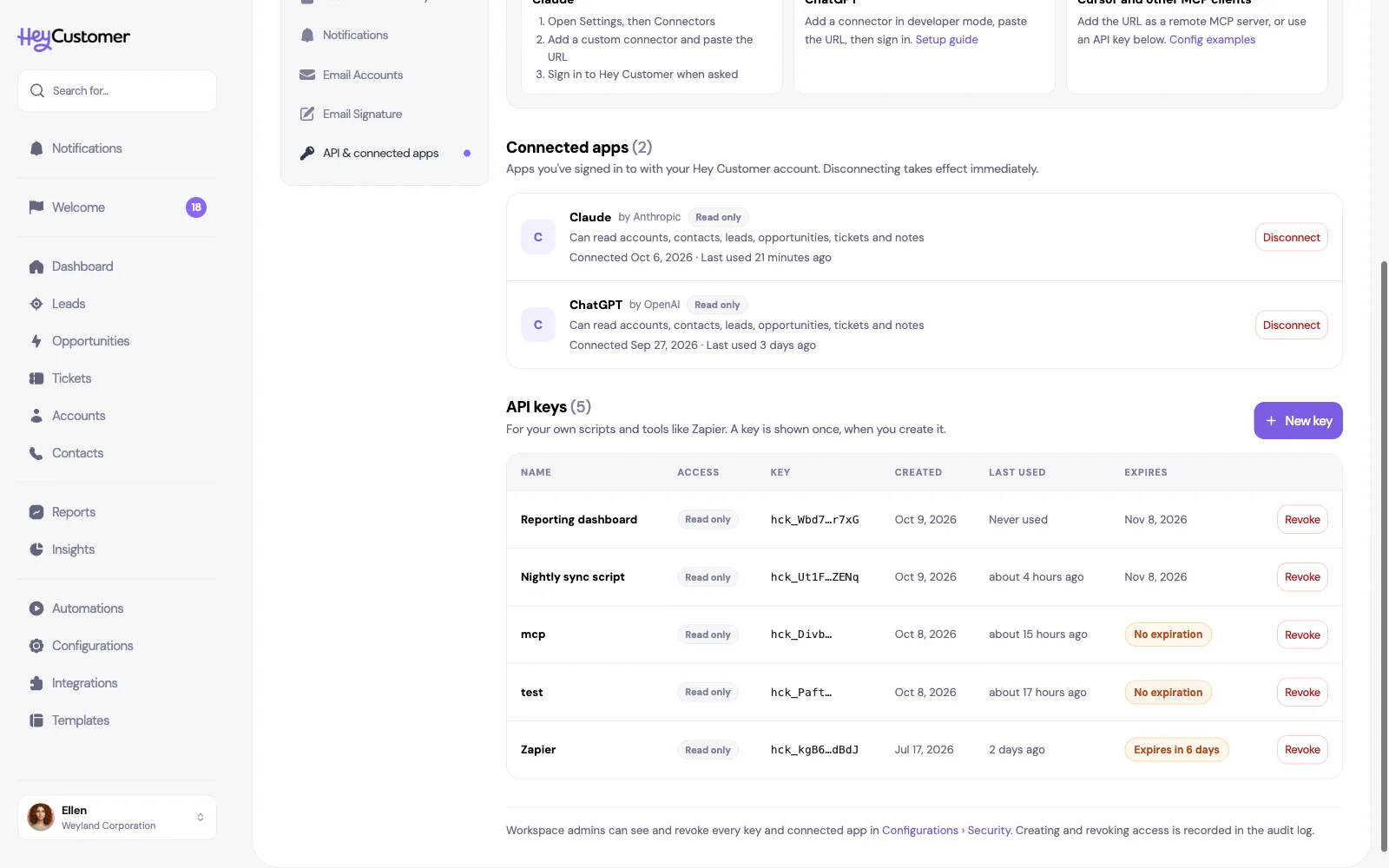
API keys

An API key lets your own scripts and tools, such as Zapier or a nightly sync, read your Hey Customer data through the API.

How it works

A key acts as you. It sees exactly the records you can see in Hey Customer, follows the same permissions, and belongs to one organization. Keys can only read for now.

To connect Claude, ChatGPT or another AI assistant, you usually don't need a key: sign in from the assistant instead, as described in Connect Claude, ChatGPT and other AI assistants. Keys are for tools that can't sign in.

Your keys live under Profile then API & connected apps.
Create a key

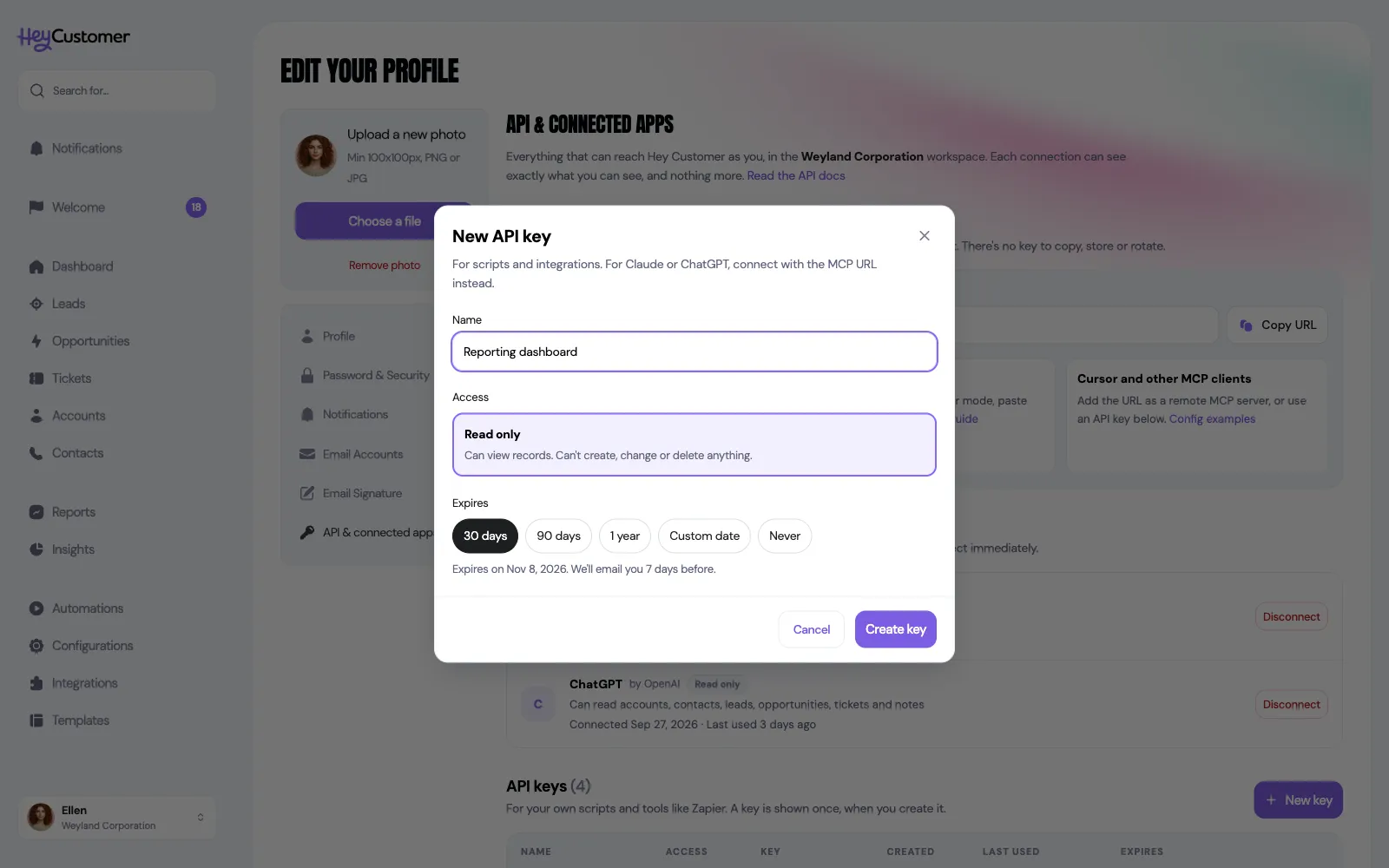
  1. Go to Profile then API & connected apps.
  2. Select New key.
  3. Name the key after what will use it, such as Nightly sync script.
  4. Choose when it expires: 30 days (the default), 90 days, 1 year, Custom date or Never.
  5. Select Create key.
The New API key window, with the name Reporting dashboard filled in, Read only access, the Expires choices 30 days, 90 days, 1 year, Custom date and Never with 30 days selected, a note saying when the key expires and that you'll get an email 7 days before, and Cancel and Create key buttons.

If you choose Never, you'll see a warning: a key that never expires stays valid until someone revokes it. Pick a date unless the key runs a long-lived integration you keep an eye on.

Copy your new key

Your new key appears once, right after you create it. Select Copy key, store it in your password manager or your tool's secret settings, then select I've saved my key.
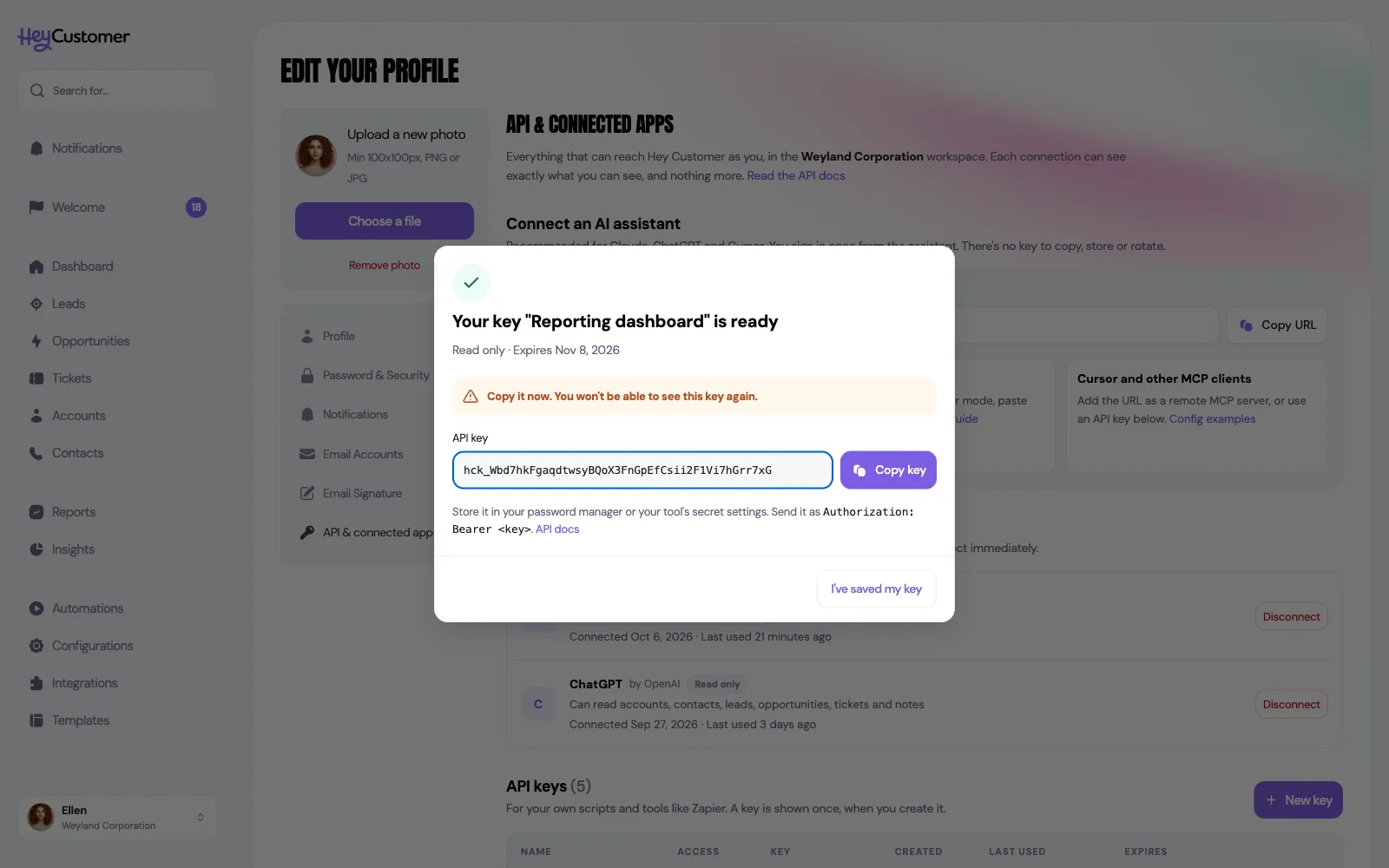
The window shown after creating a key: Your key Reporting dashboard is ready, Read only, with its expiry date, a warning to copy the key now because you won't see it again, the full key with a Copy key button, and an I've saved my key button.

You can't see the key again after you close this window or reload the page. If you lose it, revoke it and create a new one.

Your tool sends the key in an Authorization: Bearer header. The API reference, with examples you can try, is at developers.heycustomer.com.

Keep track of your keys

The table lists each key's name, its access, the first and last few characters of the key so you can tell them apart, when it was created, when it was last used, and when it expires.

The API keys table, listing keys with their name, Read only access, the start and end of each key, created date, last used, and expiry: dates for some, No expiration badges for two, and an Expires in 6 days badge for one, each with a Revoke button.
  • Expires in a number of days appears when a key expires within 14 days.
  • No expiration marks keys set to never expire.
  • Expired marks a key that has expired and no longer works.

We email you 7 days before a key expires, and again once it has. Keys can't be extended, so create a new key and switch your tool over before the old one runs out.

Revoke a key

  1. Select Revoke next to the key.
  2. Check the confirmation, which shows when the key was last used, and select Revoke key.

The key stops working immediately, and anything using it loses access. This can't be undone.

See every key in your organization

Administrators can see and revoke everyone's keys, and disconnect everyone's AI assistants, under Configurations then Security. The same page keeps an audit log of the last 50 times someone created, revoked or connected access, and of keys that expired.
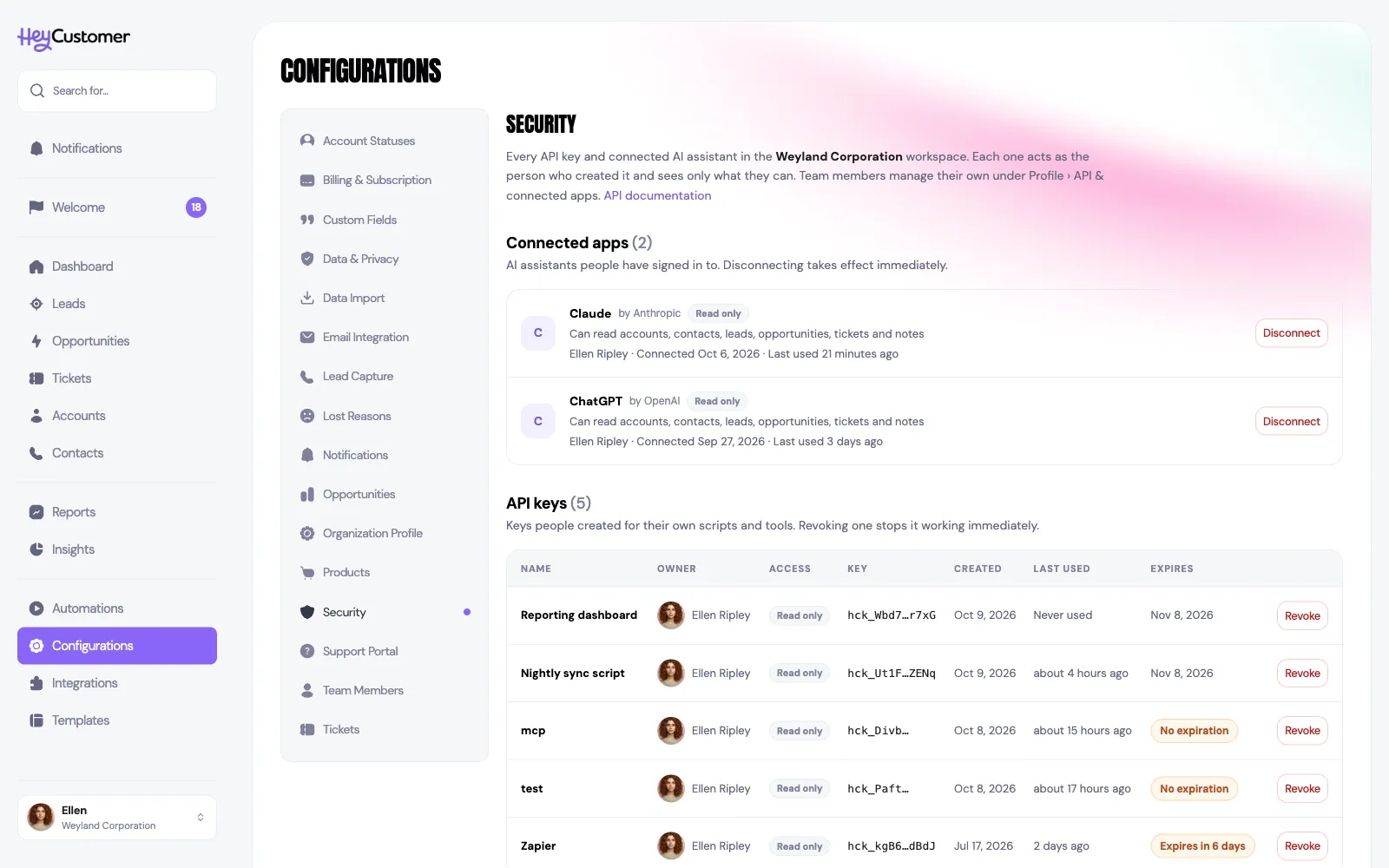
The Security page under Configurations, listing the organization's connected AI assistants with the person who connected each, and every API key with its owner, access, masked key, dates and expiry, each with a Revoke or Disconnect button.

Opening it needs both the Access all configurations and Manage integrations permissions. The Manage API access button on the Integrations page leads here too.

Good to know

  • Creating keys needs the API keys & AI assistants permission. While it's turned off, your keys stop working; they work again when it's turned back on.
  • You can always revoke your own keys, whatever your permissions.
  • A key belongs to one organization. If you work in more than one, create a key in each.
  • Keys can only read for now.
  • Each key can make up to 120 requests a minute.
  • Keys created before October 9, 2026 show only their first few characters in the table.
  • Treat a key like a password: keep it out of code you share, and create a separate key for each tool so you can revoke one without breaking the others.

Still need help? Email us at support@heycustomer.com

Related articles

API, API key, API keys, REST API, token, access token, create API key, revoke API key, key expiry, expired key, Zapier, integration, developer, security, audit log