Say who each person is on an opportunity or account
Contact roles let you say what each person is to an opportunity or an account, such as Hiring manager, Candidate or Decision maker, so you can see at a glance who decides and who is involved.
How it works
A contact can have a role on each opportunity they're on, and a role at their account. The role on an opportunity belongs to that opportunity alone, so the same person can be a Candidate on one opportunity and a Reference on another. The role at their account describes them at that company, such as Decision maker or Billing contact.
Roles come from one list your whole team shares. When you set a role, Hey Customer shows the roles your team already uses, most used first, so everyone picks the same words. If none fits, you can add a new role from the same list. New organizations start with three roles: Decision maker, Billing contact and Technical contact.
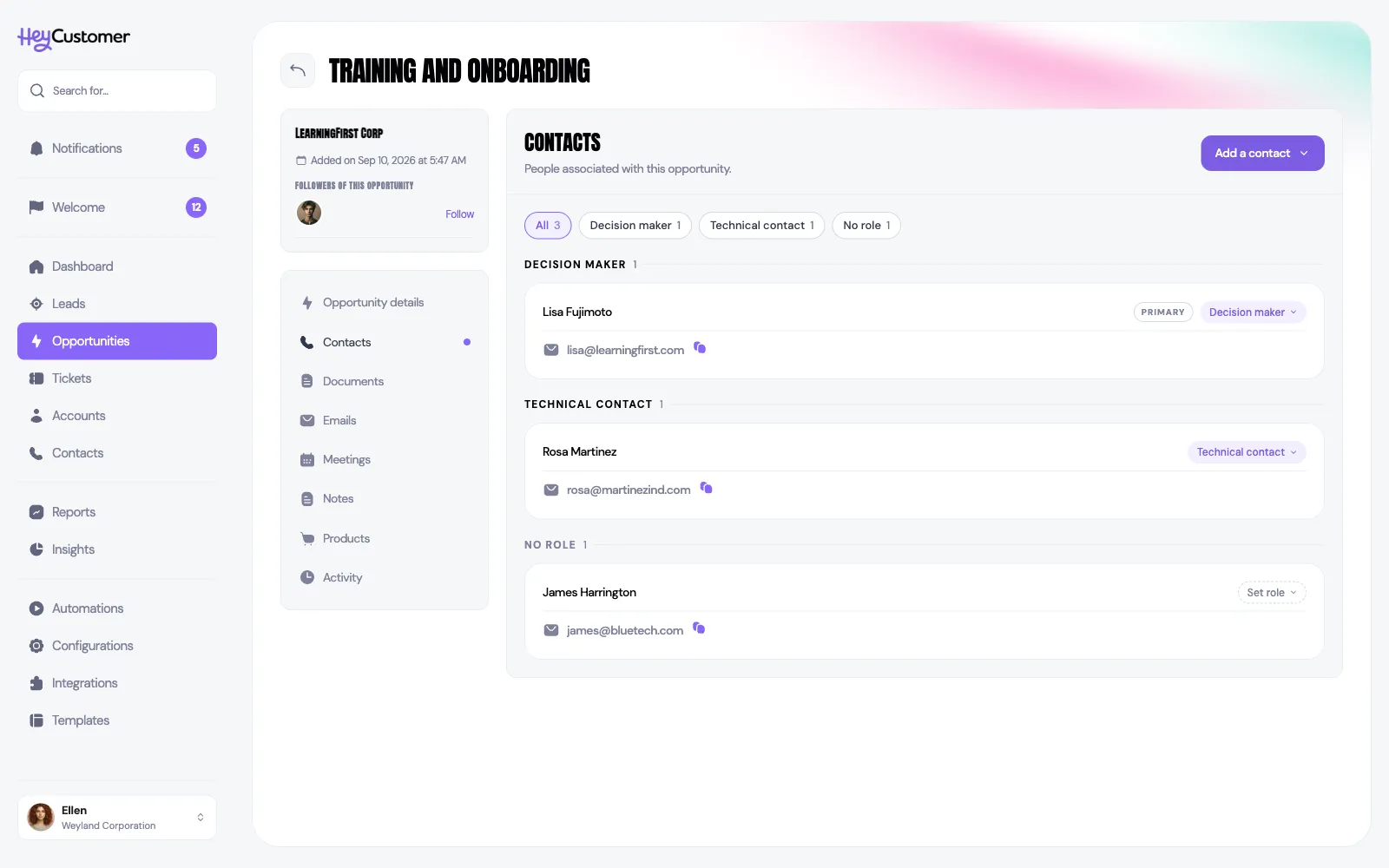
The Contacts section of an opportunity or account groups people under a heading for each role. The group with the primary contact comes first, and people with no role are listed last. Filter chips at the top show how many people have each role. Select a chip to see only that role.
Give someone a role
Open the opportunity or account and go to its Contacts section.
On the person's card, select Set role, or select their current role to change it.
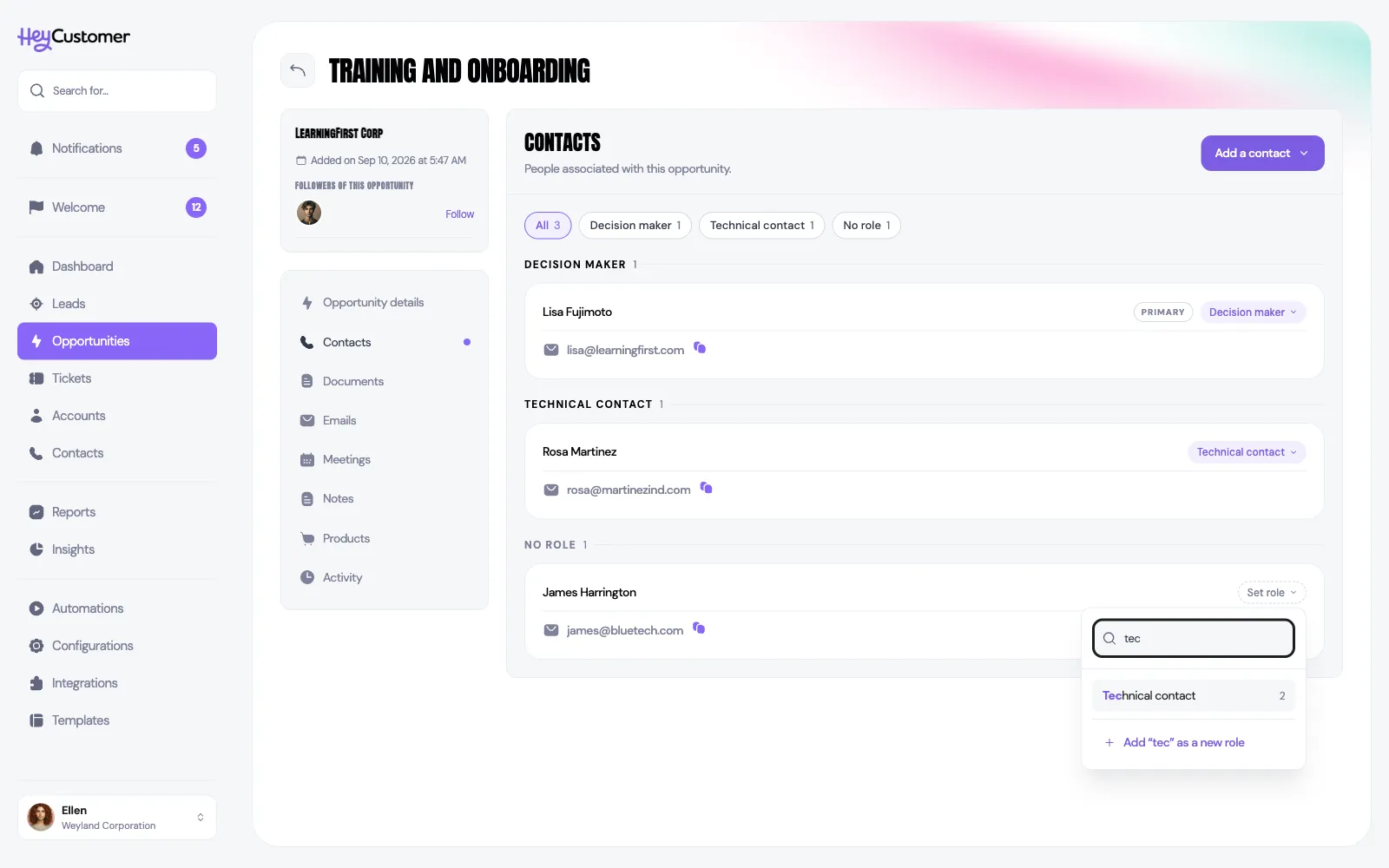
Type a few letters to find a role, then select it. The role is saved straight away, and the person moves into that role's group.
If the role you want isn't in the list, type its name and select Add “…” as a new role at the bottom of the list.
To take a role away, open the list and select No role.
You can also give someone a role as you add them. When you create a contact from an opportunity's or account's Contacts section, the New contact form has a role field.
To see every role a person has, open them from any Contacts list. Their panel shows their role at their account, and each opportunity they're on with their role there.
Add someone who's already in Hey Customer
When the person you need is already a contact, add them from the opportunity or account rather than creating them again.
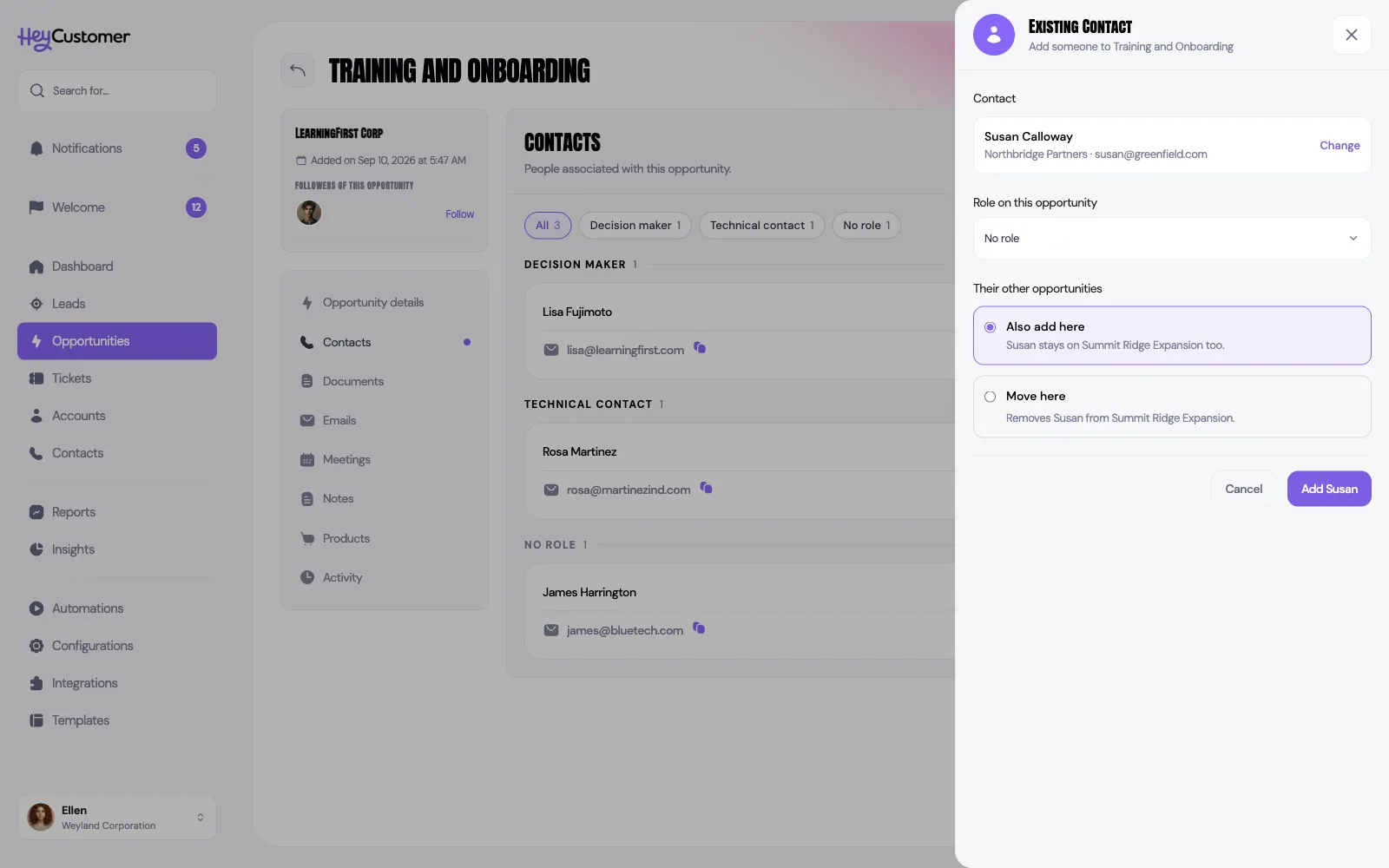
On the opportunity or account, go to Contacts and select Add a contact, then Existing contact.
Search by name or email address and select the person. People who are already here don't appear in the results.
Choose their role. This step is optional.
On an opportunity, if they're already on other opportunities, choose Also add here to keep them on those too, or Move here to take them off the one you pick.
Select the button with their name, such as Add Susan. When you're adding someone to an account and they'd be leaving another account, it reads Move Susan.
A contact belongs to one account at a time, so adding someone to an account moves them off any account they were on. Their tickets and opportunities stay with their old account. Each add and move is recorded in the activity of the records involved.
Keep your role list tidy
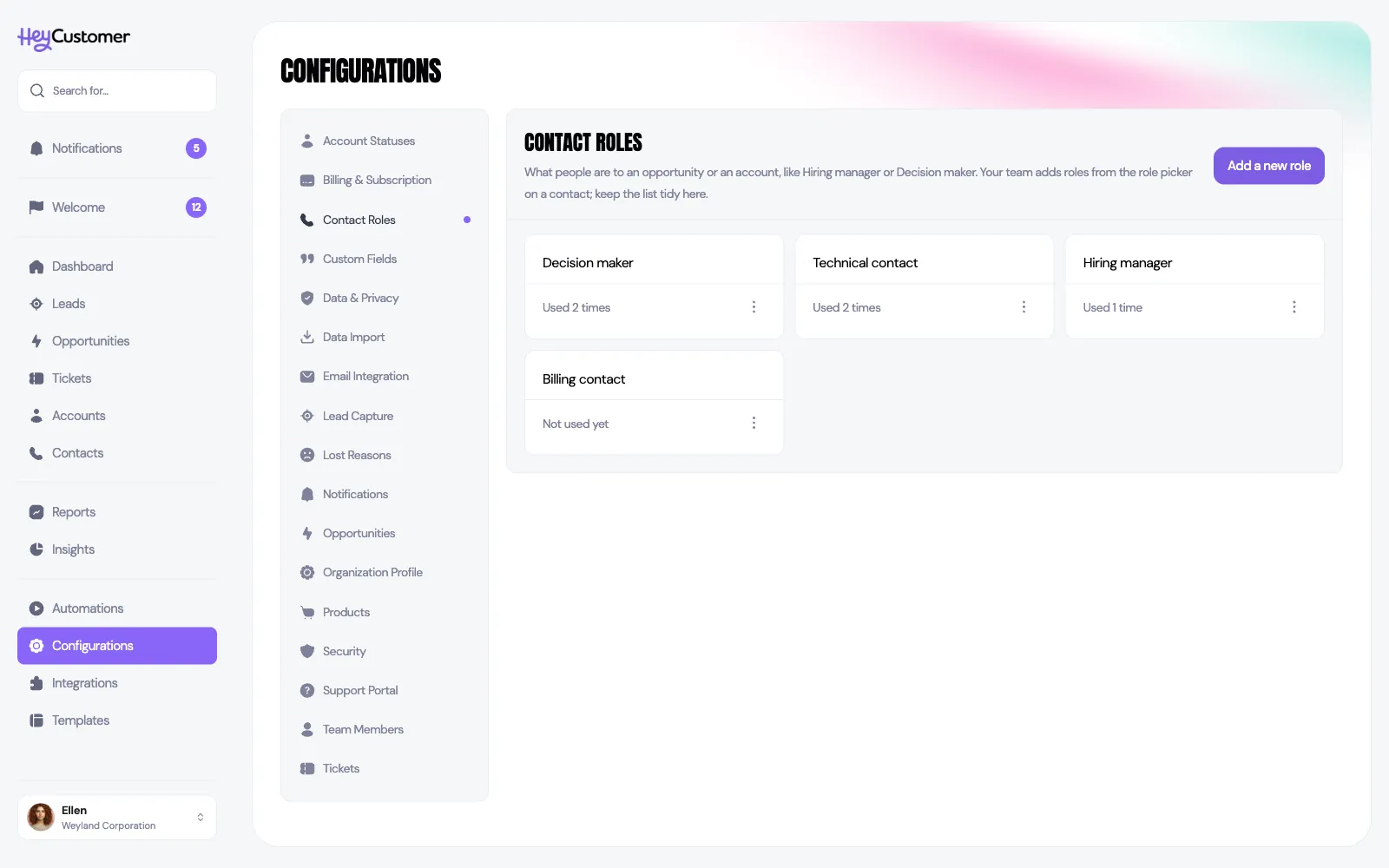
Go to Configurations and then Contact Roles. Each role shows how many times it's used.
To add a role ahead of time, select Add a new role.
To rename a role, or merge a duplicate such as "Candidates" into "Candidate", open the role's menu and select Rename or merge. Merging moves everyone with that role to the role you choose, then deletes the duplicate.
To stop offering a role without taking it away from anyone, select Archive. Contacts keep the role, but it no longer appears in the list you pick from. Select Unarchive to bring it back.
A role that nobody uses can be deleted from the same menu.
Good to know
Role names are unique regardless of capitals and spaces. Typing "candidate" or "Candidate " picks the existing Candidate role instead of creating a second one.
Typing the name of an archived role brings that role back rather than creating a new one.
Anyone who can work on an opportunity or account can set roles and add new ones. Renaming, merging, archiving and deleting roles needs access to Configurations.
Moving a contact to a different account clears their role at the old account, unless you give them a new one in the same step.
When you move someone off an opportunity where they were the primary contact, the person who has been on that opportunity longest becomes the primary contact.
If a role group has more than five people, the first five show, with a Show all button for the rest.
When you import contacts, a "Role at account" column fills in each person's role at their account.