Give customers a branded place to raise and follow their tickets
The support portal is a branded place your customers sign in to raise tickets and follow what's happening, instead of emailing to ask for an update.
How it works
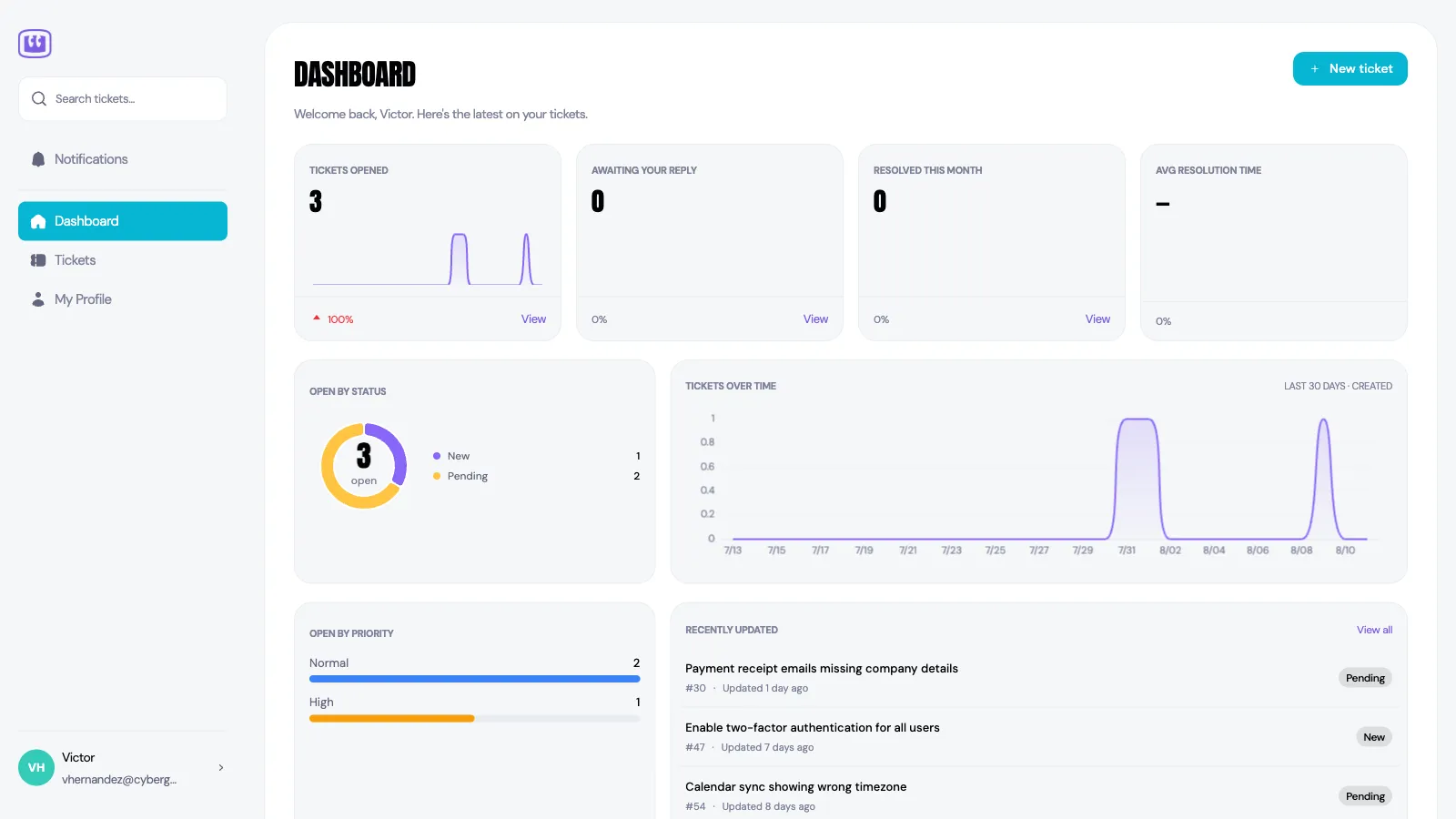
Your customers get their own login, separate from your team's. When they sign in they see their tickets, the state each one is in, and the conversation so far — and nothing belonging to anyone else.
Everything they do lands in your Tickets area like any other ticket, so your team works in one place regardless of how the ticket arrived.
Turn it on and brand it
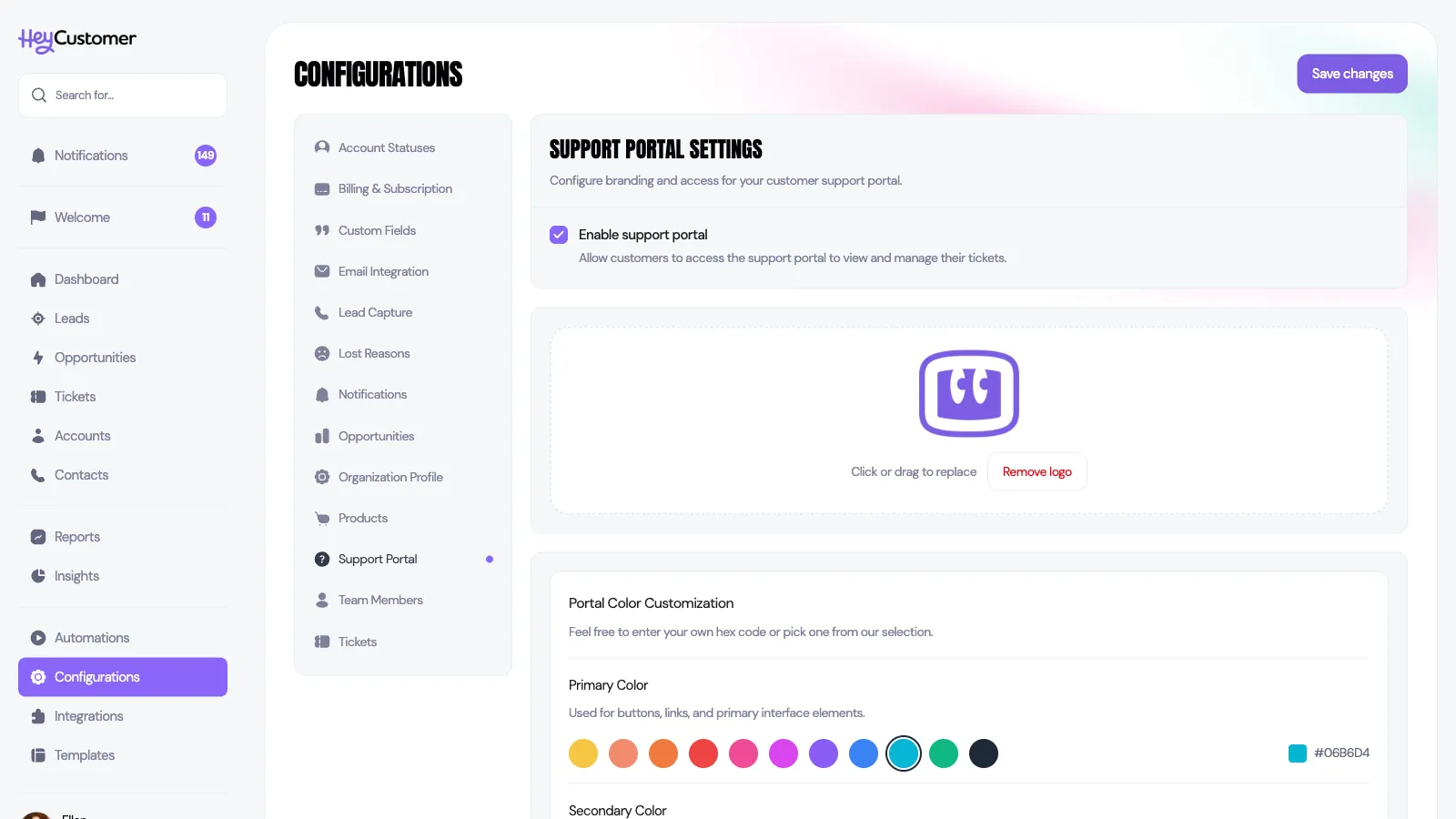
Select Configurations in the left-hand menu, then Support Portal.
Check Enable support portal.
Upload your logo. Keep it under 500KB — it's the first thing your customers see, so use the same one they'd recognize from your website.
Pick a Primary Color for buttons and links, and a Secondary Color to go with it. Choose from the swatches or paste your own hex code.
Select Save changes. The address your customers use is shown on this page — that's the link to put in your email signature or on your website.
Invite a customer
Access is given one person at a time, from their contact record.
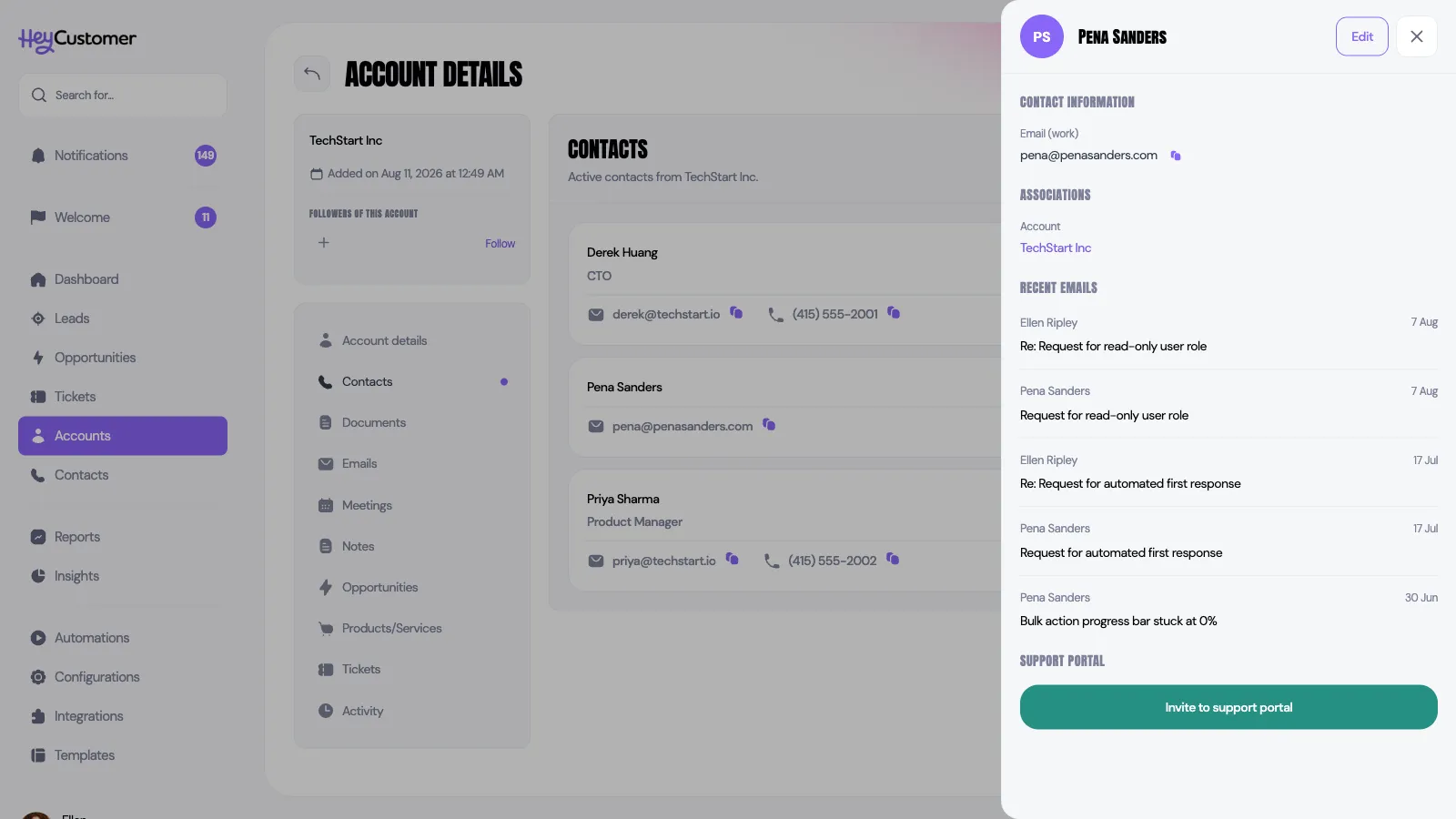
Open the account, go to Contacts, and select the person you want to invite.
Scroll to Support Portal in the panel that opens and select Invite to support portal.
They get an email with a link to set a password and sign in.
The contact needs an email address on their record before you can invite them. Once invited, the same panel is where you resend the invitation or take access away again.
What a customer can do
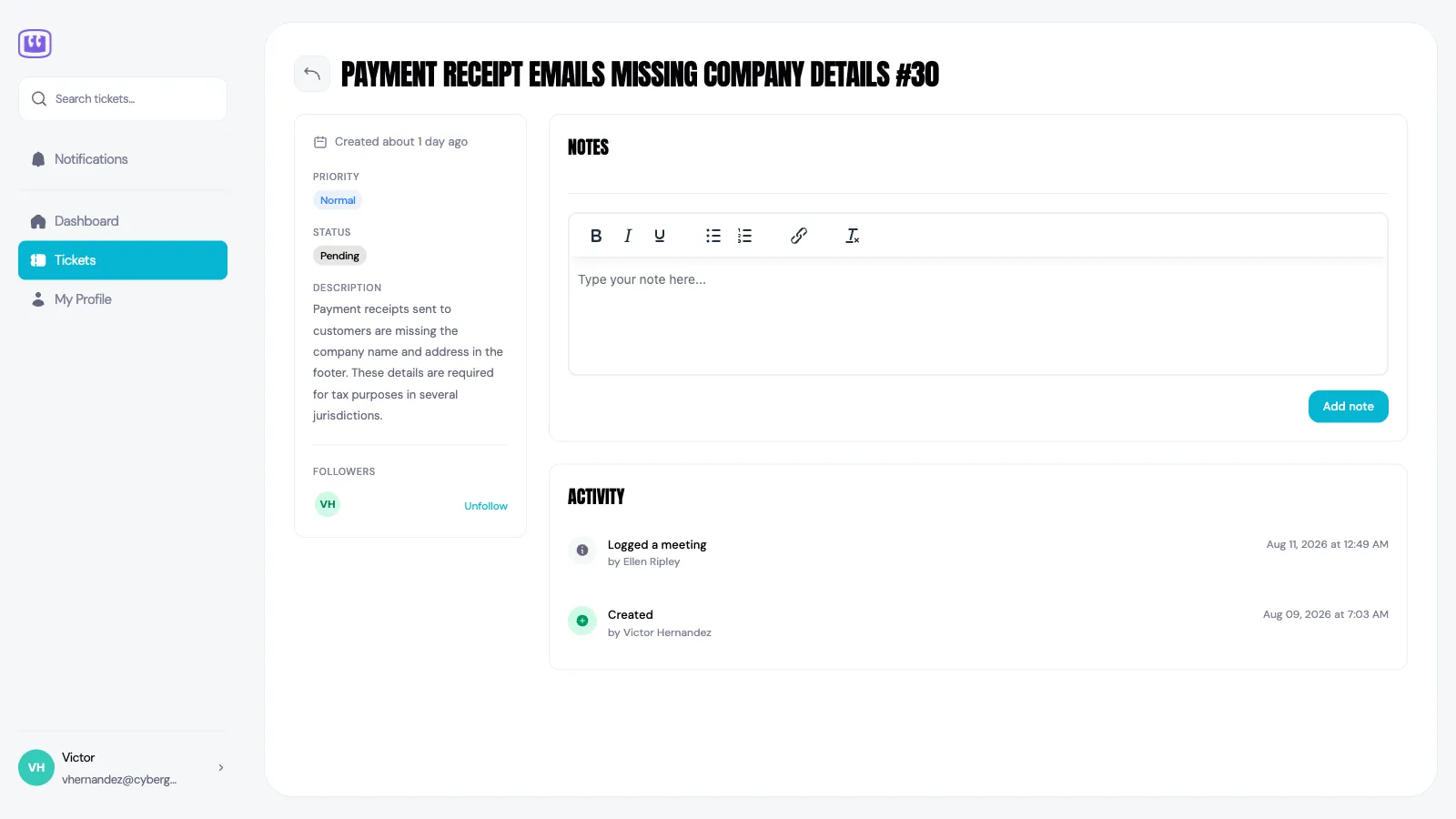
Signed in, a customer can raise a new ticket, read the ones they can see, and add a note to any of them. Notes they add appear on the ticket for your team, and replies from your team appear for them — it's the same conversation from both sides.
They can also follow or unfollow a ticket to control what they're told about, and keep their own name and password up to date under My Profile.
Who sees which tickets
By default a customer sees the tickets that are theirs: ones raised in their name, and ones they created in the portal. Someone who needs the fuller picture — a main point of contact, say — can instead be given visibility of everything on their account, so they can see what the rest of their colleagues have raised.
Either way the boundary is the account. Nobody ever sees another customer's tickets.
Good to know
Portal logins are separate from your team's logins. The same person signing in to the portal has no access to the rest of Hey Customer.
An invitation is good for seven days. If it lapses, resend it from the contact's panel.
An email address can only be invited once across your organization. If it's already in use by a contact on another account, sort that out first — Hey Customer will tell you which account is holding it.
Taking access away switches the login off rather than deleting anything. Their tickets and history stay where they are, and you can invite them again later.
Whether a customer can reopen a closed ticket depends on the status it was closed in. Turn that on for a status under Configurations, then Tickets, and a Reopen option appears for them.
Reopening moves the ticket to the status you've chosen for a customer reply on a closed ticket, under Configurations, then Tickets, and notifies your team. If that rule is unset or points at a closed status, the ticket goes to your first open status.
Tickets raised in the portal behave like any other — they follow your types, statuses, priorities and automations.