Give your team the same structure every time they write a note
Note templates give your team a ready-made structure for the notes they write, so every call recap, account review and escalation captures the same things.
How it works
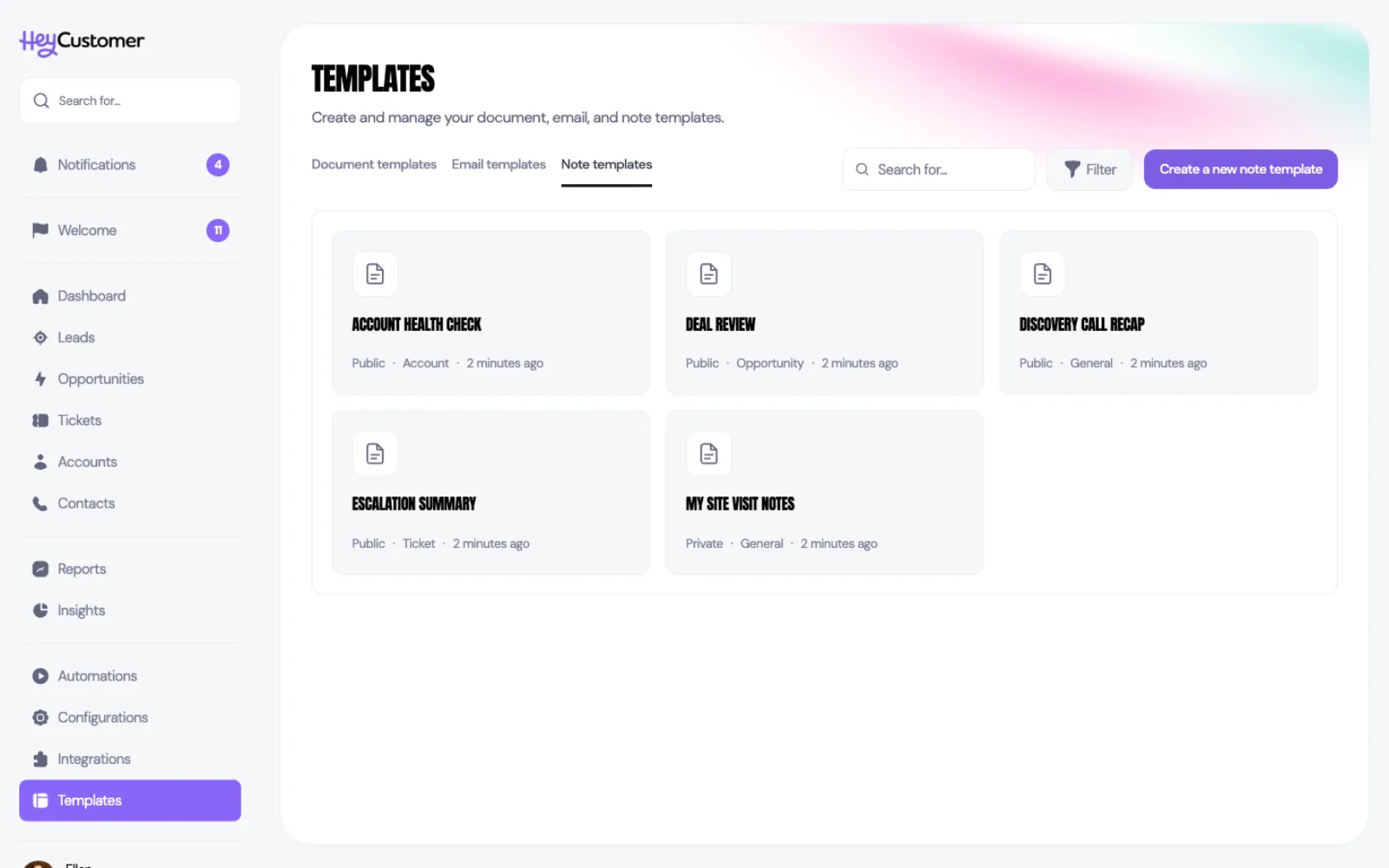
Select Templates in the left-hand menu, then the Note templates tab. Every template you can use is here — the ones you wrote yourself and the ones shared with your whole organization.
A note template is simply the text you want in the note — usually a set of headings or prompts with room to type underneath. When someone picks it, that text drops straight into the note they're writing.
Each template also has a record type. A template set to All types shows up on every note; one set to Accounts, Opportunities or Tickets only shows up there, which keeps each dropdown short and relevant.
Create a note template
Select Templates in the left-hand menu, then Note templates.
Select Create a new note template.
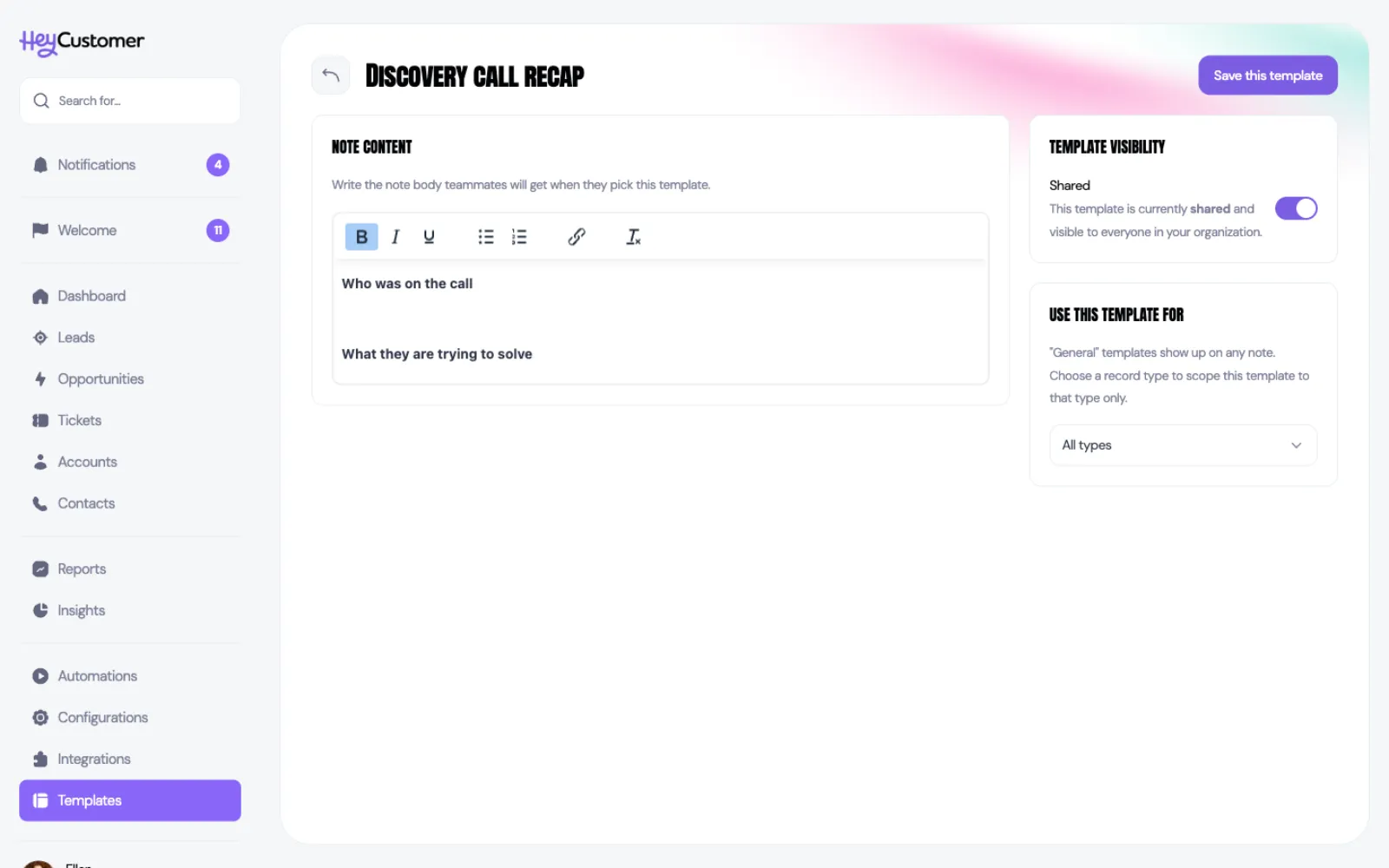
Type a name across the top.
Write the body in the editor. Headings in bold with a blank line under each one work well — you're leaving space for someone to fill in, not writing the note yourself.
Under Use this template for, choose All types or the one record type this belongs to.
Use the Template visibility switch to share it with your organization, or leave it off to keep it to yourself.
Select Save this template.
Use a template on a note
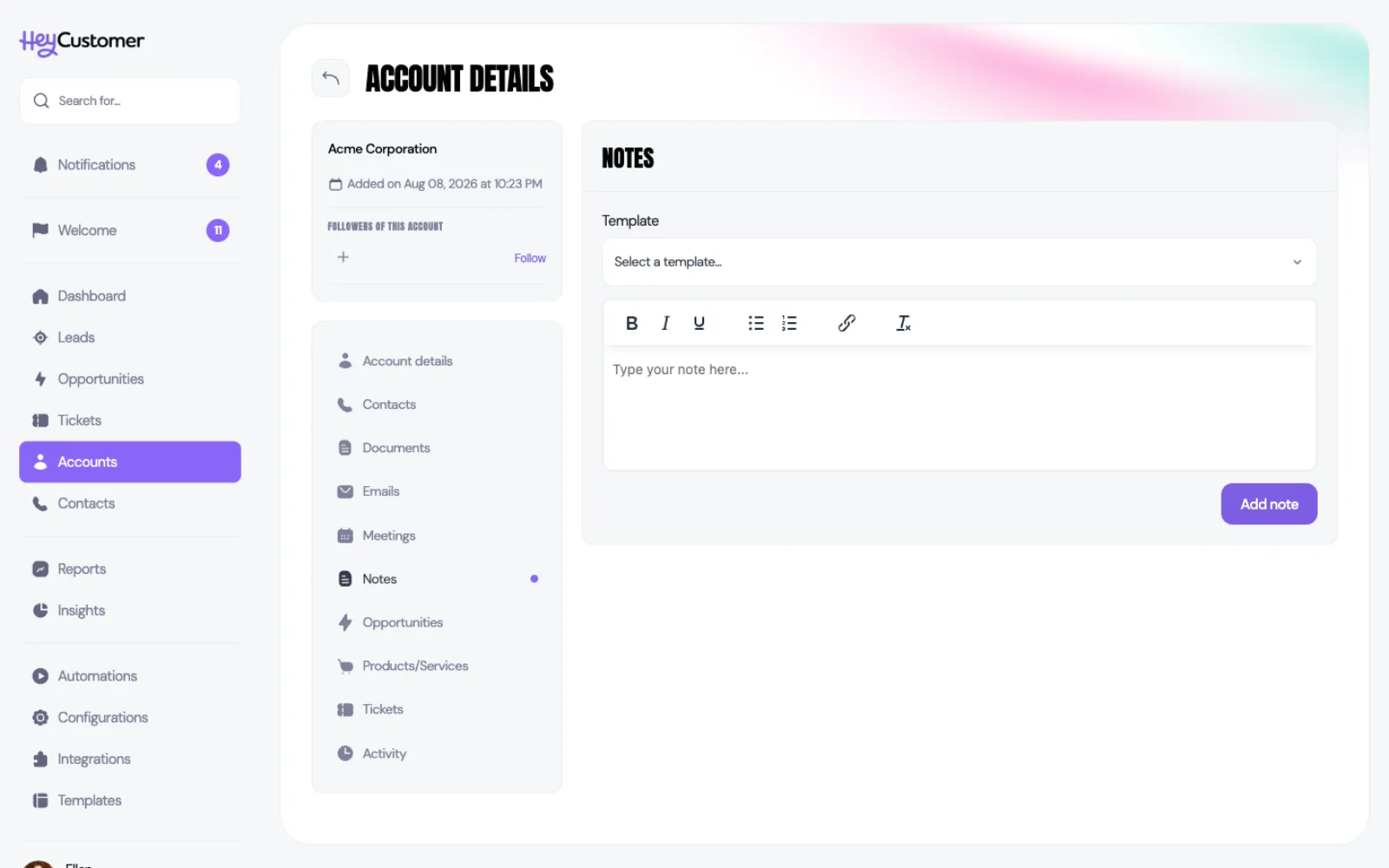
Open the record you want to write a note on and go to its Notes section.
Open the Template dropdown above the note editor and pick one.
The template's text drops into the note. Fill in the blanks.
Select Add note.
Good to know
Picking a template replaces what's in the note editor. If you've already typed something, Hey Customer asks you to confirm first.
The Template dropdown only appears when there's at least one template available for that record type.
Notes on leads only offer All types templates. If you want a template your team can use on a lead, leave the record type set to All types.
Note templates are plain text and formatting — there are no fill-in-automatically placeholders here. For that, look at email templates or document templates.
Applying a template copies its text into your note. Editing the template later doesn't change notes already written.
Editing a shared template changes it for everyone, immediately.
Names have to be unique, and a template name can run to 100 characters.
You need permission to add and edit note templates to open this tab at all. Templates always appears in your menu; without the permission, opening it takes you to Configurations with a note explaining why.
Deleting a template asks you to confirm and can't be undone. Notes already written from it are untouched.