Write an email once and reuse it with the right details filled in
Email templates let you save an email you send often, then drop it into any message with the recipient's name, company and your own details already filled in.
How it works
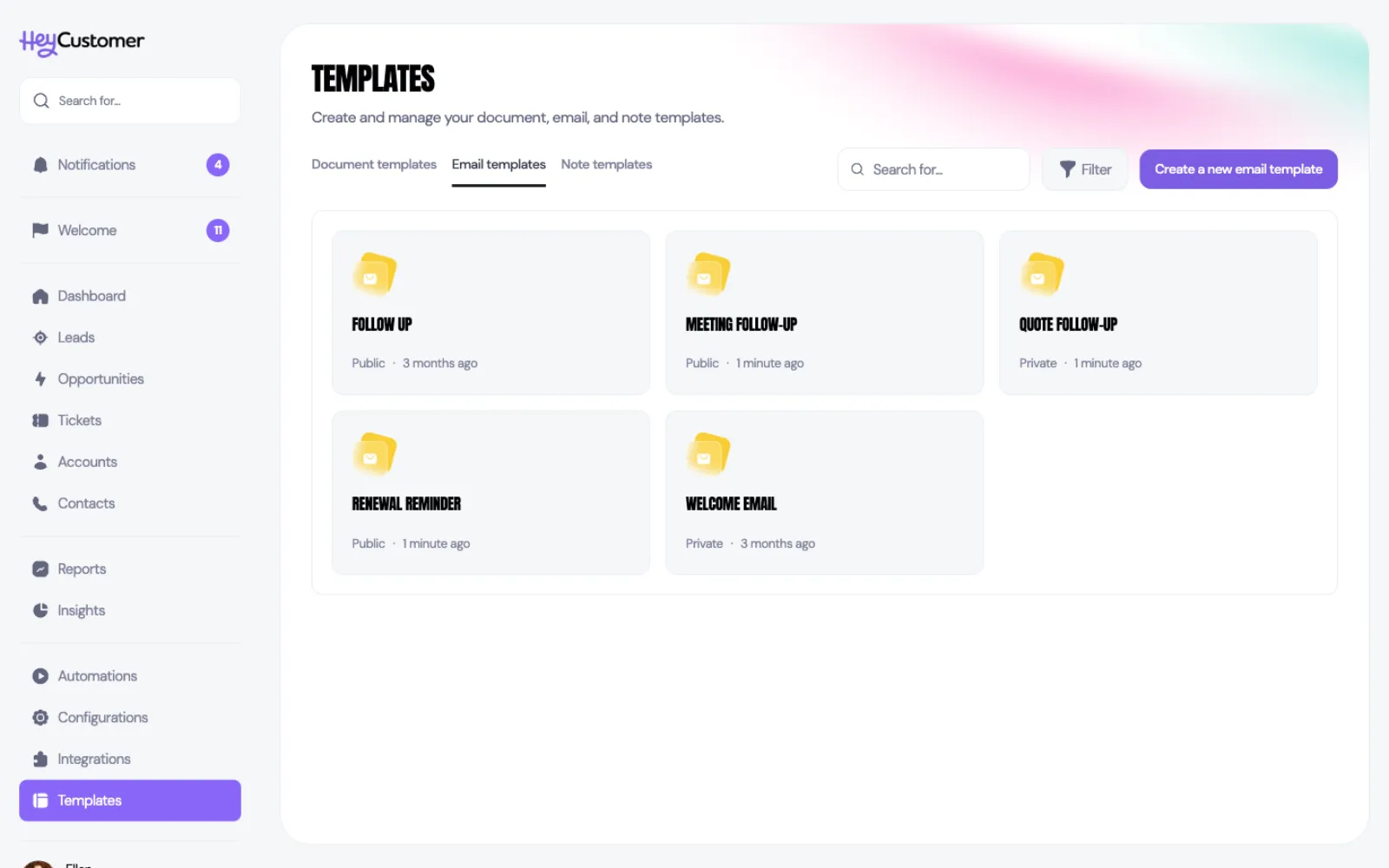
Select Templates in the left-hand menu, then the Email templates tab. Every template you can use is here — the ones you wrote yourself and the ones shared with your whole organization.
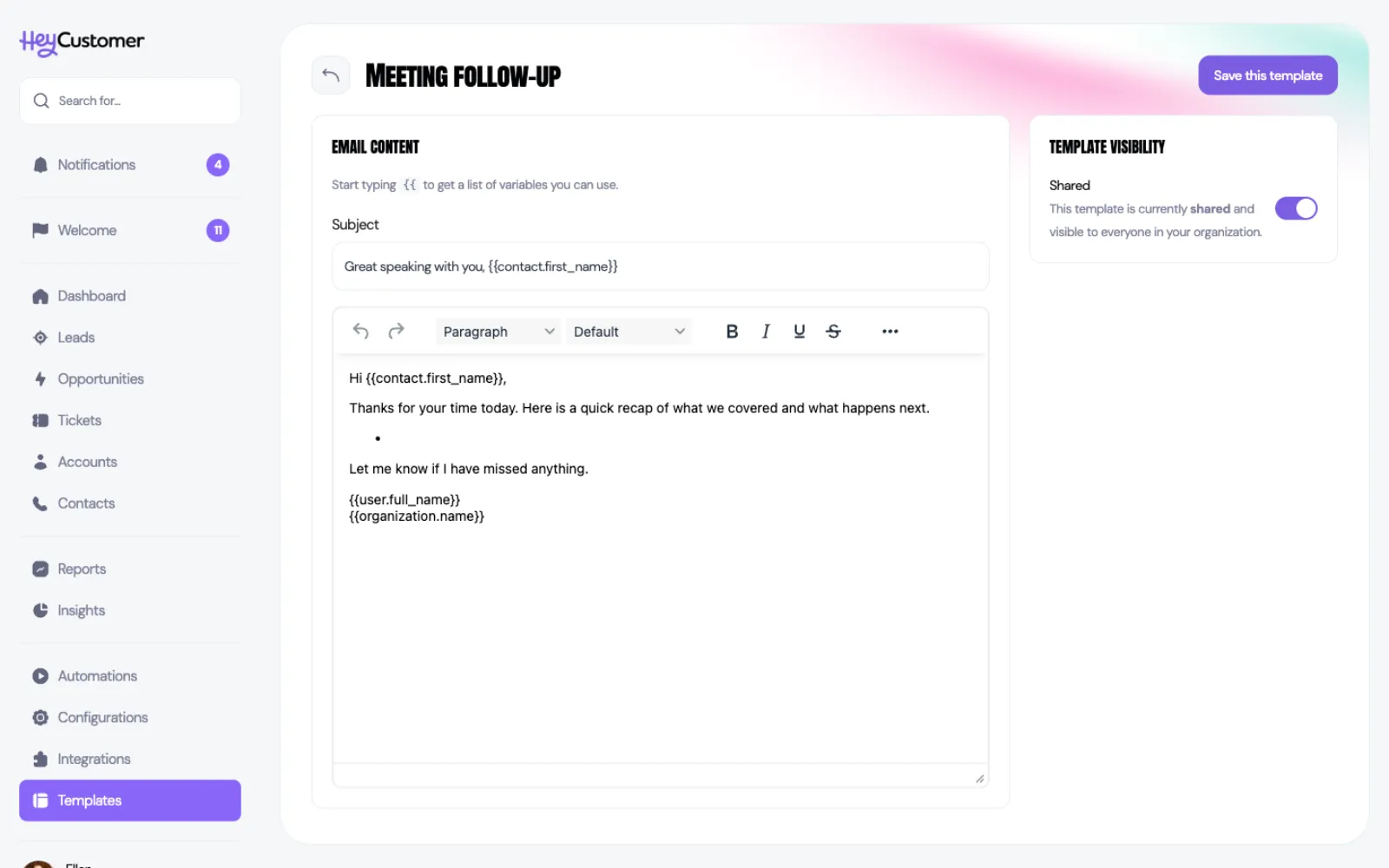
A template holds a name, a subject line and a message. Anywhere in the subject or the message you can drop in a variable — a placeholder such as the contact's first name — and Hey Customer swaps in the real value at the moment you use it.
Every template is either personal or shared. Personal means only you can see it. Shared means anyone in your organization can pick it. The cards label these Private and Public; the editor calls the same setting Personal and Shared.
Create an email template
Select Templates in the left-hand menu, then Email templates.
Select Create a new email template.
Type a name across the top. This is what your team sees in the dropdown, so name it for the moment you'd send it — "Meeting follow-up" beats "Template 2".
Fill in the Subject.
Write the message in the editor underneath.
Type {{ anywhere in the subject or the message to open the list of variables, then choose one.
Use the Template visibility switch on the right to share it with your organization, or leave it off to keep it to yourself.
Select Save this template.
Variables you can use
Type {{ to pick from the list rather than typing these by hand.
The contact — first name, last name, full name, email address.
The account — account name.
You — your first name, last name, full name and your email signature.
Your organization — organization name.
Use a template in an email
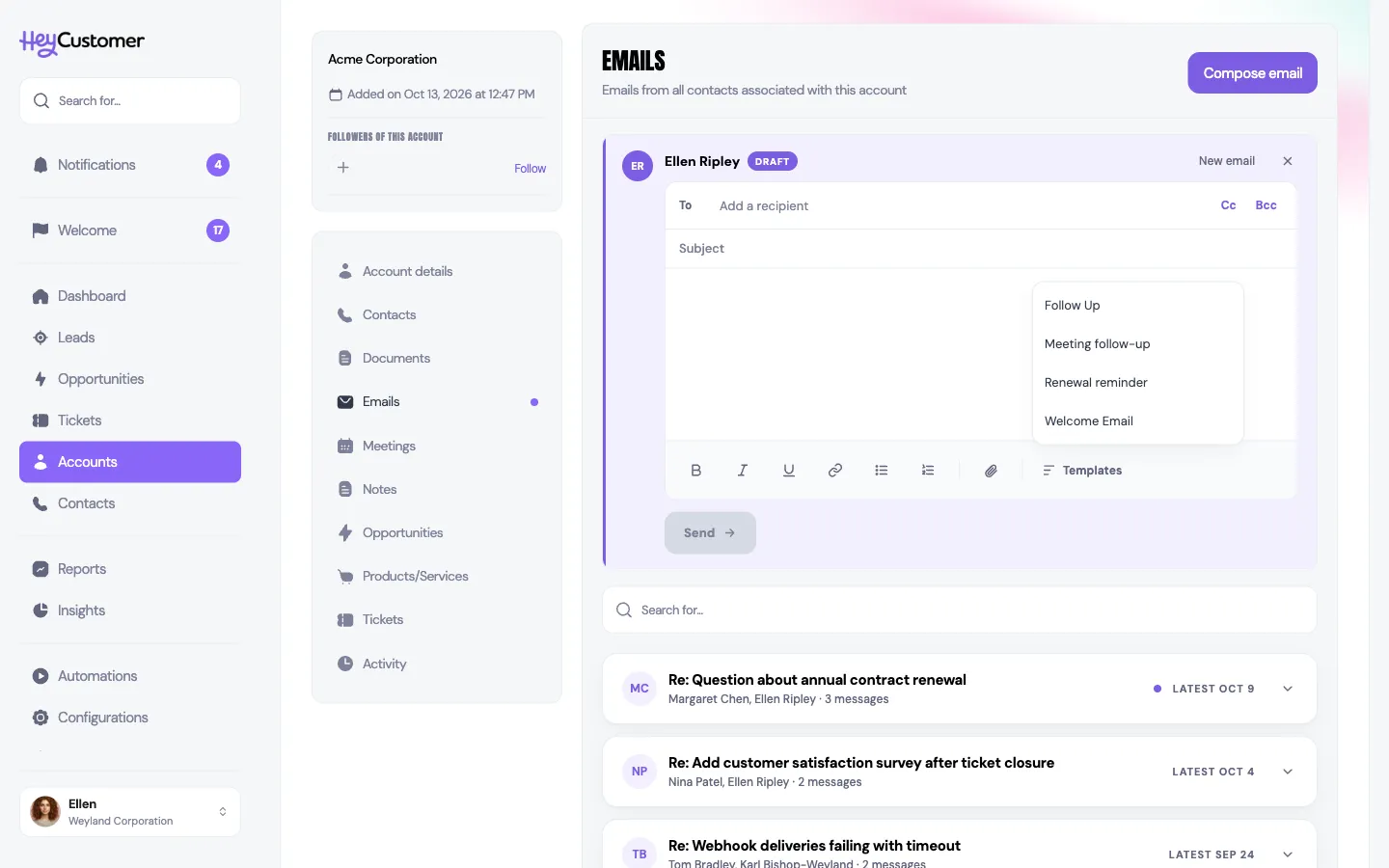
Open an account, an opportunity or a lead and go to its Emails section.
Select Compose email and add your recipient.
Select Templates in the toolbar under the message. The list holds your own templates and the ones shared with your organization.
Pick one. The subject and message fill in with the variables already replaced, using the record you're on and the person you're writing to.
Edit anything you want to change, then select Send.
Good to know
Choosing a template replaces the subject and the message. If you've already written something, Hey Customer asks before replacing it. When you're replying or forwarding, the original email you're quoting stays under the template.
Add the recipient before you pick the template. Contact variables fill from whoever is in the To field, so an empty recipient leaves those placeholders as they are.
If a value is missing — a contact with no last name, say — that placeholder stays visible in the draft, and Send warns you about any that are still unfilled before the email goes out.
Templates are also available to your automations. When an automation sends an email, you can point it at a template instead of writing the message inside the rule.
Editing a shared template changes it for everyone, immediately. Emails already sent are unaffected.
Names have to be unique, and a template name can run to 100 characters.
You need permission to add and edit email templates to open this tab at all. Templates always appears in your menu; without the permission, opening the tab takes you to Configurations with a note explaining why.
Deleting a template asks you to confirm and can't be undone. Documents and emails created from it are untouched.