Build a contract once, then generate it for any account or deal
Document templates let you write a contract, proposal or statement of work once, then generate it for any account or deal with the customer's details and your pricing already in place.
How it works
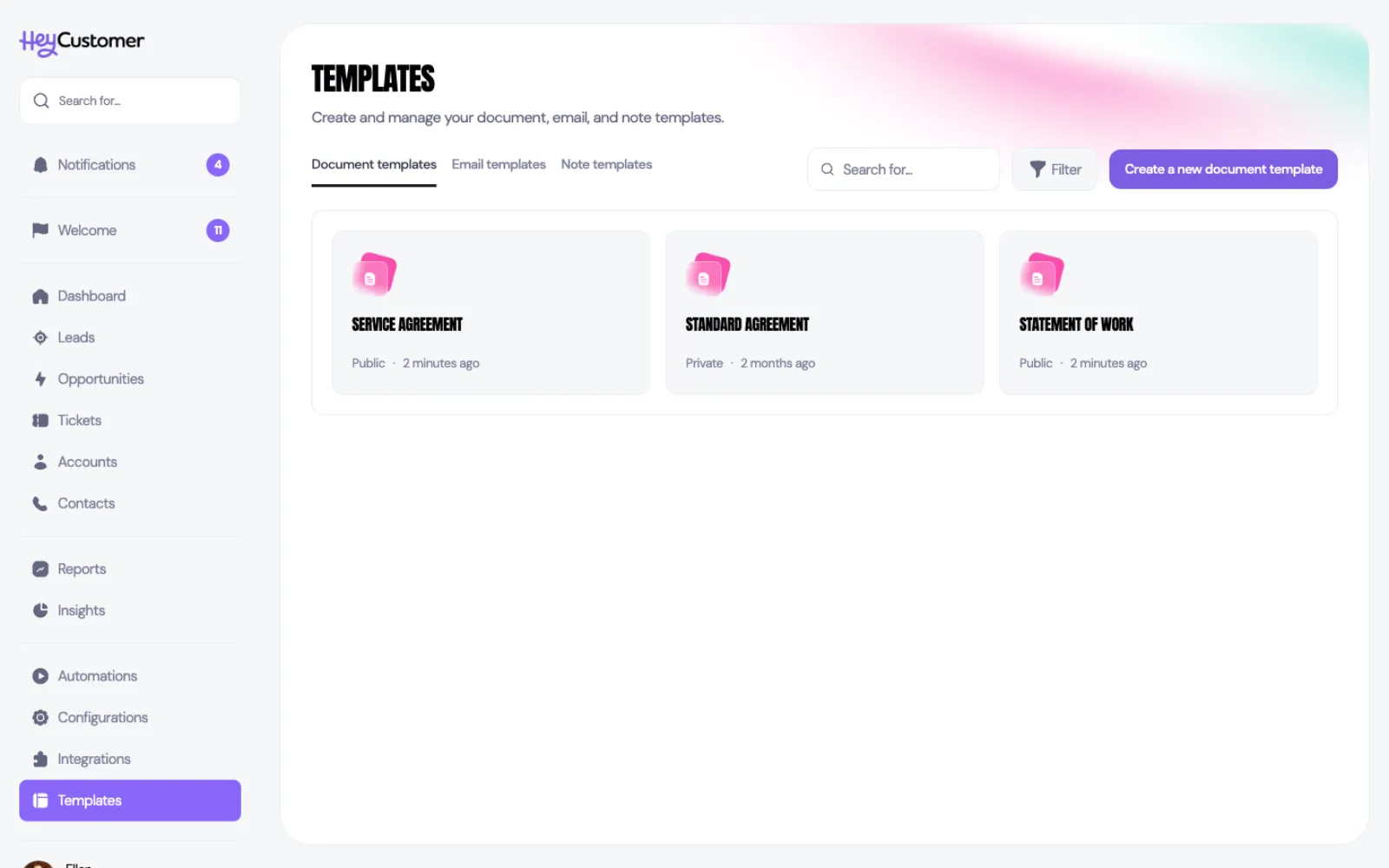
Select Templates in the left-hand menu, then the Document templates tab. Every template you can use is here — the ones you wrote yourself and the ones shared with your whole organization.
A template holds the wording of the document plus two kinds of placeholder. Variables stand in for details Hey Customer already knows — the account name, the deal value, today's date. Signature placeholders mark where each person signs.
Every template is either personal or shared. Personal means only you can see it. Shared means anyone in your organization can use it. The cards label these Private and Public; the editor calls the same setting Personal and Shared.
Create a document template
Select Templates in the left-hand menu, then Document templates.
Select Create a new document template.
Type a name across the top.
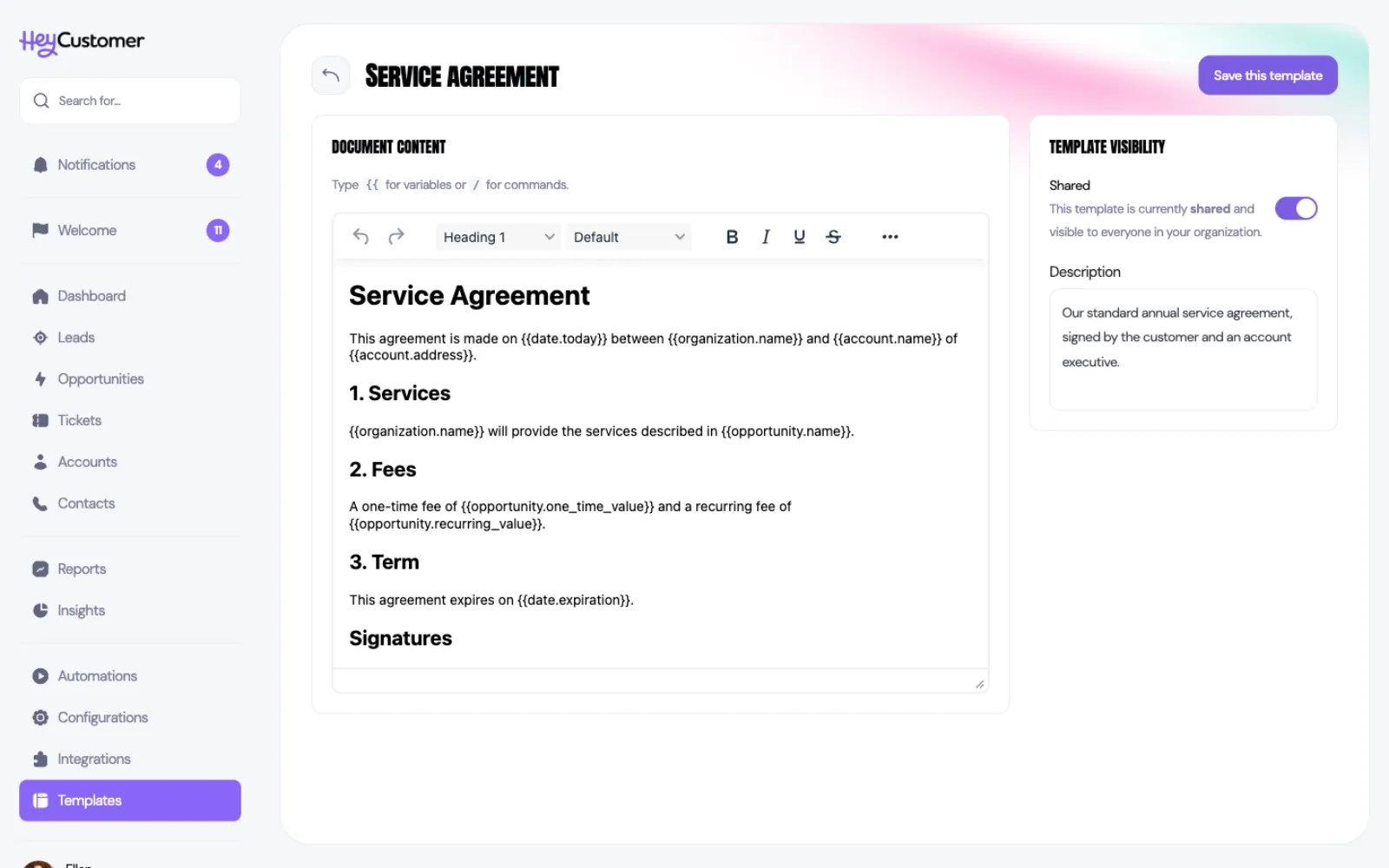
Write the document in the editor, using headings, lists and tables as you would in any word processor.
Type {{ wherever a detail should be filled in, then choose a variable from the list. Type / to insert a page break.
Add a Description on the right so your team knows when to reach for this one.
Use the Template visibility switch to share it with your organization, or leave it off to keep it to yourself.
Select Save this template.
Variables you can use
Type {{ to pick from the list rather than typing these by hand.
The contact — first name, last name, full name, email address.
The account — name, address, phone number, website.
The opportunity — name, one-time value, recurring value, total value.
You — your first name, last name, full name, email address.
Your organization — organization name.
Dates — today's date, the current year, the document's expiration date.
Mark where people sign
Signature placeholders aren't in the {{ list — you type them yourself, and the wording you choose in the middle is the signer's role:
{{signer.customer.signature}} — where that person signs.
{{signer.customer.name}} and {{signer.customer.email}} — their printed name and email, if you want them on the page.
Swap customer for whatever the role is: executive, witness, tenant. Use lowercase, and join words with an underscore — account_manager, not "Account Manager". Every distinct role you use becomes one signer to fill in when you send the document out, so a template with a customer role and an executive role asks for two people.
Create a document from a template
Open the account or opportunity the document is for and go to its Documents section.
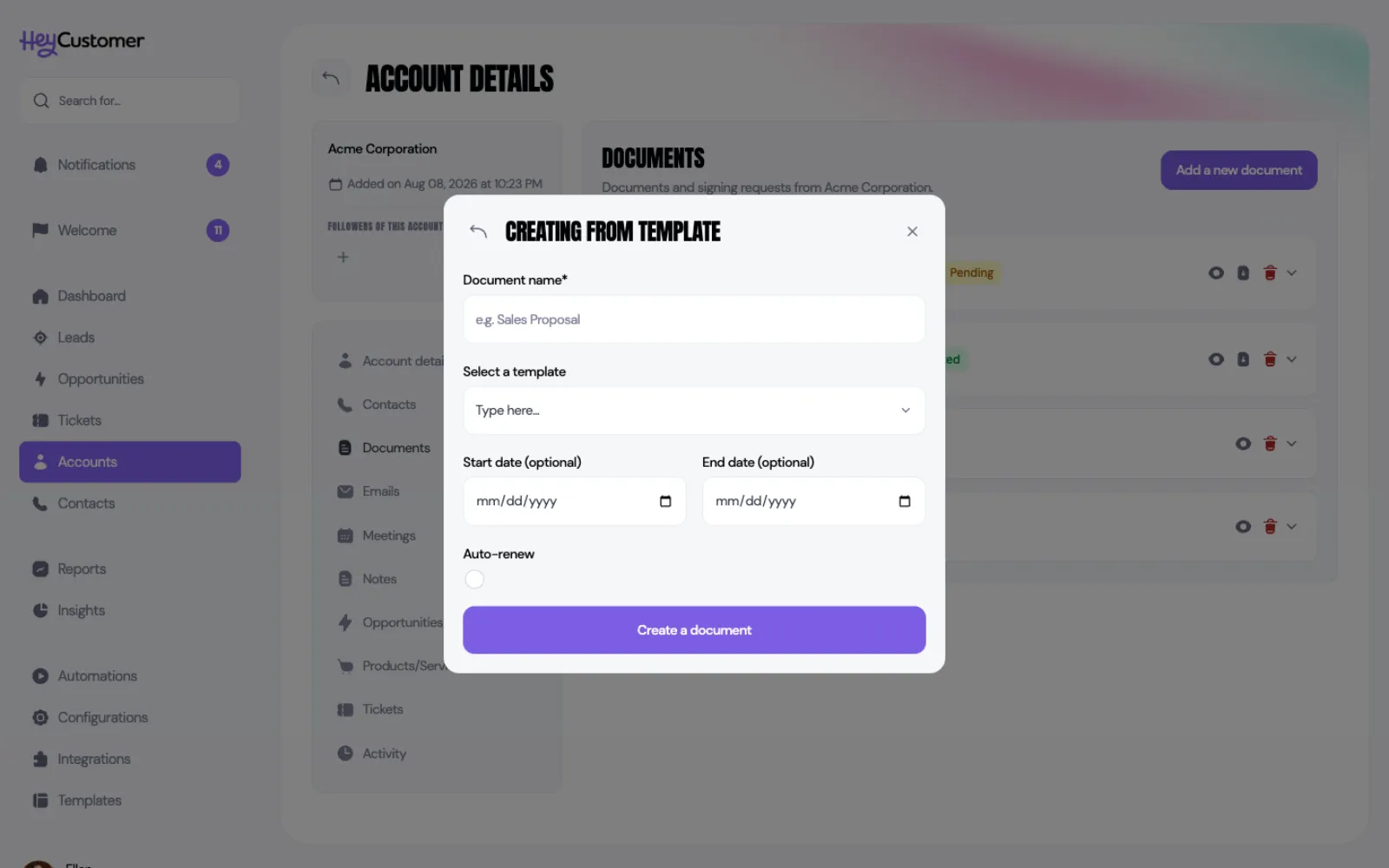
Select Add a new document, then Create from template.
Give the document a name and choose your template.
Add a start and end date if the document runs for a term, and turn on Auto-renew if it should roll over.
Select Create a document.
The document is created on that record with your template's wording, ready to send for signature. The placeholders fill with that account's and that deal's real details when the document is turned into a PDF or sent out to sign.
Good to know
A document keeps its own copy of the wording from the moment you create it. Editing the template afterward changes what future documents say, never one already created.
If your organization has no document templates yet, Create from template tells you so and points you at making one.
Images pasted into a template have to be under 200KB each. Anything larger is refused when you save, with a note asking you to compress it first.
Roles are matched on exactly the text you type, so keep them consistent. {{signer.client.signature}} and {{signer.Customer.signature}} are each a separate signer from {{signer.customer.signature}} — a typo or a stray capital quietly adds someone to sign.
Editing a shared template changes it for everyone, immediately.
Names have to be unique, and a template name can run to 100 characters.
You need permission to add and edit document templates to open this tab at all. Templates always appears in your menu; without the permission, opening it takes you to Configurations with a note explaining why.
Deleting a template asks you to confirm and can't be undone. Documents already made from it are untouched.