Have a report land in the right inboxes on its own
Once a report is saved, you can put it on a schedule and stop thinking about it. Hey Customer runs it for you daily, weekly or monthly and emails the results as a file — to your team, to one person, or to an address that has nothing to do with Hey Customer at all.
How it works
A schedule belongs to a saved report, so build and save the report first. Everything about what the report contains — its columns, filters and sorting — is decided there. A schedule only decides when it runs and where the results go.
If you built the report by describing it in plain English and mentioned a cadence — "email it to me every Monday morning" — the schedule page opens already filled in as soon as you save. Check the day, time and recipients, then select Create schedule. Nothing is sent until you do.
At the moment the schedule comes due, Hey Customer runs the report fresh against your current data, turns the results into a file, and emails that file as an attachment. Recipients don't need to open Hey Customer, and they don't need an account.
One report can carry several schedules. A daily one to you and a Monday-morning one to a wider group is a perfectly normal setup.
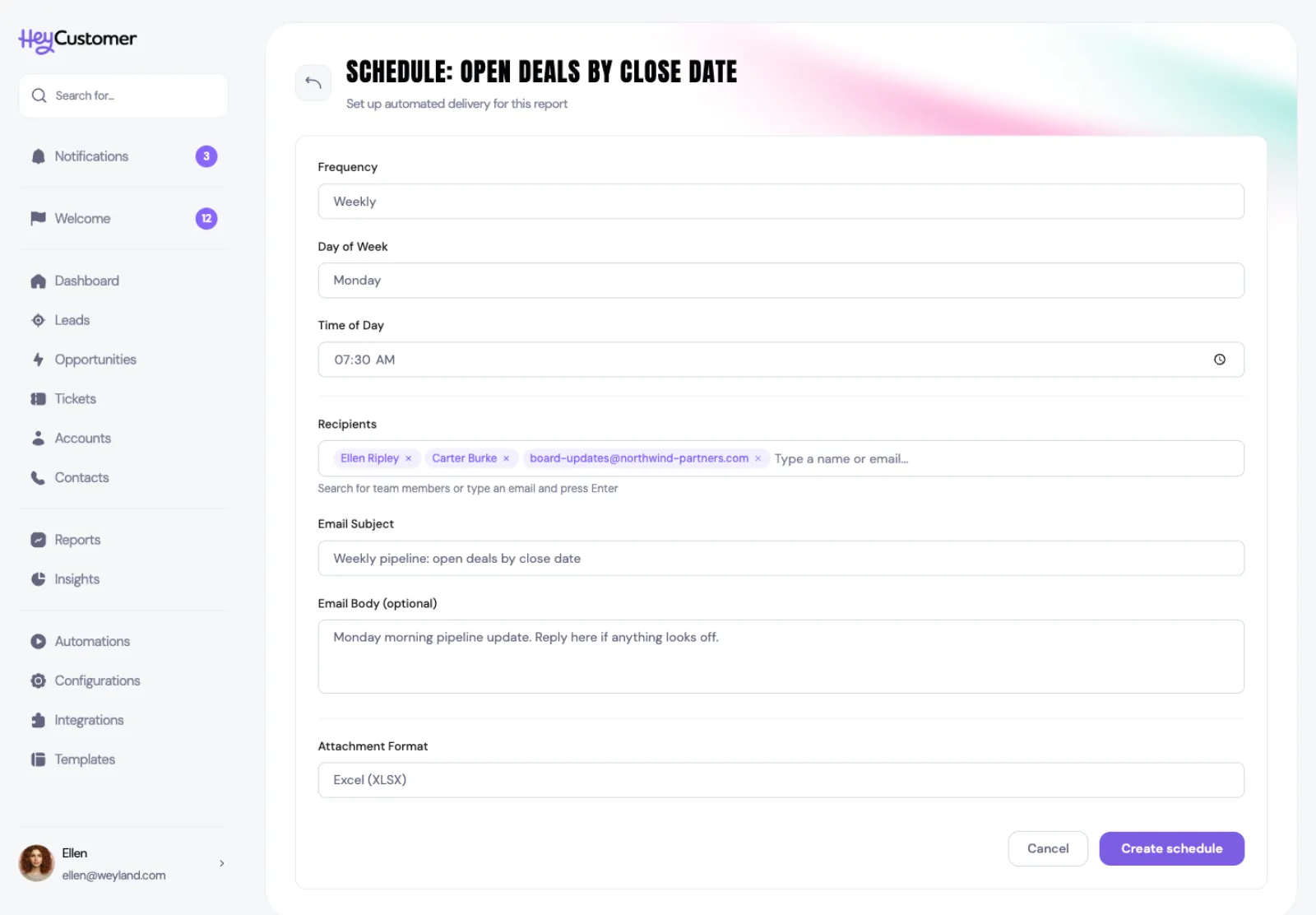
Set up a schedule
Open the saved report you want to send.
Find the Active Schedules card and select Create a schedule.
Choose a Frequency: Daily, Weekly or Monthly.
For a weekly schedule, pick the Day of Week. For a monthly one, pick the Day of Month.
Set the Time of Day.
Add your Recipients.
Adjust the Email Subject, and add an Email Body if you want to say something alongside the numbers.
Pick an Attachment Format: CSV, Excel (XLSX) or PDF.
Select Create schedule.
Send it anywhere
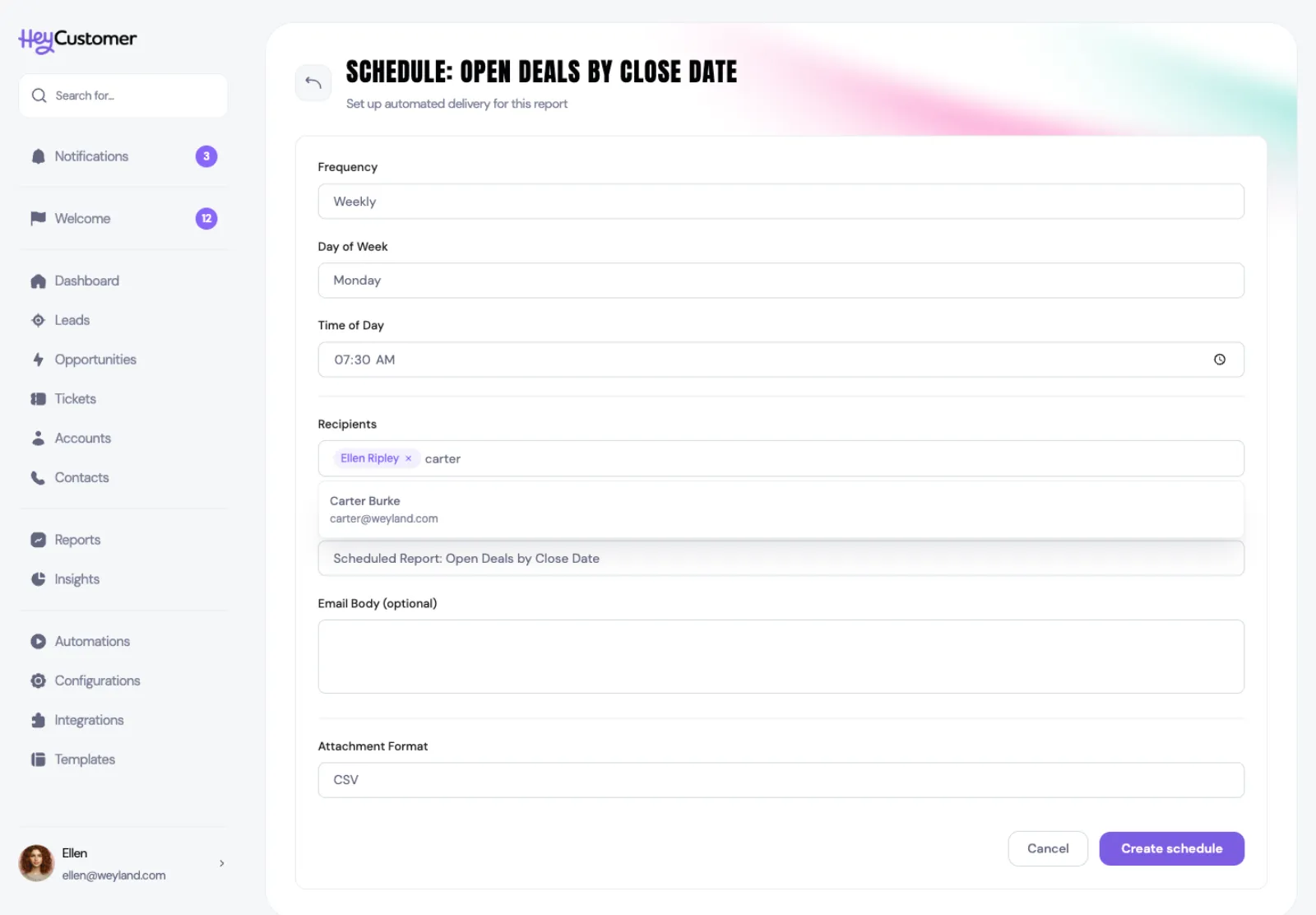
The Recipients field takes two kinds of entry, and you can mix them freely in one schedule.
Teammates. Start typing a name and pick the person from the list.
Any email address at all. Type the full address and press Enter. It doesn't have to belong to anyone in your organization — a client, an accountant, a shared inbox, a board distribution list, a colleague who's never logged in. If mail reaches it, Hey Customer can send there.
Each recipient becomes a chip you can remove with its × . Your own address is filled in when you start, so take it out if you don't want the email yourself.
Recipients all receive the same message. The email comes from Hey Customer with your organization's name as the sender, carrying whatever subject and body you set and the report file attached.
Check on a schedule
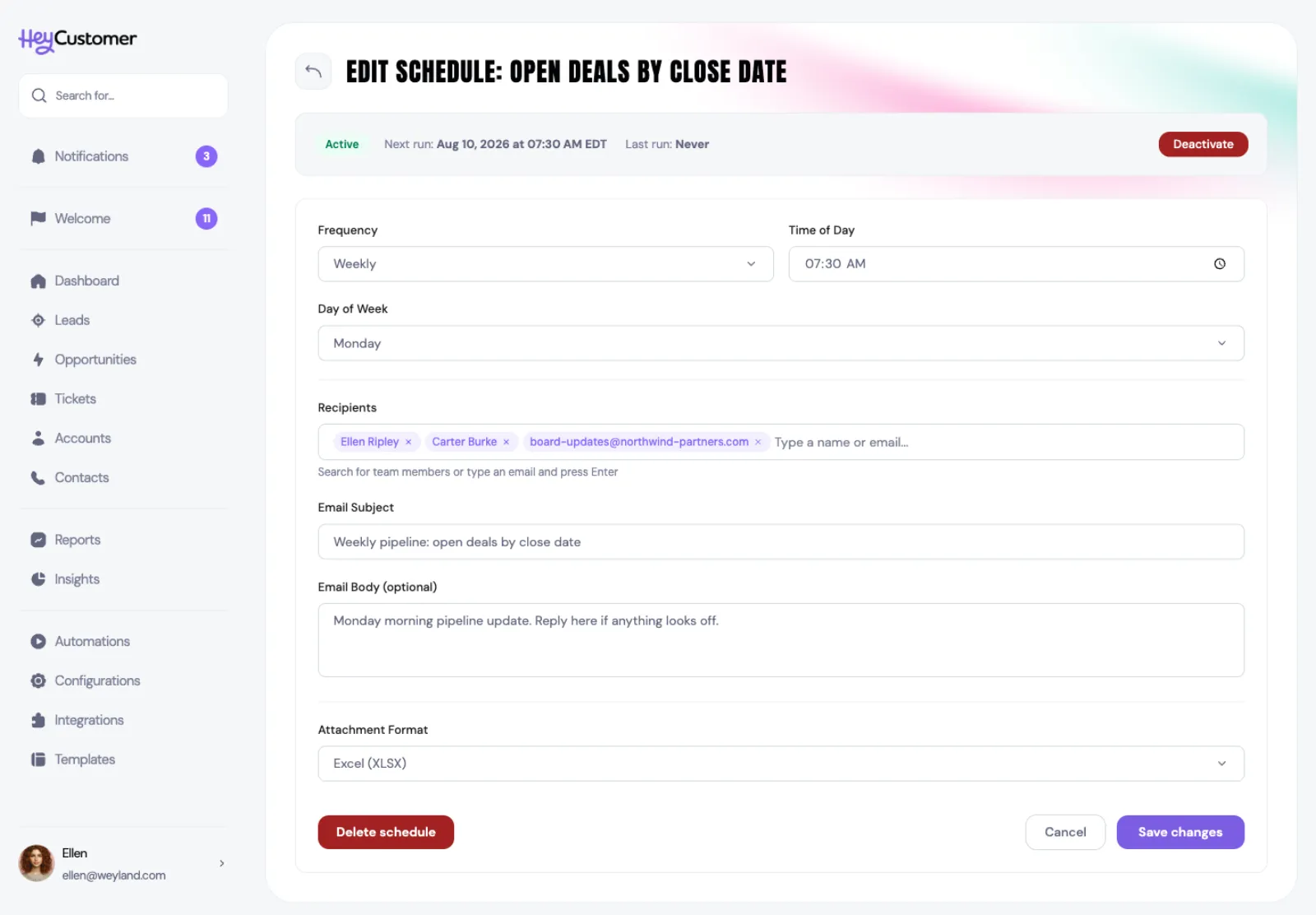
Every schedule has a status strip across the top showing whether it's running, when it goes next, and when it last went.
Deactivate pauses a schedule without deleting it. Nothing is sent while it's paused, and Activate starts it again from the next matching slot.
Save changes applies edits. Change the frequency, day or time and the next run is recalculated straight away.
Delete schedule removes it for good. The report itself is untouched.
See everything on a schedule
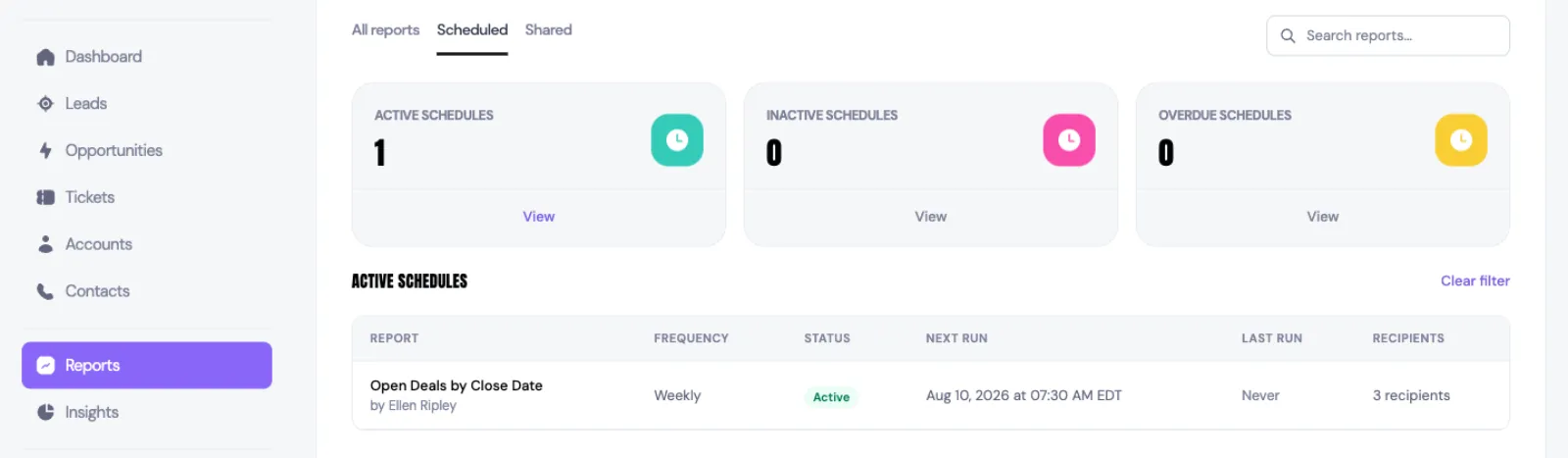
Go to Reports and open the Scheduled tab for every schedule you can see in one place, with counts of how many are active, paused, or overdue.
Select any row to open that schedule and edit it.
Good to know
Times run in your organization's time zone, set under Configurations, then Organization Profile. A 7:30 AM schedule means 7:30 AM there, and it follows daylight saving.
Monthly schedules can be set from the 1st to the 28th. That keeps the send date real in every month, February included.
A schedule can have up to 50 recipients. Duplicate addresses are merged automatically.
The attachment holds the full set of results, up to 10,000 rows.
Each send runs the report fresh, so the file reflects your data at the moment it goes out, not when you set the schedule up.
Leave the subject alone and the email arrives titled with the report's name and the date it ran.
If a delivery fails, the person who set up the schedule gets an email about it, so a broken schedule doesn't fail quietly.
A schedule marked Overdue is one whose send time has passed without running yet. It's usually a sign the run is still catching up.
Deleting a report deletes its schedules too.
You can see and edit schedules on reports you created and on reports shared with you.